Whether you’re a Mac desktop or MacBook owner, there’s nothing quite like finding that keyboard that fits perfectly within your setup.
A keyboard, just as with picking the best mice for Mac, is a very personal choice. After all, you’re likely to be pressing its various keys and twirling its dials for hours each day, and that makes getting the investment right all that much more important.
Best Mac Keyboards fully tested
We have all sorts of Mac keyboards in this round-up, including Apple’s default Magic Keyboard with Touch ID and the cheaper, and still-on-sale Magic Keyboard. We have some keyboards with customizable keys and dedicated apps, and wired keyboards (for those fed up with searching for new batteries every few weeks) as well as ergonomic solutions to help you avoid RSI, and some pretty stylish offerings that give Apple a run for its money.
We also look at Hall Effect options that use magnetic sensors to detect key presses, full-size offerings and compact board. Here are our favorite keyboards for Mac users, many of which cost a lot less than Apple’s. Read on to find the Mac compatible keyboard that’s best for you.
You can also use Bluetooth keyboards with iPads, so expect to see some good options here if you are an iPad user, or take a look at our Best iPad Keyboards roundup.
1. Apple Magic Keyboard with Touch ID – Best Mac keyboard with Touch ID
Pros
- Touch ID key
- Nice design
Cons
- Expensive
- No backlight
- Black version costs more
Best Prices Today:

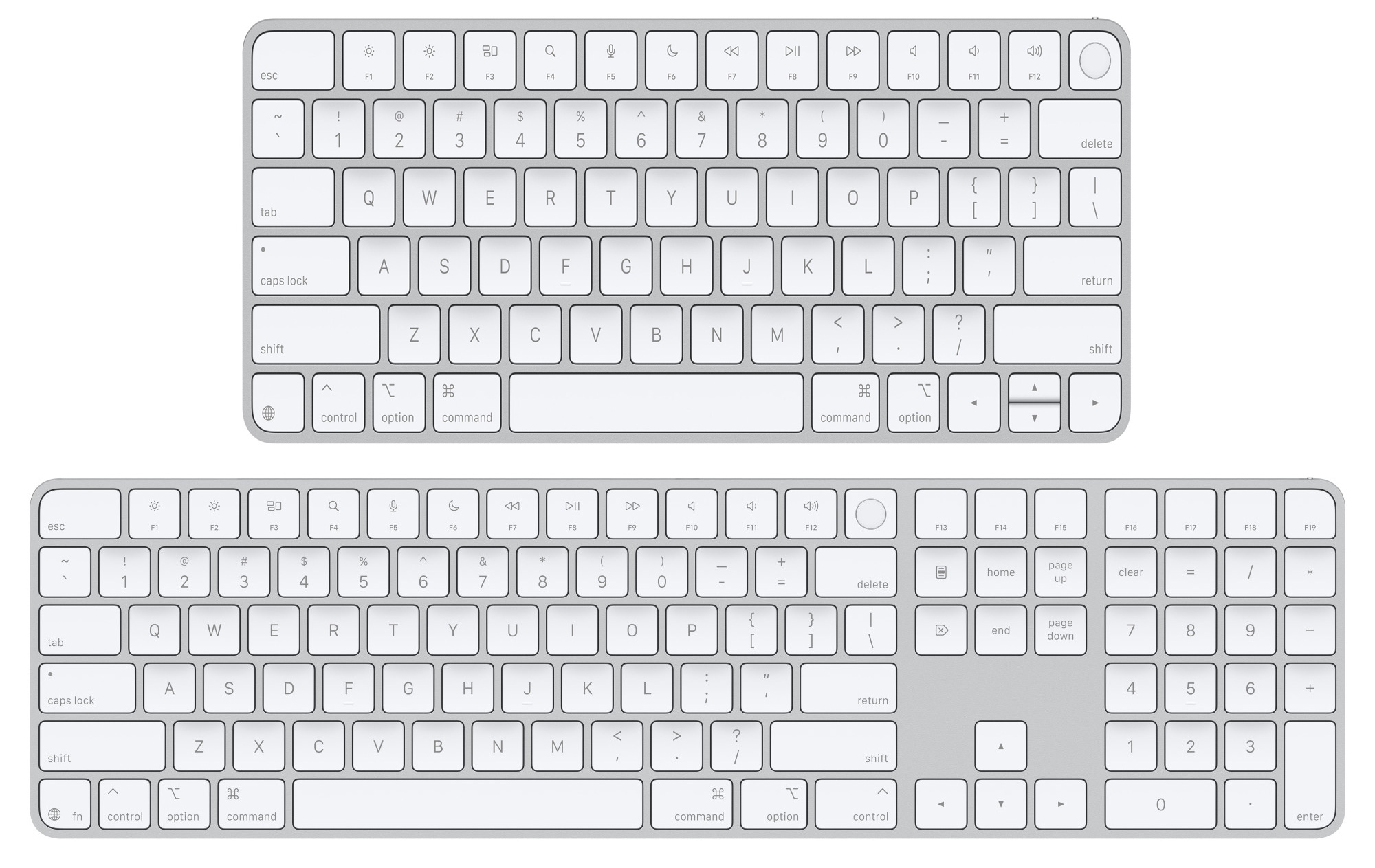
Apple sells four models of its Magic Keyboard, and some are more magical than others despite looking similar. There are two sizes (one with numeric keypad and navigation keys, and a smaller, more portable model without these extra keys). If your desk space is limited or you often travel with your keyboard, the 11-inch version makes more sense than the 16.5-inch keyboard.
- Keyboard type: Slim
- Size options: Compact, Full
- Colors: White, Black (full-size only)
Aside from size, the two different models are differentiated by the inclusion of a Touch ID key, which works only with Macs that have an M-series Apple Silicon processor (post 2020). If your Mac is old enough to still be running an Intel chip, go for the non-Touch ID model. Only the Magic Keyboard with Touch ID and Numeric Keypad is available with black keys; the others are all-white affairs. rather cheekily, Apple charges an extra 20 buck for the black version. Each is available in nearly 20 different language versions. English speakers can choose between US or British English.
The basic design of the two keyboards hasn’t actually changed that much, with the same slimline design and month-long battery life as their predecessors. At $149, the smaller Magic Keyboard With Touch ID is priced at quite a premium for the Touch ID sensor. And, like the standard Magic Keyboard, it feels rather cramped, with a small Space bar and cursor keys. The lack of ‘travel’ (the up and down movement of the keys as you press them) also makes the keyboard feel a bit lifeless for people who type a lot and need a bit more tactile feedback when they’re typing up a storm—they should consider one of the mechanical keyboards reviewed below. Then again, you might feel that your fingers have to do less ‘work’ compressing the key.
The key feature of these keyboards, though, is the Touch ID sensor, which sits by the F12 button on the top row of Function keys. This works just like the Touch ID sensors on the MacBook. You’ll see a Touch ID panel appear in System Preferences when you first connect the keyboard. This allows you to store up to three fingerprints, which you can use to unlock your Mac, or to make secure payments on the Apple Store, or other online stores that support Apple Pay.
There are a few other new features as well, including an Emoji command on the Fn key in the bottom-left corner of the keyboard, which displays the Emoji viewer panel so that you can quickly add emojis to any document or message that you’re typing. There are new Function commands too, for activating Spotlight, Dictation and Do Not Disturb.
As always, the larger version of the keyboard is even more expensive ($179 white, $199 black) but the numeric keypad will be useful for people who do a lot of number crunching at work. There’s more room to provide a larger Space bar too, and larger navigation keys. Even so, the thin keyboard panel means that the keys still feel a bit lifeless, so business users and budding novelists may prefer to look at one of the larger and more solidly built keyboards available from other manufacturers reviewed here.
Save money by checking Amazon for: Smaller Apple Magic Keyboard with Touch ID (U.S. and U.K.); Apple Magic Keyboard with Touch ID and Numeric Keypad (U.S. and U.K.). For the cheaper Apple Magic Keyboard without Touch ID: Small (U.S. and U.K.); with Numeric Keypad (U.S. and U.K.). To further complicate your choice, Amazon still sells versions with a Lightning rather than USB-C charging port. We have linked here to just those that charge with USB-C.
2. Logitech MX Keys S For Mac – Best Mac keyboard for power users
Pros
- Competitive price
- Function keys and numeric keypad
- Super sturdy
- Backlight
Cons
- Backlight drains battery
Best Prices Today:
- Keyboard type: Slim
- Size options: Compact, Full
- Colors: Space Gray & Pale Gray (full-size); Graphite, Pale Gray, Black, Rose (compact)
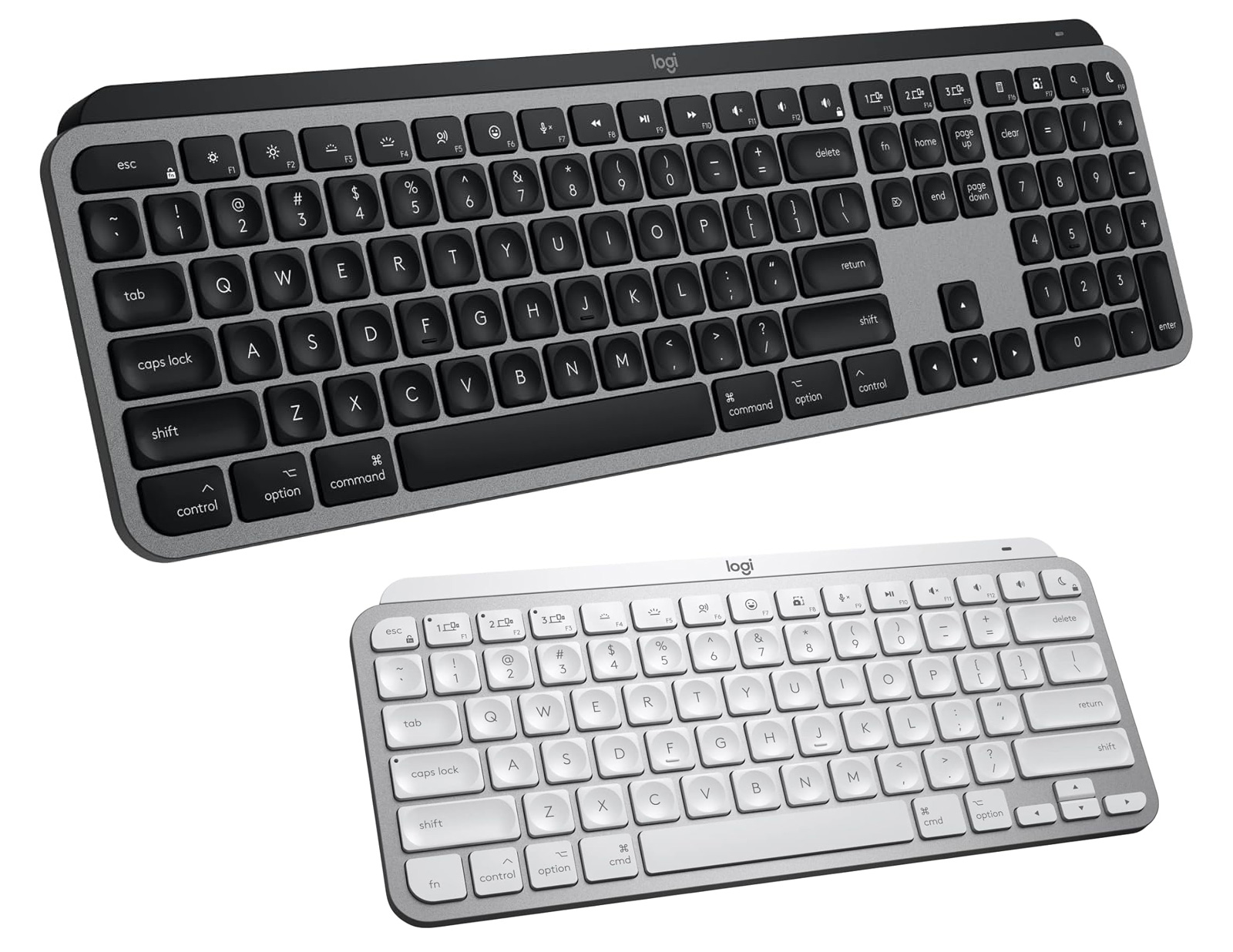
It’s hard to keep up with Logitech’s ever-growing MX range of keyboards, but the Logitech MX Keys S For Mac ($129.99 / £109.99) is its top-of-the-range wireless keyboard, priced at $109.99/£109.99. Its slimline, low-profile design is very smart and attractive, and available in either Space Gray or Pale Gray. It’s the most solidly built Mac keyboard we have tested, and is capable of surviving some heavy-handed typing when it needs to.
The MX Keys S For Mac is significantly cheaper than Apple’s Magic Keyboard (from $179/£179), but also a lot more versatile, as it includes a dedicated set of buttons that allow you to pair it with three separate devices, including Macs, iPads, Windows PCs, and even Linux and Chrome devices. It does, like all non-Apple keyboards, lack the Magic Keyboard’s Touch ID key.
Look for the “For Mac” model as it offers a Mac dedicated layout. The Command Key is the giveaway when you want to ensure you have the regular Mac keyboard layout. There are different models for U.S. and U.K. layouts, too—which you don’t get with the Satechi keyboards.
The original MX Keys was launched a few years ago, so this updated MX Keys S includes a number of new features, such as Function keys that can be used to activate dictation on your Mac, open the emoji menu, or mute/unmute your microphone for video-calls. The backlighting has been improved too, automatically reacting as you first move your hands onto the keyboard, and adjusting to suit the ambient light in the room around you. The backlight does drain the battery though—the keyboard can last for up to five months if you’re not using the backlight, but this drops to around 10 days if you have the backlight on all the time.
You can use the MX Keys S with any Mac, and it will work like a standard keyboard with a row of Function keys that control settings such as brightness and volume, or activating Exposé. However, Logitech also provides an app, called Options+, which requires macOS 12 or later. This allows you to reprogram the various Function keys to perform different tasks. It can also be configured to work with specific apps such as Photoshop or Premiere, which makes it a particularly good option for professional users who want to speed up work in their key apps. The app has also been updated for the MX Keys S, adding a new Smart Actions feature that works a bit like Apple’s Shortcuts, by allowing you to record a series of actions that can be triggered using a single key.
The compact Logitech MX Keys Mini for Mac ($99.99 / £109.99) drops the numeric keypad.
3. Logitech POP Icon Keyboard – Best budget keyboard for Mac users
Pros
- Great looks
- Nice key feel and quiet keystroke
- Smart functions for AI and multitasking
- Three Bluetooth channels
- Long battery life
Cons
- Slightly cramped layout
- Mouse is not very ergonomic
- No backlight
Best Prices Today:
- Keyboard type: Slim
- Size options: Compact
- Colors: Lilac, Rose, Orange, Green, Graphite
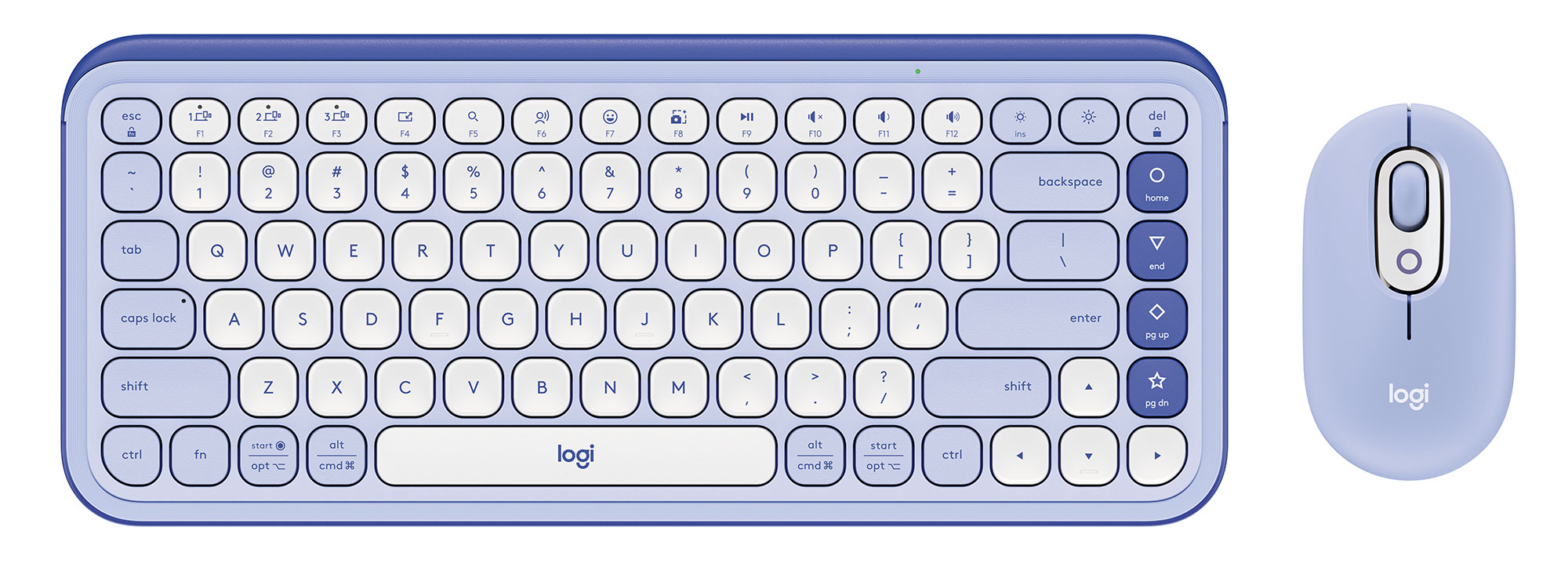
Logitech’s POP Icon keyboard has a matching POP mouse that are available as a combo set or individually. (Read our Logitech POP Icon Combo review.)
As always with Logitech’s Pop series, the attractive design of the keyboard immediately catches the eye. It come in Graphite & Green, Graphite & White, Lilac & Off-White, Off-White & Orange and Rose & Off-White. Logitech can certainly do great colors.
We like the contoured, flat keys of the POP Icon keyboard. They feel comfortable when typing and are quiet, which is, of course, less of an attraction for fans of mechanical keyboards—if you prefer the clickety-clack, look to Logitech’s $99 Pop Keys mechanical models.
Thanks to its slim design, the Pop Icon keyboard is also easy to position and has all the keys you need. However, the layout is also a little cramped as some important keys are close together. The Pop Icon keyboard also offers all the usual shortcut key combinations, such as for muting, an emoji menu or taking a screenshot. The four action keys can be customized using the Logi Options application, which is available to download free of charge.
The Logitech Pop Icon Keys is compatible with multiple operating systems and devices and can be connected to up to three devices simultaneously. This means you can switch between different laptops with a single click.
According to the manufacturer, the keyboard has a battery life of up to 36 months. It uses standard AA batteries rather than being recharged via USB.
The Logitech Logi Options app can be installed and used free of charge. It provides the Smart Actions already described as well as an AI Prompt Builder, which is based on ChatGPT 4. This allows texts to be copied automatically and reworded, shortened or suitable responses formulated using preset commands.
4. Lemokey L1 HE – Best Mac keyboard for gamers
Pros
- Excellent linear switches
- Ear-pleasing typing sound
- Magnetic Hall effect switches
- Highly customizable
Cons
- Substantial weight
- No height adjustment
- Only U.S. layout available.
- Expensive
Best Prices Today:
- Keyboard type: Mechanical
- Size options: Compact
- Colors: White, Black, Silver
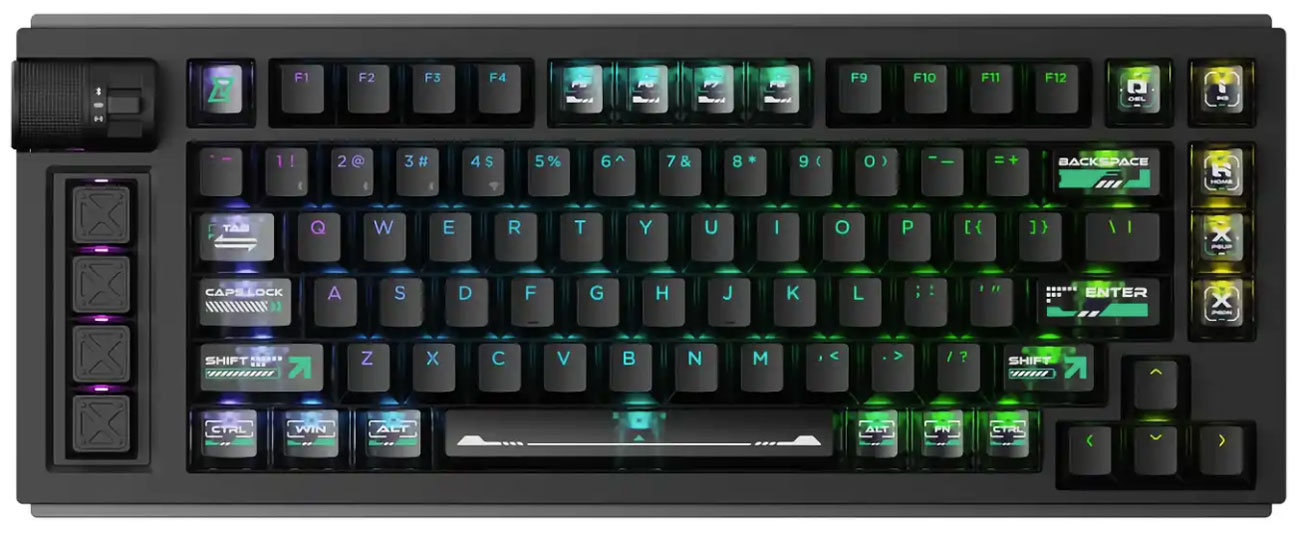
The Lemokey L1 HE is one pricey keyboard, but you certainly get a lot for your money–incredible build quality and a raft of high-quality features. If money’s no object and you want a premium gaming keyboard, the L1 HE fits the bill. From a sound point of view, it brings a thocky sound that is deeply satisfying when you’re firing off sentences at a rapid clip.
The L1 HE comes in a 75 percent layout, which essentially chops off the numpad and loses a fistful of bonus keys for good measure. It offers the standard QWERTY keys and a function row, alongside a few extras (Delete, Insert, Page Up, Page Down, Home, but no End). If you think that makes this a more portable keyboard, note that it’s built like a tank, with an all-aluminum chassis and barely a strip of plastic in sight. It tipped the scales at a smidge under 4.5 lbs (over 2kg).
The Lemokey L1 HE is loaded with gamer-pleasing features, including a rapid trigger mode that repeatedly actuates without requiring each key to be fully released, a Snap Click feature that allows two keys to be alternated in quick succession, an analog mode that permits fine-grained control rather than binary on/off statuses, and more.
On the left-hand side of the keyboard are four programmable macro keys, which can be set using Lemokey’s Launcher companion app. Above them is a customizable roller (set to adjust system volume by default) and a flip switch for changing between Bluetooth, wired and 2.4GHz modes. The roller is textured and firm, if a little heavy in action, while the flip switch clicks satisfyingly in use. These switches come pre-lubed for smoother motion and also feature magnetic Hall effect tech as opposed to a more traditional mechanical switch structure.
Sadly, this keyboard lacks any kind of height adjustment, and that resulted in a degree of discomfort after only a short period of typing. I eventually got used to it, but the lack of height adjustment means its ergonomics are sub-par.
Given its $240 price tag, the Lemokey L1 HE isn’t an impulse buy for most people. That said, it’s stuffed with high-end features that will benefit typists and gamers alike, from its hot-swappable Hall effect switches and smooth acoustics to its huge customizability and compatibility with both macOS and Windows layouts. Alex Blake
Read our full
Lemokey L1 HE Gaming Keyboard review
5. Satechi Slim X1, X2 and X3 – Best budget backlit Mac keyboards
Pros
- 10 adjustable backlight levels
- Quiet keystrokes
- Three Bluetooth channels
- Long battery life
Cons
- Backlight can drain the battery quickly
- Only U.S. layout available
- Keyboard type: Slim
- Size options: Compact, Mid, Full
- Colors: Space Gray, Silver
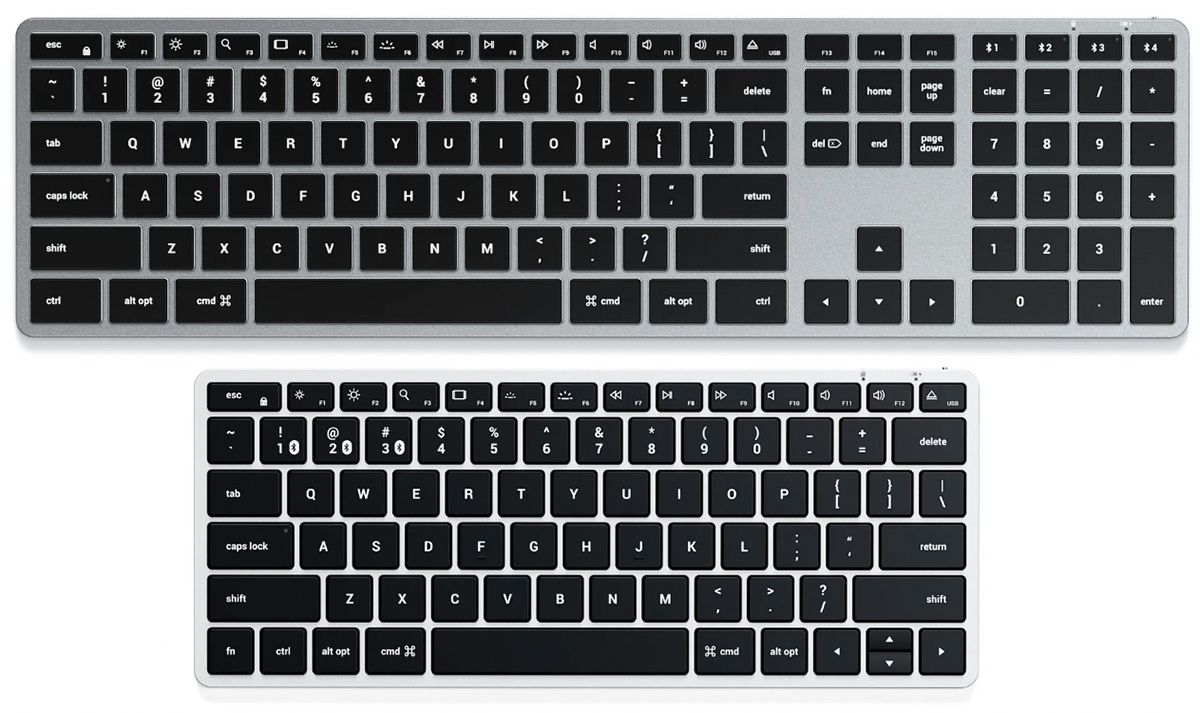
Satechi offers a wide range of low-rise Mac keyboards, including the Slim X and new Slim EX ranges. There are subtle differences between these keyboards, between functionality and size.
Unless you live and work in a super-bright environment, adding visibility to your keyboard can help you locate the right key, which is especially helpful for non-touch typists and those that type at night. Backlit keyboards can improve visibility and reduce eye strain and casual errors. In my opinion, they can make a workspace look better, too.
The aluminum Slim X keyboards boast ten adjustable brightness levels for you to customize the keyboard’s backlight to your preference and environment. The smallest is the Slim X1, which is great for portability or smaller desks; it’s perfect for people who don’t use a numeric keypad or navigation keys. The Slim X2 adds a numeric keypad, but for the largest and most able of the range the Slim X3 gets numeric keypad plus navigation keys.
To cope with the backlighting demands, the Slim X1 has a 1000mAh battery, and the Slim X3 is even more impressive at 1300mAh—meaning longer between USB-C recharging sessions.
With the Slim X series, you can type across three connected wireless devices with assigned Bluetooth keys. To add a fourth, check out the Satechi Slim EX range, reviewed below.
The only disappointment for international users is that Satechi is a U.S.-centric company, so its keyboards only offer U.S. layouts. That’s not too much of a problem for U.K. users, though, as you can still use standard commands such as ‘Shift+3’ to print the ‘£’ symbol, even though the U.S. layout means that the ‘3’ key is labeled with the ‘#’ symbol. But, if you need non-English layouts then you’ll need to look elsewhere.
6. Satechi Slim EX1 and EX3 – Best Mac keyboard for multiple devices
Pros
- Three Bluetooth channels
- 2.4GHz receiver
- Quiet keystrokes
- Long battery life
Cons
- No backlight
- Only U.S. layout available.
- Keyboard type: Slim
- Size options: Compact, Full
- Colors: Silver, Space Black
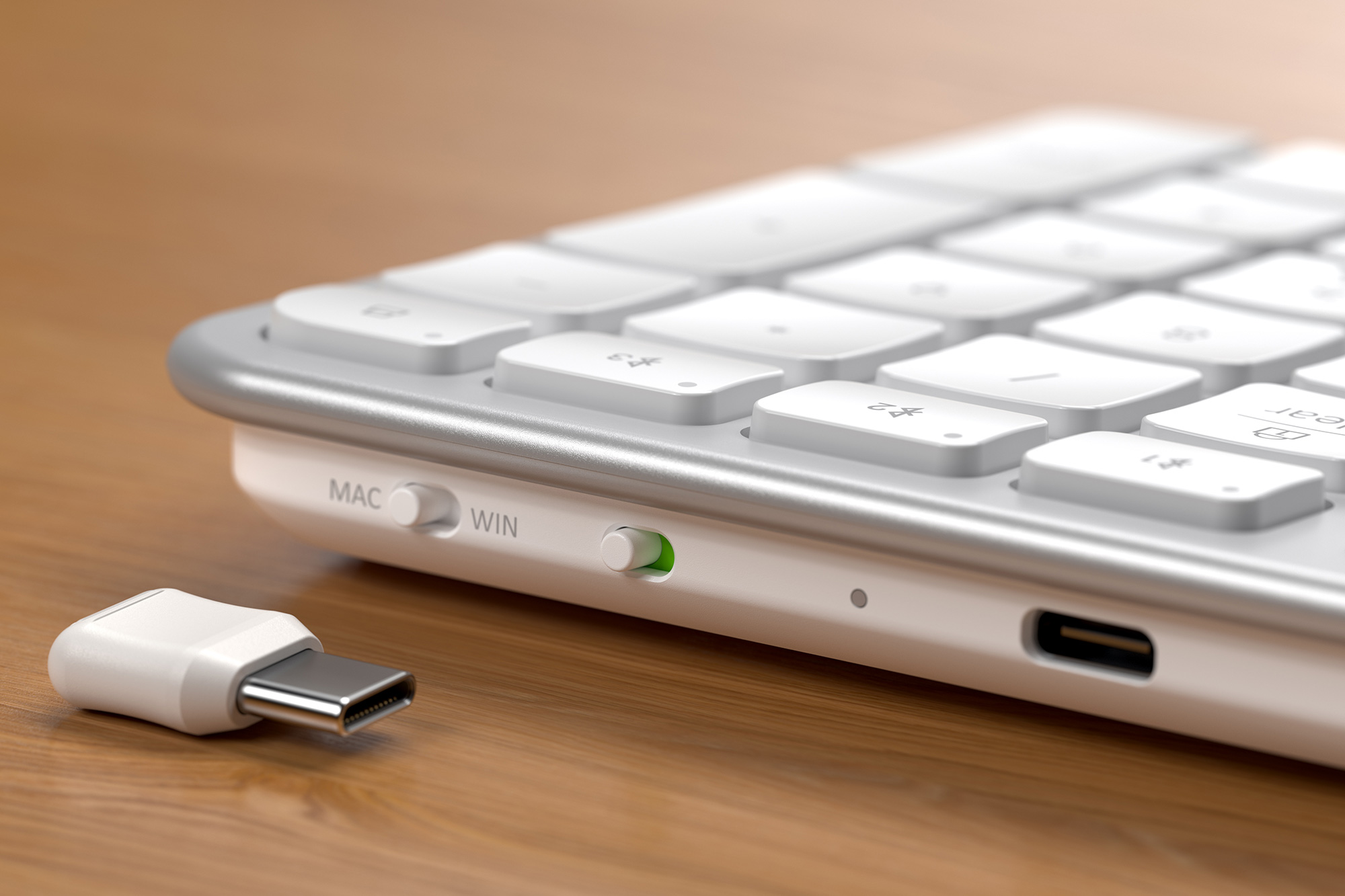
Recognizing that many of us don’t work on only one device anymore, Satechi has designed a keyboard that moves smoothly between platforms. The Slim EX range is similar to the company’s Slim X keyboards, reviewed above, but go one further with not just the Slim X’s three Bluetooth connections but an additional 2.4GHz USB-C dongle, which is neatly tucked at the back of the keyboard.
Apple’s default Magic Keyboard is set to control just one device but this can be modified in the Mac’s Universal Control setting (System Settings > Displays > Advanced) to allow keyboard to move between a nearby Mac or iPad that are signed into your iCloud account. This process is much simplified in the Satechi Slim EX.
The two Slim EX keyboards can work across Mac, Windows, iPad, and iPhone. OS-specific key mapping is automatic for macOS and Windows. There’s even a physical idiot-proof switch to flick when moving between Mac and Windows. This is placed near to the On/Off switch plus USB-C recharging port, and just below the Bluetooth switching buttons.
The Slim EX1 is the most portable model, with the Slim EX3 adding numeric keypad plus navigation keys. The rechargeable 450mAh battery is not as capacious as the Slim X range, but it is user-replaceable battery which should reduce future electronic waste.
There’s a sibling Slim EX Mouse, available in the same Silver and Space Black colors, that has two Bluetooth channels and 2.4GHz receiver.
7. Alogic Echelon Wireless Keyboard – Affordable full-size wireless Mac keyboard
Pros
- Affordable keyboard
- Number pad
- Designed for Mac
- Extra Mac shortcuts
Cons
- No backlight
Best Prices Today:
- Keyboard type: Slim
- Size options: Full
- Colors: Gray
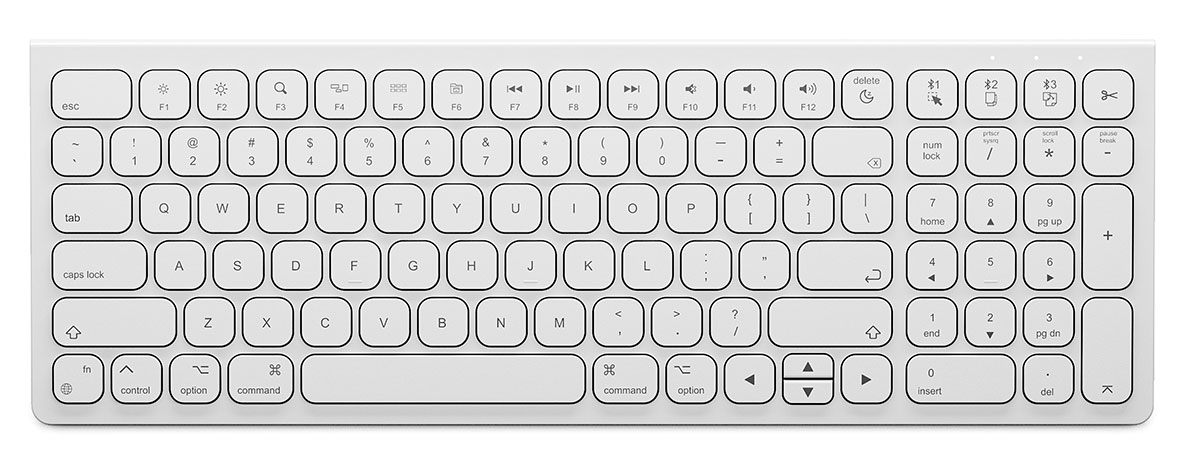
The Echelon Wireless Keyboard for macOS is a well-made full-size, slim Mac keyboard with a handy number pad to one side. It’s available in white only for Mac, although there does exist a black version for Windows.
The keys are marked as you’d expect them as a Mac user, and international layouts are available for your region (U.S., U.K., DE/QWERTZ, FR/AZERTY).
There are special keys for shortcuts to copy, cut and paste. Other keys enable you to go straight to your home or desktop folder, and lock, sleep or shutdown your Mac.
It supports seamless switching between up to three paired Bluetooth devices, transitioning between, say, iPad, MacBook or shared hot desk keyboard.
Unlike with the Logitech keyboards, there is no software for changing the functionality of the keys.
8. Satechi Slim W1 and W3 – Best wired keyboards for Mac
Pros
- Good build quality
- Affordable
- Lots of Function keys
- Wired connection (USB-C)
Cons
- Quite large
- Lies very flat on the desk
- Backlight can drain the battery quickly
- Only U.S. layout available
- Keyboard type: Slim
- Size options: Compact, Full
- Colors: Black
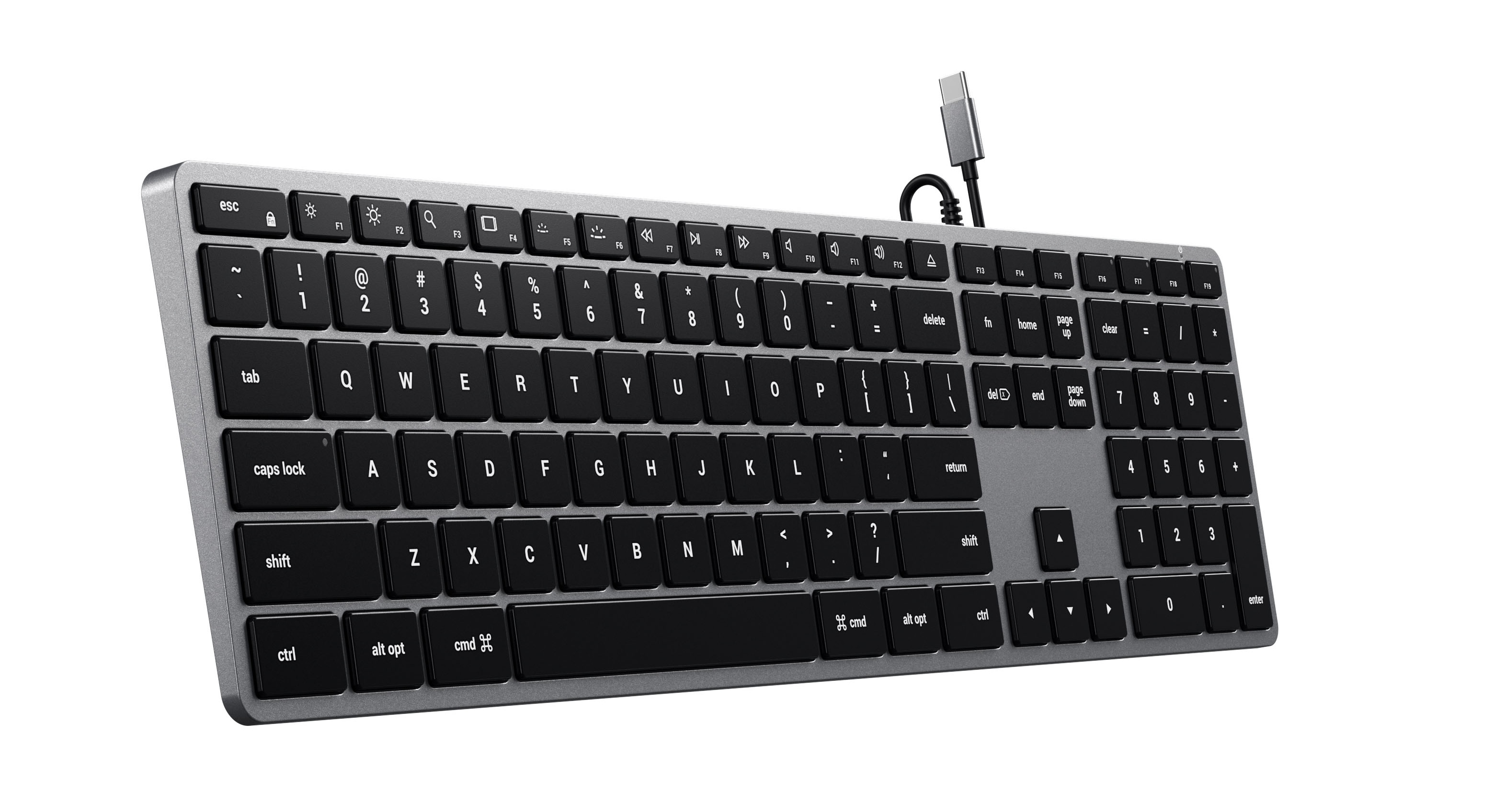
I’ve never understood the need to put batteries and Bluetooth into keyboards. After all, if a keyboard is just going to sit on your desk all the time then it’s both simpler and cheaper to opt for a straightforward USB connection instead. And, as this is a backlit keyboard, you don’t have to worry about the backlight draining the battery either. Satechi is one of the few companies that still makes a good range of wired keyboards, such as the affordable Satechi Slim W1 (compact) and Slim W3 (full size), which cost from $59.99 / £53.99.
Satechi has a strong background in the Mac market—making some recommended Mac Thunderbolt hubs and docks—which ensures that the W3 provides good Mac support too.
The Slim W1 and W3 are aptly named, as they measures just 9.9mm thick, and lay almost completely flat on your desk, although Satechi also includes a couple of small risers that you can stick onto the base of the keyboard if you want to increase the tilt a little. It’s sturdily built too, with a tough aluminum panel that weighs 440g (W3), and the keys travel well given the slimline, low-profile design of the keyboard.
The W3 keyboard is quite large, measuring 42cm wide and 11.5cm deep, but it includes a numeric keypad, arrow keys, a set of navigation keys, and even manages to squeeze in no less than 19 Function keys as well, just like Apple’s more expensive Magic keyboards. If you want something a little more compact, the W1 omits the numeric keypad and navigation keys.
9. Keychron Q6 Max – Best mechanical keyboard for Mac users
Pros
- Customizable
- Color options
Cons
- Expensive
- Only U.S. layout available
Best Prices Today:
- Keyboard type: Mechanical
- Size options: Full
- Colors: Shell White, Carbon Black
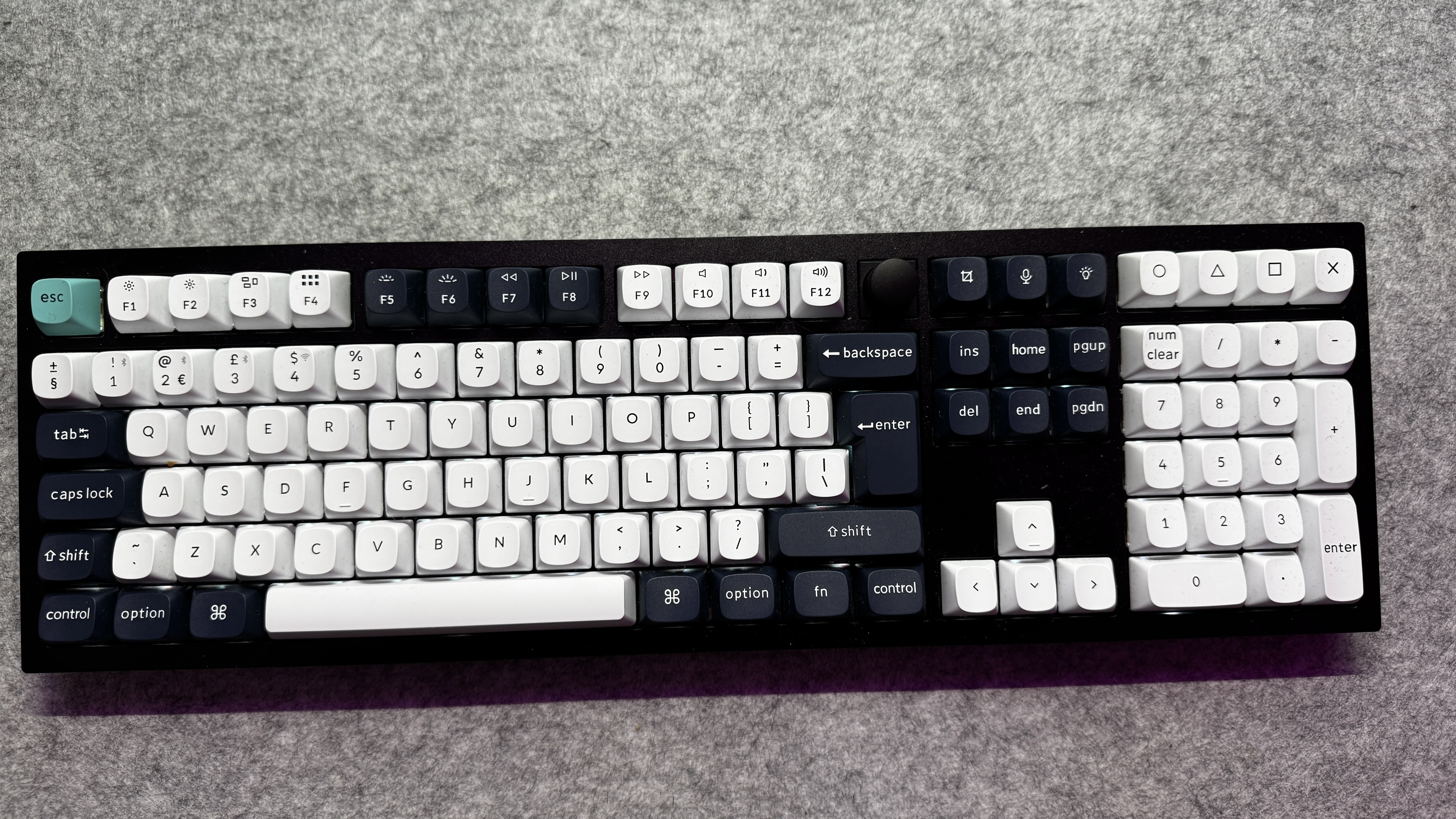
This big, beautiful beast from Keychron, is one of the most comfortable offerings around. As you’d expect from the manufacturer, it’s endlessly customizable (both in terms of hot-swapping keys and switches, and using Keychron’s web-based Launcher app), but it’s also incredibly comfortable to type on for long periods, despite a lack of wrist rest or adjustable typing angle.
It’s also pretty heavy, but if you’re not planning to move anywhere, it’s easy to recommend. While Keychron has plenty of smaller keyboards, this has a full numpad, and customizable macro keys above it, as well as a full function row and that oh-so-satisfying volume knob.
It’s not cheap, but it earns its price tag.
10. Keychron Q1 HE QMK keyboard – Sturdy Mac keyboard
Pros
- Solid build quality
- Quiet
- Smooth linear Hall effect switches
- Double-shot OSA profile PBT keycaps
Cons
- 75% layout leaves off keys
- Extremely heavy
- No height adjustment or wrist rest
- Caps Lock issue
- Only U.S. layout available
Best Prices Today:
- Keyboard type: Mechanical
- Size options: Compact
- Colors: Shell White, Carbon Black
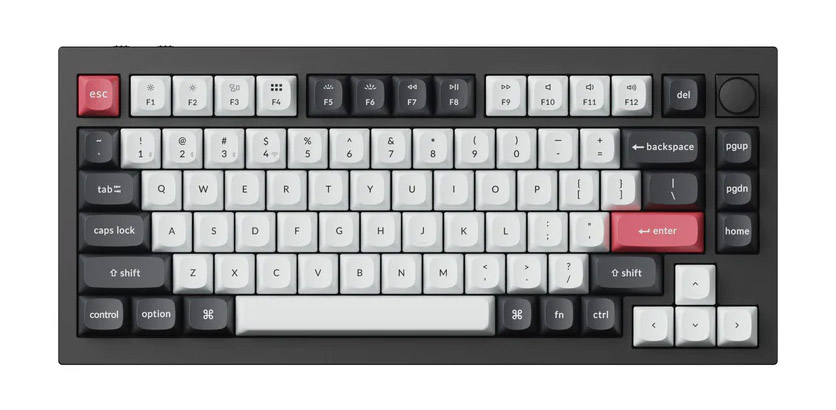
The Keychron Q1 HE QMK has quality touches everywhere you look. The metal case is made from 6063 aluminum – no bending or flexing anywhere, just a solid chunk of metal. It’s heft is unmistakable – weighed in at a beefy 1.74kg.
There are two color options to choose from: Carbon Black (black case and white, black and red keycaps); and Shell White, (white case and white, black and green caps). looks absolutely gorgeous when its south-facing RGB lights are aglow.
One criticism is that the Caps Lock indicator is difficult to see. When pressed, it changes the key’s underside backlighting from RGB to white and you can only really see this from directly above.
The Q1 HE offers a 75 percent layout, which features a compact design that chops off a few keys that you might not need (like the numpad).
In the top-right corner, you’ll find a knob that can be rolled and clicked in, and it’s set to adjust your computer’s volume by default.
Around the back is a toggle to flip between Windows and macOS key layouts. This ensures keys are where you expect them to be–so that the key labeled Option actually works like an Option key.
You don’t get height adjustment, there is no way to raise it up or tweak its typing angle. At this price, a wrist rest would be a welcome inclusion, but none is included.
Typing on the Keychron Q1 HE is incredibly quiet and the typing feel was comfortable. Although the Q1 HE isn’t marketed as a gaming keyboard, it holds up pretty well during gameplay.
11. Logitech Craft – Best Mac keyboard for creatives
Pros
- Backlit keys with proximity sensor
- Microsoft Dial-esque input dial
Cons
- Given the lack of interest in the Touch Bar we aren’t convinced by the dial
Best Prices Today:
- Keyboard type: Slim
- Size options: Full
- Colors: Black
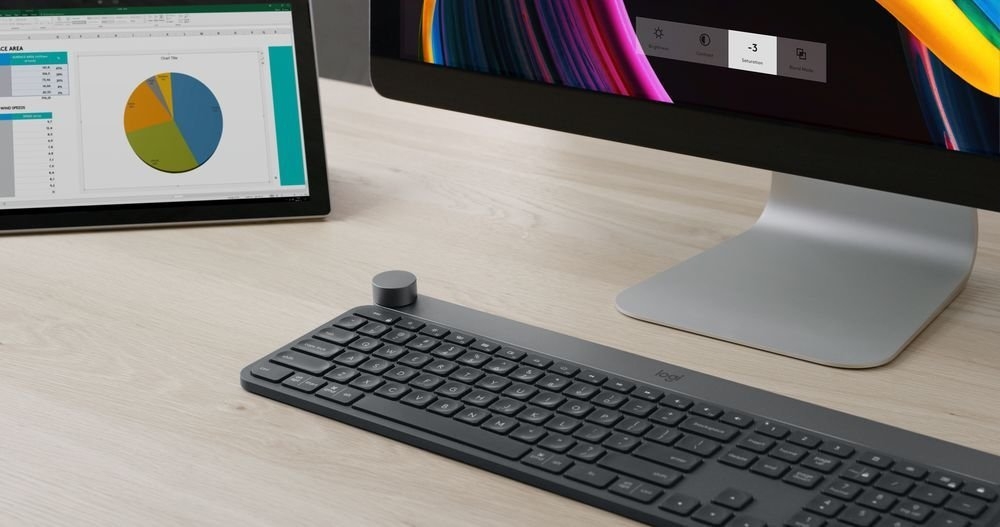
The Logitech Craft is Logitech’s wireless keyboard designed for creatives across Windows and Mac, and it’s incredible. The keyboard is sleek, gorgeous and features a solid body, providing a sturdy keyboard that will never move when in use.
The Craft features increased key stability that doesn’t only reduce noise when compared to similar keyboards, but the spherical key imprint makes it easier to orient your fingers and type quickly and accurately. The typing experience is near perfection, with both comfort and accuracy in mind.
It features backlit LED keys like many other keyboards, but with a difference. Thanks to a built-in proximity sensor, the keys will only light up when your hands are near the keyboard. Admittedly it’s only a small feature, but it really highlights the attention to detail required to develop this keyboard.
Of course, the key feature of the Logitech Craft is the Microsoft Dial-esque input dial on the top-left of the keyboard. The dial is completely contextual, and the functions will change depending on the app you’re using.
This is done automatically for popular apps like Google Chrome, Photoshop and Illustrator, but it can also be set up manually via the Logitech Options app. Tapping the dial provides access to a range of functions, from volume control to brush size to tab switching. Whatever you need, the dial can provide it.
The Logitech Craft is stunningly gorgeous and impressively practical, and is a must-have for all Mac power users, not just creatives. It costs $179 (currently on sale for $169.99)/£189 from Logitech.
12. Logickeyboard Final Cut Pro X Keyboard – Best keyboard for video editors
Pros
- Features FCP editing commands printed on the relevant keys
- Keyboards are available for other apps such as Logic Pro X
Cons
- Niche market, although it can be used as a standard keyboard
Best Prices Today:
- Keyboard type: Slim
- Size options: Full
- Colors: Black
Video-editing programs such as Apple’s Final Cut Pro X often use dozens of keyboard shortcuts to activate various editing tools and commands, and trying to remember all those shortcuts can be a real headache when you’re trying to get your work done in a hurry.
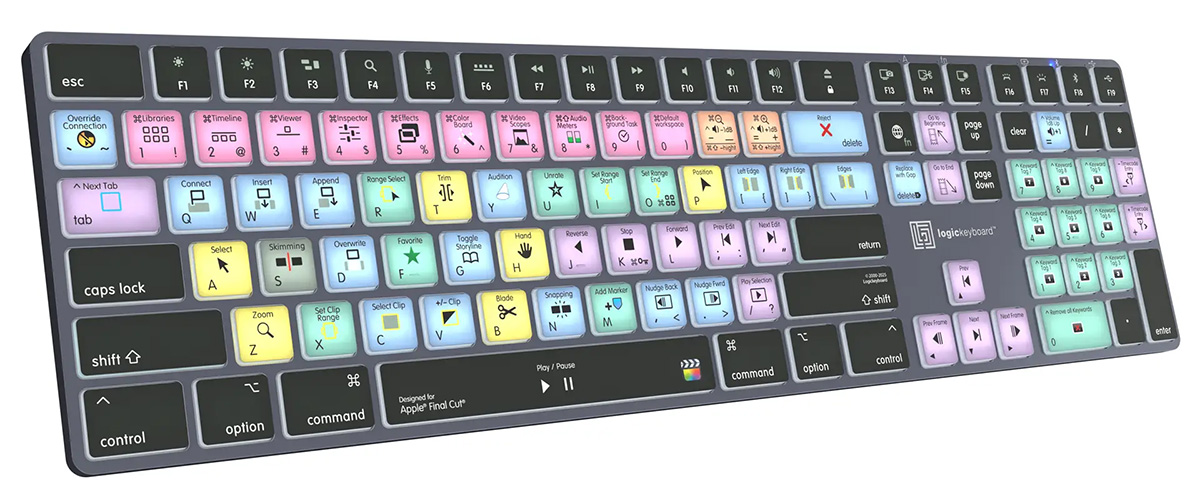
Logickeyboard produces specialized keyboards designed for Final Cut and other creative applications. The basic design of the keyboard is very similar to Apple’s own keyboards, with a slimline design and aluminum casing, and a handy pair of USB ports for plugging in a mouse and other devices.
It has all the same function keys as Apple’s keyboards, so you can control iTunes or adjust the brightness and volume. And, of course, it can be used as an ordinary keyboard for typing in Microsoft Word and other programs, and there’s a numeric keypad for data entry as well.
However, it also has the most important Final Cut editing commands printed on the relevant keys, and the keys themselves are color-coded for quick access.
LogicKeyboard also makes similar keyboards for other apps, such as Apple’s Logic Pro X and Adobe’s After Effects.
13. Logitech Wave Keys For Mac – Best ergonomic Mac keyboard
Pros
- Mechanical keys with long-stroke
- Ergonomic layout
Cons
- Lots of plastic
- For 10-finger system
- 2.4GHz receiver is USB-A
Best Prices Today:
- Keyboard type: Mechanical
- Size options: Full
- Colors: White
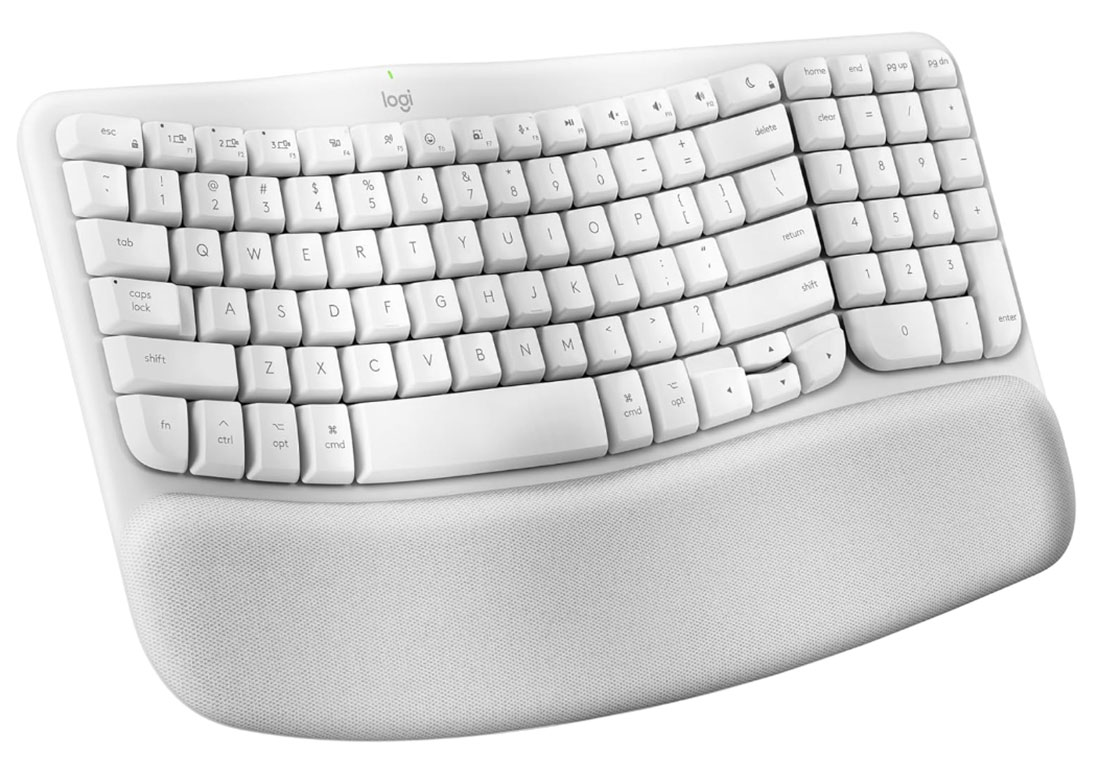
Anyone who hates the flat Apple keyboards and misses clacking scissor mechanisms will love Logitech’s Wave Keys. The Logitech Wave Keys For Mac is a good keyboard with a generous stroke and familiar clicking sounds.
The ergonomic design includes a padded wrist rest to relieve strain when typing. In addition, the keyboard is shaped in a wave pattern, which is designed to make typing more comfortable. The keys directly in the center and at the outer ends are slightly raised so that your fingers do not have to stretch as far for each key.
The keyboard uses two AAA batteries and does a good job of using power efficiently. The keyboard connects easily to the Mac via Bluetooth.
Note that there are two Wave Keys keyboards—one for Mac and Windows which has a combination Command/Alt key, and a Wave Keys for Mac that is the same, except that it has a dedicated Command-only key.
14. Satechi SM1 Slim Mechanical Keyboard
Pros
- Three Bluetooth channels
- 2.4GHz receiver
- Good Mac support
- Can pair with four devices
Cons
- Backlight drains the battery quickly.
- No numeric keypad
- 2.4GHz receiver is USB-A
- Only U.S. layout available
- Keyboard type: Mechanical
- Size options: Compact, Full
- Colors: Light, Dark
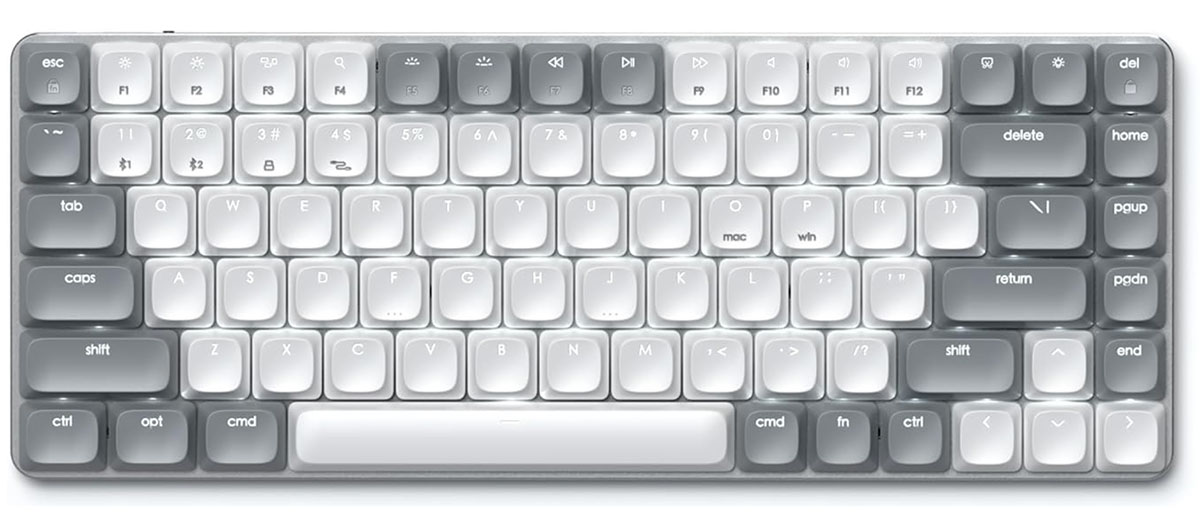
Satechi’s wireless SM keyboards come with robust mechanical keys, and the ability to quickly switch between Mac and Windows modes as required. It is available as SM1 (compact) and SM3 (full-size).
The SM1 has a 75% layout that consists of a simple QWERTY keyboard with a row of Function keys, but lacks a separate numerical keypad. That keeps the size down to just 31cm wide and 12cm deep, so it doesn’t take up very much desk space at all, and you could easily slip it into a backpack if you wanted to carry it around with you. It’s solidly built, though, and uses brown keys that are smooth enough for fast typing whilst also providing good tactile feedback for gaming (other types of mechanical keyboards can offer red and blue keys as well).
It’s also impressively versatile for such a compact keyboard. You can pair the keyboard with four separate devices and switch between them, and you have the option of connecting via Bluetooth, a USB wireless adaptor that’s included in the box, or simply opting for a wired USB-C connection (although the wireless adaptor has a USB-A interface, so you may need an adaptor for Macs that only have USB-C).
There’s a row of 12 Function keys that support standard Mac commands for adjusting brightness and volume, and activating features such as Mission Control or Spotlight. It has the standard Command and Option keys that you’d expect on a Mac keyboard, but you can switch between Mac and Windows modes with a quick shortcut, and Satechi even includes three spare keys for the Windows menu and Alt keys, so that Window users can physically swap keys and feel more at home.
The full-size SM3 has a numeric keypad.
The rechargeable battery lasts for up to two months if you’re not using the backlight, although this drops to a modest 16.5 hours when using the backlight (which includes 14 eyeball-frazzling lighting patterns that can be controlled using a special lighting key). However, the keyboard has a sleep mode to conserve battery power by turning the backlight off if the keyboard hasn’t been used for a while. I was also pleased to find that you can use the SM1 in wired mode as well, using the USB-C cable that is included in the box, whilst also recharging the battery at the same time. Just remember that Satechi only provides keyboards with a U.S. layout, so there’s no option that’s suitable for non-English languages.
15. HP 975 Keyboard – Well designed wireless keyboard
Pros
- Re-programable Fn keys
- Two Bluetooth channels
Cons
- No Command/Option keys labelled on keyboard
- 2.4GHz receiver is USB-A
- Only U.S. layout available
Best Prices Today:
- Keyboard type: Slim
- Size options: Full
- Colors: Black
It’s not often that we recommend HP’s range of PC accessories to Mac users, but the company has launched a number of keyboards, mice and webcams that are now Mac-compatible when used with the HP Accessory Centre app – also known as HPAC – which is available on the Mac App Store.
As well as being Mac-compatible, its HP 975 Dual-Mode Keyboard is well designed, versatile and provides good value for money.
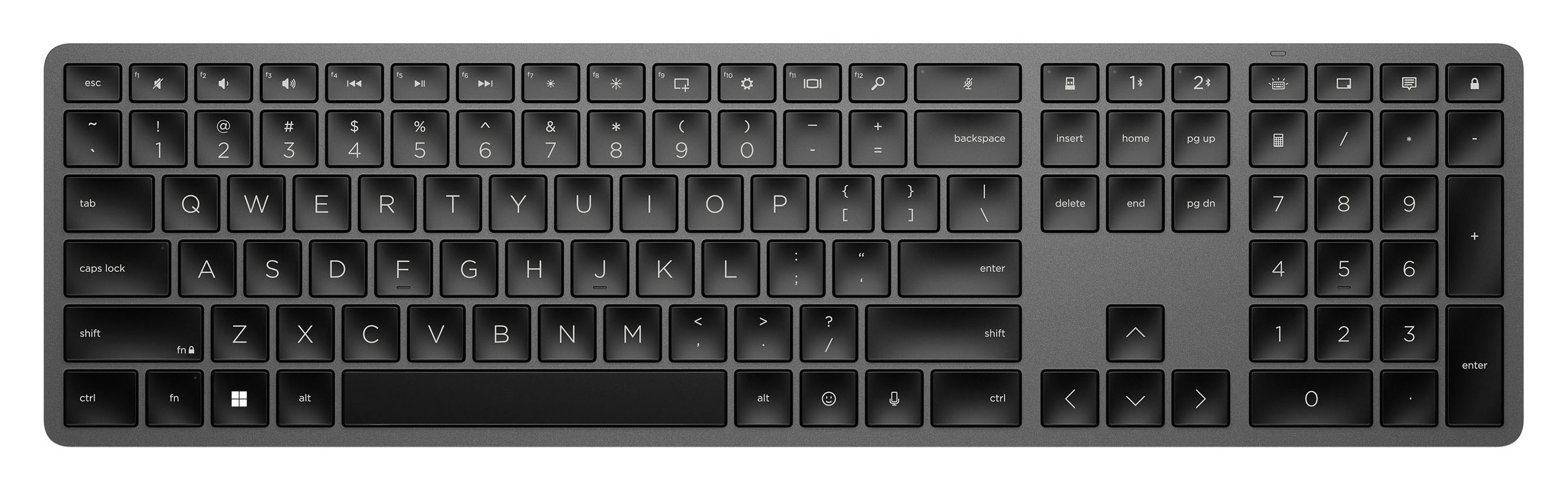
The 975 Dual-Mode keyboard is a full-size keyboard with a slim, low-profile design that includes a row of programmable Function keys, as well as a set of navigation keys and a numeric keypad for number crunching. It is sturdily built, and the keys feel firm and responsive when typing.
You can pair it with two devices via Bluetooth, and also connect a third device using a small USB wireless transmitter that’s included with the keyboard (although this transmitter is USB-A interface, so you’ll need an adaptor).
The keyboard is designed for Windows PCs, so it has a Windows key and Alt key, but you can reassign those keys as Command and Option keys via the Keyboard Settings panel on your Mac. You can reprogram most of the Function keys using the HPAC app.
The HPAC app also lets you change the brightness and duration of the keyboard backlight, and warns when the battery drops below a specific level.
Battery life is good, lasting for around six months if you don’t use the backlight very often.
Read our full
HP 975 Keyboard review
16. Logitech K950 Signature Slim – Slim Mac keyboard
Pros
- Competitive price
- Three Bluetooth channels
- Good Mac app
Cons
- No rechargeable battery
- No backlight
- 2.4GHz receiver is USB-A
- Keyboard type: Slim
- Size options: Full
- Colors: White, Graphite
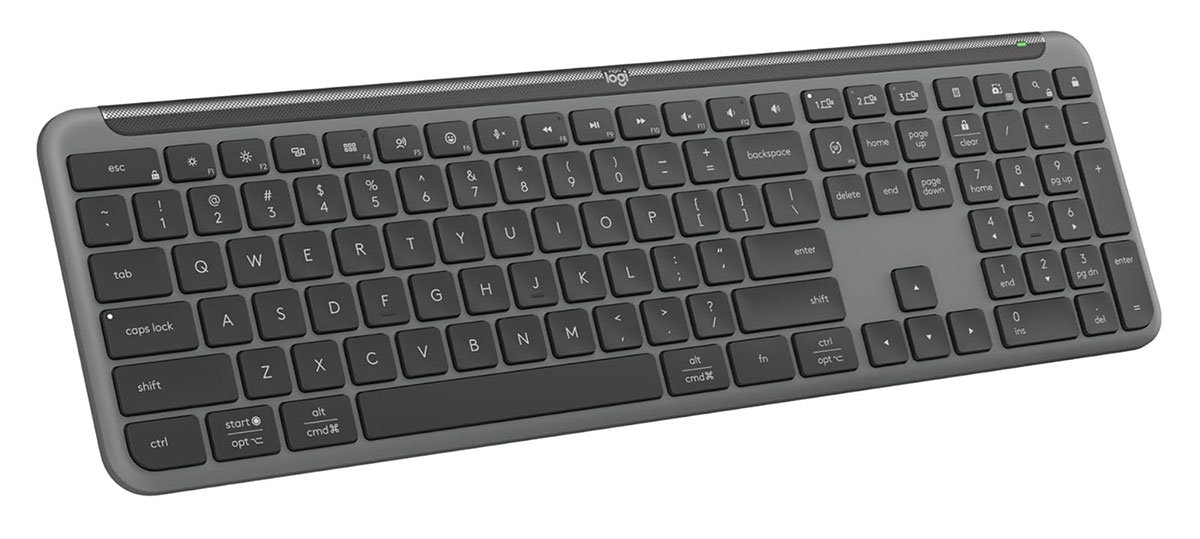
At first glance, the K950 Signature Slim keyboard looks almost identical to Logitech’s top-of-the-range MX Keys S, and the two keyboards do have many features in common. However, the K950 is intended to provide a more affordable option for home users and people who work from home. It’s available in either graphite or white, and you can buy it on its own for $79.99/£79.99 or as a combo—called the MK950—with a mouse included for $99.99/£109.99.
The layout of the two keyboards is the same, with the K950 including a row of Function keys, arrow keys for navigation, and a numeric keypad. The lower price means that it’s built out of more lightweight plastic, although it still feels sturdy and firm enough to cope with long hours of typing when you’re at work.
There’s no backlight on the K950, and rather than having a rechargeable battery, it is powered by two AAA batteries. Logitech includes a set of batteries so that you can use it straight out of the box and, with no backlight to drain the power, it states that a single set of batteries should last for up to three years. The lack of backlight also means that you gain two extra Function keys—as they’re not required to turn the backlight up or down—which are now devoted to Mission Control and Launchpad.
The K950 is just as versatile as its more expensive counterpart, though. It can be used as a conventional Bluetooth keyboard, but Logitech also includes a USB wireless adaptor as well (albeit with a USB-A interface, so some people may need an adaptor for their Mac). And, like the MX Keys S, the K950 includes a special set of buttons that allow you to pair it with three different devices and quickly switch between them, including Macs, iPads, Windows PCs, Chrome and Linux. Most of the Function keys work with the Mac automatically, but you can also use Logitech’s Options+ app to reprogram the keys to suit the apps that you work with most.
17. Apple Magic Keyboard – Best keyboard for Intel Macs
Pros
- Great for older Macs (pre-2020)
Cons
- No Touch ID
- Navigation keys are a bit fiddly to use
- Some models have Lightning charging port


- Keyboard type: Slim
- Size options: Compact, Full
- Colors: White
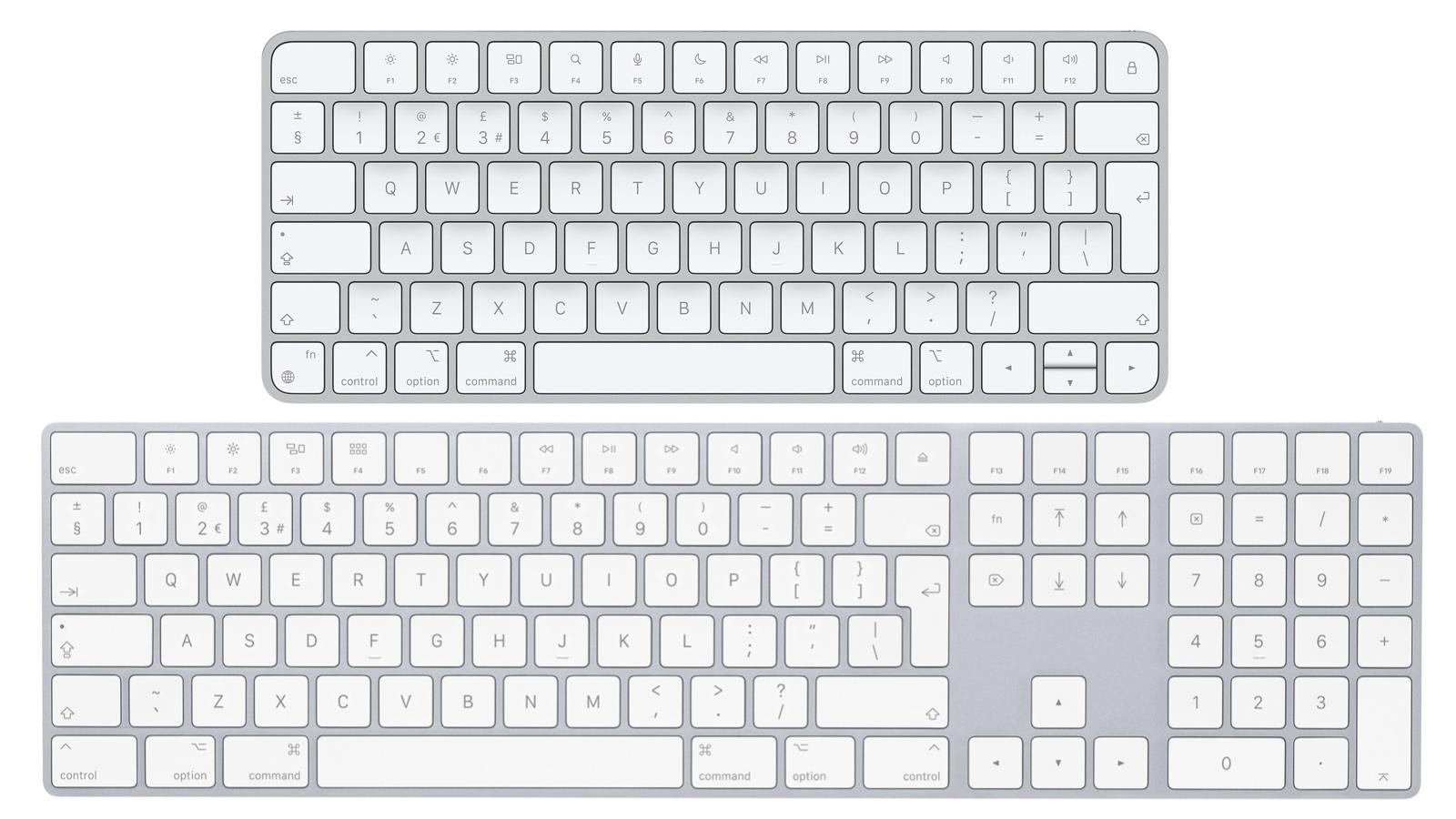
Apple’s keyboards are a bit confusing, with two generations of keyboards available, and each generation offering two different keyboards, with or without a numeric keypad.
The older generation of Magic Keyboards is still available, and is now intended primarily for use with older Macs that have Intel processors. These older keyboards lack the Touch ID sensor that is available with the two new keyboards that Apple launched in the summer of 2021.
Touch ID and some of the other features of the new keyboards don’t work with Intel-based Macs, so if your Mac has an Intel processor then these older keyboards are the best options available from Apple—although, of course, there are plenty of other keyboards available from other manufacturers, which we review here as well.
The smaller Magic Keyboard can be expensive at $99/£99, but its elegant slimline design started a trend for ‘low-profile’ keyboards that many other manufacturers now follow too.
The aluminum body does feel quite sturdy, but the slimline design means that the keys don’t ‘travel’ very well, so speedy typists might prefer a larger keyboard that is actually designed to do some proper work rather than just looking pretty.
The Space Bar and the little set of navigation keys in the lower-right corner of the keyboard are also rather small and fiddly. To be fair, though, the compact little keyboard does squeeze in quite a few useful features, with the top row of Function keys providing controls for brightness, volume and playing music.
The Magic Keyboard works as a standard Bluetooth keyboard, and Apple says that its rechargeable battery will last for about a month at a time. Note that some models have a Lightning port rather than USB-C for charging.
And, of course, there’s the larger version, called the Magic Keyboard with Numeric Keypad ($129/£129). This is also quite expensive but adds a numeric keypad for people who need to do a bit of serious number crunching every now and then. This keyboard also has a larger set of navigation keys, which is very useful for scrolling through long documents or web pages, and an additional set of navigation keys that allow you to quickly jump to the top or bottom of a document.
The larger keyboard layout also means that there’s room for some additional Function keys too, going right up to F19 (rather than F12 for the smaller Magic Keyboard). It’s a shame, though, that the options in the macOS for programming your own keyboard shortcuts are fairly limited, so power users might prefer to use a third-party utility such as USB OverDrive or HotKey App, to make full use of these extra Function keys. This larger keyboard has the same month-long battery life as the smaller Magic Keyboard, although it’s showing its age a little as (surprisingly) its charging cable still has a USB-A connector.
You can find the best prices for Apple Keyboards and Mice in our deals round-up.
Read our full
Apple Magic Keyboard (no Touch ID) review
How to pick the best keyboard
Choosing the right keyboard is a personal decision that can significantly impact your daily comfort and productivity, whether you’re typing, gaming, or doing creative work. Key factors to consider include the keyboard’s primary use, its physical design, and the technology inside its keys.
Before diving into specific models, consider what you need from a keyboard. Your choice will depend on a combination of feel, features, and function.
Typing Experience and Comfort: The feel of the keys under your fingers is one of the most critical aspects. This includes key travel (the distance a key moves when pressed), the force required to register a keystroke, and the overall sound and tactile feedback. Some users prefer the deep, satisfying feedback of mechanical keyboards, while others favor the quiet, low-profile feel of membrane or scissor-switch models. Ergonomics also play a huge role; features like an adjustable typing angle, a built-in wrist rest, or even a split layout can help prevent discomfort and repetitive strain injuries.
Size and Layout: Keyboards come in various sizes. Full-size layouts include a numeric keypad, which is essential for anyone who frequently works with numbers. More compact options, such as tenkeyless (TKL), 75%, and 65% layouts, omit the number pad to save desk space and are often preferred by gamers or those with smaller workstations. The layout also affects the size and placement of important keys like the Shift and arrow keys, which can impact your typing habits. Familiar with an Apple keyboard lay out? A PC layout is very different, with various keys located in different positions and the Command and Alt/Option key switched.
Connectivity and Compatibility: You’ll need to decide between a wired or wireless keyboard. Wired keyboards offer a reliable connection without battery concerns, while wireless models provide a cleaner, untethered setup. Many wireless keyboards can connect via Bluetooth or a 2.4GHz USB dongle/receiver, with some offering the ability to pair with and switch between multiple devices, which is great for multitasking across a laptop, tablet, and phone. Some find using a 2.4GHz receiver is more responsive than Bluetooth, so this is often favored by gamers. Many USB dongles, however, are USB-A, and there’s no USB-A port on any modern Apple product so you might need an adapter. Also, ensure the keyboard is compatible with your operating system, whether it’s macOS, Windows, or both. Some keyboards include swappable keycaps and a switch to toggle between layouts.
Language: It goes without saying that if you will want a keyboard that matches the keyboard layout common in your country. Especially if you aren’t an English speaker.
Customization and Special Features: Many modern keyboards, especially mechanical ones, offer extensive customization. This can range from remapping keys and creating macros to swapping out the physical keycaps and switches (hot-swapping). Other features to look for include backlighting (for typing in low light), dedicated media controls or volume knobs, and specialized software for adjusting settings.
Mechanical vs Membrane Keyboards
The most significant distinction in keyboard technology is between mechanical and membrane models. This choice fundamentally shapes the typing experience.
Mechanical Keyboards: Praised for their durability, tactile feedback, and customizability, mechanical keyboards feature an individual physical switch under each key. This construction provides a more precise and consistent feel, with switches rated for tens of millions of keystrokes . They are highly popular with typists and gamers alike.
- Switch Types: The feel of a mechanical keyboard is determined by its switches. Common types include linear (smooth, no bump), tactile (a noticeable bump mid-press), and clicky (a bump accompanied by an audible click). Some advanced keyboards feature Hall Effect or magnetic switches, which use electromagnetic fields to actuate keys, offering adjustable actuation points and enhanced durability.
- Customization: A major draw for mechanical keyboards is the ability to customize them. Many models are “hot-swappable,” meaning you can easily change the switches without soldering to achieve your desired typing feel . You can also replace the keycaps with different materials, colors, or profiles.
Membrane Keyboards: These are the most common type of keyboard, often found in laptops and budget-friendly desktop models . They use a rubber or silicone layer under the keys that registers a keystroke when pressed down. While quieter and more affordable, they often provide a “spongy” or less precise feel and have a shorter lifespan compared to their mechanical counterparts . However, some high-quality membrane keyboards use a “scissor-switch” mechanism, which adds stability and provides a firmer, more responsive feel, similar to many modern laptop keyboards.
Finding the right keyboard for your needs
A keyboard is a very personal choice, and there’s no single “best” option for everyone.
For Office Work and Typing: If you type for long hours, prioritize comfort and ergonomics. A full-size keyboard with a number pad can boost productivity . Mechanical keyboards with tactile switches are often favored for their satisfying feedback, but a high-quality, quiet scissor-switch keyboard like the Logitech MX Keys S is also an excellent choice for a general-purpose office keyboard and is much quieter.
For Gaming: Gamers often prioritize speed and responsiveness. Keyboards with low latency, a high polling rate, and features like adjustable actuation or “rapid trigger” mode can provide a competitive edge . Compact TKL or 75% layouts are popular because they leave more room for mouse movement. Linear switches are often preferred for their smooth, quick action.
For Creatives and Customization Enthusiasts: Creatives may benefit from keyboards with special features like programmable dials or macro keys, such as the Logitech Craft . For those who love to tinker, a hot-swappable mechanical keyboard from a brand like Keychron offers endless possibilities for customization, from the switches and keycaps to the case material and internal sound-dampening foam.
Ultimately, the best way to choose a keyboard is to understand your own preferences for feel, sound, and features. From there, you can explore the different types of keyboard layouts, learn about the nuances of mechanical switch types, or compare the benefits of wired versus wireless keyboards.