Macs have a high price so it’s understandable that many Mac users will want to put off replacing them for as long as they can. But just how long should you expect a Mac to last?
Similarly, in order to save money, you may be considering buying an older, used or refurbished Mac. Is that 2018 MacBook Pro for $300/£300 a good deal, or would you be better off spending a bit more on a newer model?
The question of whether a Mac is too old depends on hardware durability and software support, both of which we will address in this article.
- Hardware: Macs and MacBooks are built to last, with most users getting five to eight years of reliable performance. Beyond that though, Apple gives Macs that have been off sale for five to seven years “vintage” and eventually “obsolete” status, at which point opportunities for repairs become limited.
- Software: Software support also plays a crucial role, especially unsupported Macs can be vulnerable to security issues. Apple typically provides macOS updates for Macs up to around eight years old, but that window is narrowing with the company ending support for Intel Macs in the near future.
With Apple transitioning fully to its own silicon and phasing out support for Intel models, knowing how long your Mac will receive updates – and when it’s time to upgrade – is more important than ever.
Updated February 2026 with details of the macOS Big Sur and Catalina updates and news that a new battery-preservation tool coming in the next update to macOS Tahoe (macOS 26.4) will allow users to cap charging between 80-100% which should extend battery life.
Is your Mac too old?
We know that Macs cost a fair bit of money and not everyone has the luxury of upgrading every few years. But at what point is it time to consider upgrading your Mac?
Is the hardware to old? One factor to consider is the age at which most Macs start to experience issues, such as random shutdowns and degraded batteries that no longer hold their charge. Unfortunately, at one point repairing your Mac or MacBook will no longer be a viable option and you will need to look for a replacement. There is a point at which Apple stops providing the required parts for Macs, rating them either obsolete and vintage. Once a Mac is considered vintage (you can find a list of vintage and obsolete Macs below) we would recommend that you upgrade it.
Is the software to old? Another issue with aging Macs is that the software you need may not run on it. You may find that your Mac cannot update to the latest version of macOS (Apple’s Mac operating system software), but it’s even more concerning if Apple is no longer issuing security updates to the version of macOS you can run – because that make you open to malware and security vulnerabilities. We will explain which versions of macOS are supported – and for how much longer, below.
If the following apply, it is probably the case that your Mac has reached the end of its useful life:
- Apple no longer supports the latest version of the software it runs (which could leave you vulnerable).
- The apps you need to use no longer run on it.
- The Mac struggles to perform the tasks you need it to – especially as you can’t update the RAM and other components.
- Something breaks and is too expensive to fix, or the parts aren’t available.
- The Mac is becoming unreliable. Unexpected shutdowns are becoming commonplace and you’ve tried everything to fix the problem to no avail.
Apple
Software support: Which Macs are supported by macOS updates – and why it matters…
Only the most recent version of macOS gets feature updates, but Apple usually maintains the last two or three versions of the macOS with bug fixes and important security updates, ensuring that the latest version of Safari will run, and that Apple Services, such as iCloud, are fully supported
Apple currently provides support for these versions of macOS, in terms of security updates:
Since Tahoe arrived on September 15, 2025, Apple has continued to issue security updates for Sequoia and Sonoma. Sonoma’s predecessor, macOS Ventura, last had a security update in August 2025.
On that basis, if your Mac is able to run macOS Tahoe, Sequoia, or Sonoma, you should be able to be confident that Apple will keep an eye on any security vulnerabilities and other problems with these operating systems. You can see which Macs that includes in the next section of this article.
If your Mac is running an older version of the Mac operating system, you will find yourself out in the cold when it comes to essential security updates to Apple’s software. Read: The latest version of macOS your Mac can run.
That said, there has been a surprise update to macOS Big Sur and macOS Catalina: On February 2 2026, Apple issued a update to fix a FaceTime and Messages Certificate in order to ensure that those communication tools remained operational on the older systems. This doesn’t mean that Apple is offering security updates to those versions of macOS.
Another reason why must run a supported macOS version is that if it is too old you may also find that your other Apple products aren’t compatible with your Mac. For example, without the latest security update, you may no longer be able to use Apple Pay or other means to pay for services online, for example. And if you want to sync your iPad or iPhone with your Mac (rather than using iCloud) you will need a recent version of macOS. Since Catalina, syncing is done via the Finder, rather than iTunes. If you can’t run macOS Catalina you will need at least iTunes 12.8.2.3 and at least Mac OS X 10.11.6 (El Capitan) or your Mac will not recognize your iPhone or iPad.
Are Intel Macs supported by Apple?
Apple
There are a small number of 2018/2019 Intel-powered Macs currently supported by macOS Tahoe, Sequoia and Sonoma, but support for Intel Macs will be ending soon.
Apple has revealed that the version of macOS that launches in September 2026 will not support any Intel Macs.
However, that doesn’t mean that support for Intel Macs ends in September 2026. Apple will continue to support macOS Sequoia for at least one more year and macOS Tahoe until 2028, so a small number of Intel Macs should receive support until September 2028.
If your Macs isn’t in the list of supported Macs below, it won’t receive important security updates:
Which Macs are supported by Apple in 2026
Apple’s support for the Mac lineup is centered on its transition to Apple silicon, with the current operating system, macOS 26 Tahoe, serving as the final time Intel-based machines will receive the latest macOS update.
Apple generally provides full feature updates for the most recent macOS version and security updates for the previous two.
The following versions are actively supported with security patches:
- macOS 26 Tahoe: The current flagship version, released on September 15, 2025.
- macOS 15 Sequoia: Released in 2024.
- macOS 14 Sonoma: Released in 2023.
Macs supported by macOS Tahoe
macOS Tahoe supports the following Macs, including a small number of Intel-powered models. We expect that Apple will continue to support Tahoe with security updates until fall 2028:
- MacBook Air M1 and later
- MacBook Pro 16-inch from 2019 and later
- MacBook Pro 12-inch from 2018 and later
- Mac mini M1 and later
- iMac from mid 2020 and later
- Mac Pro from 2019 and later
- Mac Studio (all models)
Macs supported by macOS Sequoia
2024’s Sequoia supports the following Macs, including a number of Intel-based models. We expect that Apple will continue to support Sequoia with security updates until fall 2027.
- MacBook Air from 2020 and later
- MacBook Pro from 2018 and later
- Mac mini from 2018 and later
- iMac from 2019 and later
- iMac Pro from 2017
- Mac Pro from 2019 and later
- Mac Studio (all models)
Read: Which Macs run macOS Sequoia?
Macs supported by macOS Sonoma
2023’s Sonoma supports the following Macs. We expect that Apple will continue to support Sonoma with security updates until fall 2026.
- MacBook Air from 2018 and later
- MacBook Pro from 2018 and later
- Mac mini from 2018 and later
- iMac from 2019 and later
- iMac Pro from 2017
- Mac Pro from 2019 and later
- Mac Studio (all models)
Read: Which Macs run Sonoma?
Use the table below to see which version of macOS your Mac can run:
| Year | MacBook Air | 14-inch MacBook Pro | 16-inch MacBook Pro | iMac | Mac mini | Mac Studio | Mac Pro | 13-inch MacBook Pro | 15-inch MacBook Pro | iMac Pro |
|---|---|---|---|---|---|---|---|---|---|---|
| 2025 | macOS 26 Tahoe | macOS 26 Tahoe | macOS 26 Tahoe | – | – | – | – | – | – | – |
| 2024 | macOS 26 Tahoe | macOS 26 Tahoe | macOS 26 Tahoe | macOS 26 Tahoe | – | macOS 26 Tahoe | – | – | – | – |
| 2023 | macOS 26 Tahoe | macOS 26 Tahoe | macOS 26 Tahoe | macOS 26 Tahoe | macOS 26 Tahoe | macOS 26 Tahoe | macOS 26 Tahoe | – | – | – |
| 2022 | macOS 26 Tahoe | macOS 26 Tahoe | macOS 26 Tahoe | – | – | macOS 26 Tahoe | – | macOS 26 Tahoe | – | – |
| 2021 | macOS 26 Tahoe | macOS 26 Tahoe | macOS 26 Tahoe | macOS 26 Tahoe | – | – | – | macOS 26 Tahoe | – | – |
| 2020 | macOS 26 Tahoe (M1 only) & macOS 15 Sequoia (Intel) |
– | – | macOS 26 Tahoe (27-inch model only) | macOS 26 Tahoe | – | – | macOS 26 Tahoe (4-ports only) | – | – |
| 2019 | macOS 14 Sonoma | – | macOS 26 Tahoe | macOS 15 Sequoia | – | – | macOS 26 Tahoe | macOS 15 Sequoia | macOS 26 Tahoe | – |
| 2018 | macOS 14 Sonoma | – | – | – | macOS 15 Sequoia | – | – | macOS 15 Sequoia | macOS 15 Sequoia | – |
| 2017 | macOS 12 Monterey | – | – | macOS 13 Ventura | – | – | – | macOS 13 Ventura | macOS 13 Ventura | macOS 15 Sequoia |
| 2016 | macOS 12 Monterey | – | – | – | – | – | – | macOS 12 Monterey | macOS 12 Monterey | – |
| 2015 | macOS 12 Monterey | – | – | macOS 12 Monterey | – | – | – | macOS 12 Monterey | macOS 12 Monterey | – |
| 2014 | macOS 11 Big Sur | – | – | macOS 12 Monterey | macOS 12 Monterey | – | – | macOS 11 Big Sur | macOS 11 Big Sur | – |
| 2013 | macOS 11 Big Sur | – | – | macOS 11 Big Sur | – | – | macOS 12 Monterey | macOS 11 Big Sur (Retina only) | macOS 11 Big Sur | – |
What are the oldest Macs supported by Apple?
- Oldest: 2017 iMac Pro
This means that the oldest Macs supported right now is the 2017 iMac Pro, but only while Apple still supports macOS Sequoia security updates.
The next Macs to lose support will be those that cannot update from macOS Sonoma, for which support will likely end in September 2026. At this time, the 2018 and 2019 MacBook Air will lose support.
The 2018 MacBook Pro and Mac mini, and the 2019 iMac should continue to get support until fall 2027 as they can run macOS Sequoia.
Which Macs aren’t supported by macOS?
Apple
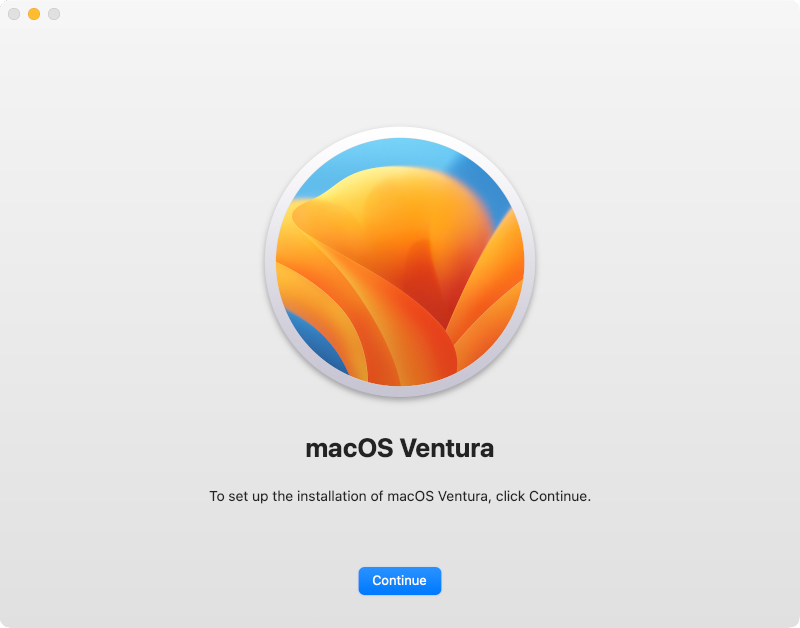
Support for 2022’s macOS Ventura has ended now that Apple has released macOS Tahoe.
This means that, aside from the iMac Pro, no Macs from 2017 are supported with security updates.
The following Macs can not be updated to macOS Sonoma from macOS Ventura:
- 2017 MacBook
- 2017 MacBook Pro
- 2017 iMac
Read: Can my Mac run Ventura?
When Apple introduced Sequoia in 2023 it dropped support for macOS Monterey, meaning that Macs that couldn’t update from Monterey could no longer get security updates.
The following Macs couldn’t update from macOS Monterey to Ventura:
- iMac 2015
- MacBook Air 2017
- MacBook Pro 2016
- Mac mini 2014
- Mac Pro 2013
All other Macs that pre-date those mentioned above are no longer supported by Apple’s software updates.
If your Mac is a decade old then you certainly won’t get security updates for it. In fact, we’d recommend avoiding any Macs from before 2019, in which case you might as well just look at 2020 Macs with Apple’s own processor, rather than Intel, which won’t be supported for much longer.
Does it matter if my Mac won’t run a supported macOS?
Once you cannot update your Mac to run a supported version of macOS you are vulnerable to security breaches, which should obviously be a concern. You may also find that you can’t carry out transactions on the internet if you want to pay for things on your out-of-date Mac.
It’s also probably that the software you need won’t run on your Mac. Apple and other companies stop supporting older versions of the applications they make, so there could be issues with the versions of the software you are running. If you are experiencing random shutdowns, for example, it could be due to problems with an app you are running – problems that will not be addressed by the developer because that version of the app is no longer supported.
If you want to run fully supported software then you will need to update to a newer version of macOS – and that may mean that you need to update your Mac. Although, there are workarounds to install a new version of macOS on an old Mac if you need to.
Once Apple no longer supports your Macs with operating system updates, it’s probably a good time to replace your Mac.
When do Macs become obsolete?
But it’s not just software updates that determine the lifespan of a Mac. It’s also a question of whether it will be possible to fix your Mac should something go wrong with the hardware. Apple has two standards that indicate hardware support is waining: Obsolete or Vintage. The first stage is Vintage: you might be lucky enough to get parts for this Mac, the second is Obsolete: you are out on your own when it comes to any attempt to mend the Mac if it goes wrong.
If you look at Apple’s list of Obsolete Macs – those being the Macs that Apple will no longer provide spare parts for – you will see that the company stops providing parts for Macs that it hasn’t sold for more than seven years. In fact, the company may not even provide parts for Macs that haven’t been sold for more than five years (considered Vintage by the company).
This could mean that you won’t be able to get a faulty Mac fixed because the parts aren’t available.
Obsolete Macs
Obsolete Macs are generally Macs that Apple stopped selling more than seven years ago. Once a Mac is in Apple’s obsolete list you have little chance of getting it repaired if something does go wrong. You might be able to find spare parts yourself, but Apple won’t provide them.
You’ll find more details about the exact models on Apple’s US page and the equivalent UK page, but the lists below will give you a general idea.
Apple considers the following Macs and older Obsolete, now including the 2017 MacBook Pro models:
- 11-inch MacBook Air (early 2015 and older)
- 12-inch MacBook (2016 and older)
- 13-inch MacBook Air (early 2015 and older)
- 13-inch MacBook Pro (2017 and older)
- 15-inch MacBook Pro (2017 and older)
- 27-inch iMac (2015 and older)
- 21.5-inch iMac (2015 and older)
- Mac mini (2012 and older)
- Mac mini Server (2012 and older)
- Mac Pro (2010 and older)
- Anything predating the Intel switch, obviously.
Petter Ahrnstedt
Vintage Macs
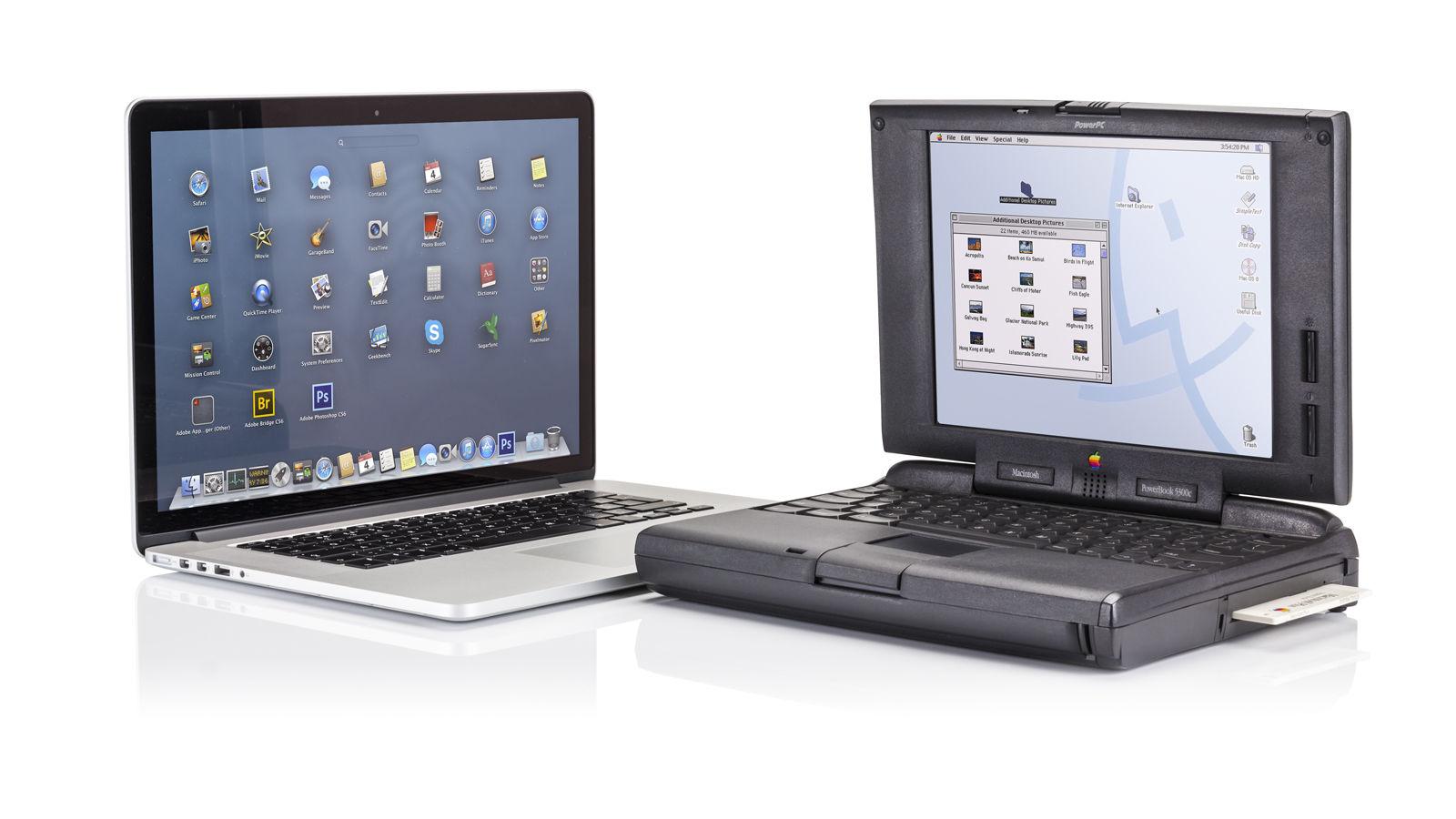
Apple also has a list of Vintage Macs. These are Macs that Apple stopped selling between five and seven years ago. (If you live in France where a law means you can get support for spare parts for up to seven years after Apple stops selling a Mac).
Apple Authorized Service Providers will repair vintage products, as long as parts are available.
Apple lists the following products as being vintage, now including the 2020 MacBook Air, 2019 MacBook Air, 2019 MacBook Pro and 2019 iMac, and the 2018 Mac mini:
- 12-inch MacBook (2017)
- 13-inch MacBook Air (2018, 2019 and 2020)
- 13-inch MacBook Pro (2017, 2018 & 2019)
- 15-inch MacBook Pro (2015, 2017, 2018, 2019)
- 21.5-inch iMac (2013, 2017)
- 27-inch iMac (2015, 2017 & 2019)
- Mac Pro (2012 & 2014)
- Mac mini (2014 & 2018)
Based on the above, we’d suggest that if your Mac is more than eight years old, it’s time to look for a new one. And, if you see a 2018 or earlier Mac on sale, it’s not wise to buy it. In fact you will note that there are even 2019 Macs on the vintage list. Read: Why you shouldn’t buy a second hand Mac.
How to extend the life of a MacBook
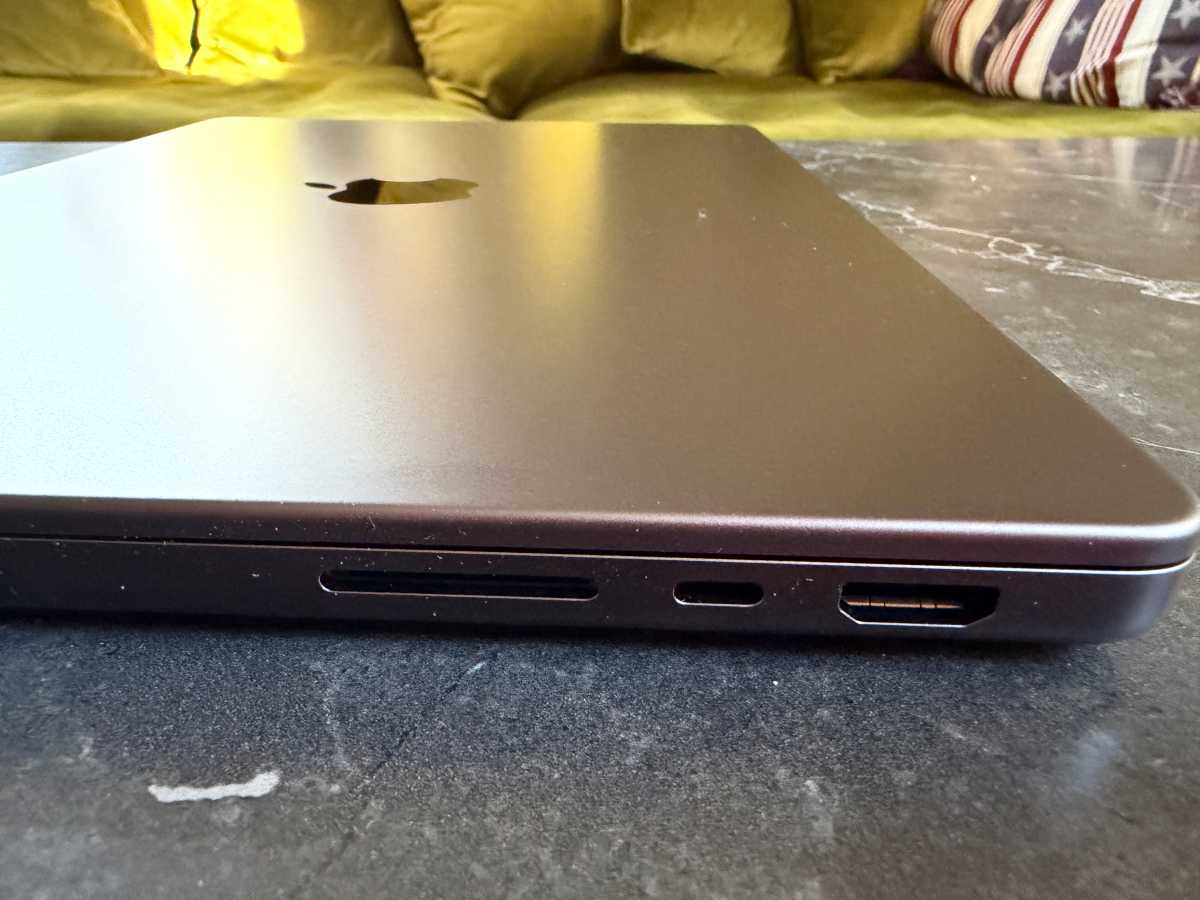
Use your MacBook with the screen open for better thermal management.
Petter Ahrnstedt
Extending the life of your MacBook involves a combination of optimizing software settings, maintaining battery health, and adopting hardware habits that protect the device’s physical integrity.
Battery health: One way to extend the life of a MacBook is to not leave it plugged in all the time. Apple added an Optimize Battery Charging feature in macOS Catalina that uses machine learning to limit charging to help extend battery lifespan by reducing wear from constant full charges. Since the arrival of this feature, users have been asking for the ability to manually set the charge limit below 100 percent. In response, Apple is adding the ability to stop charging between 80-100% in macOS 26.4.
Thermal Management: Avoid pushing the machine to the point of overheating. MacBook Pro models feature fans for better cooling during intensive tasks, whereas the fanless MacBook Air may throttle performance to maintain safe temperatures.
Using External Displays: If you frequently work at a desk, using your MacBook in “clamshell mode” (with the lid closed) can help organize your space and reduce the footprint on your desk. However, operating the laptop with the lid closed while connected to an external monitor may make it more likely to overheat. Because the MacBook’s chassis and keyboard area often assist in dissipating heat, closing the lid can trap thermal energy that would otherwise escape through the top of the device. This heat buildup is particularly concerning for fanless models like the MacBook Air. Without an internal fan to force air circulation, these models rely entirely on passive cooling, which is less effective when the lid is closed. We recommend using multiple external displays with your Mac, but with the MacBook open to allow for cooling.
Security: Ensure you update macOS often and only install applications from the “App Store & Known Developers” to prevent malicious software from compromising your system.
Should I fix or upgrade components in my Mac?
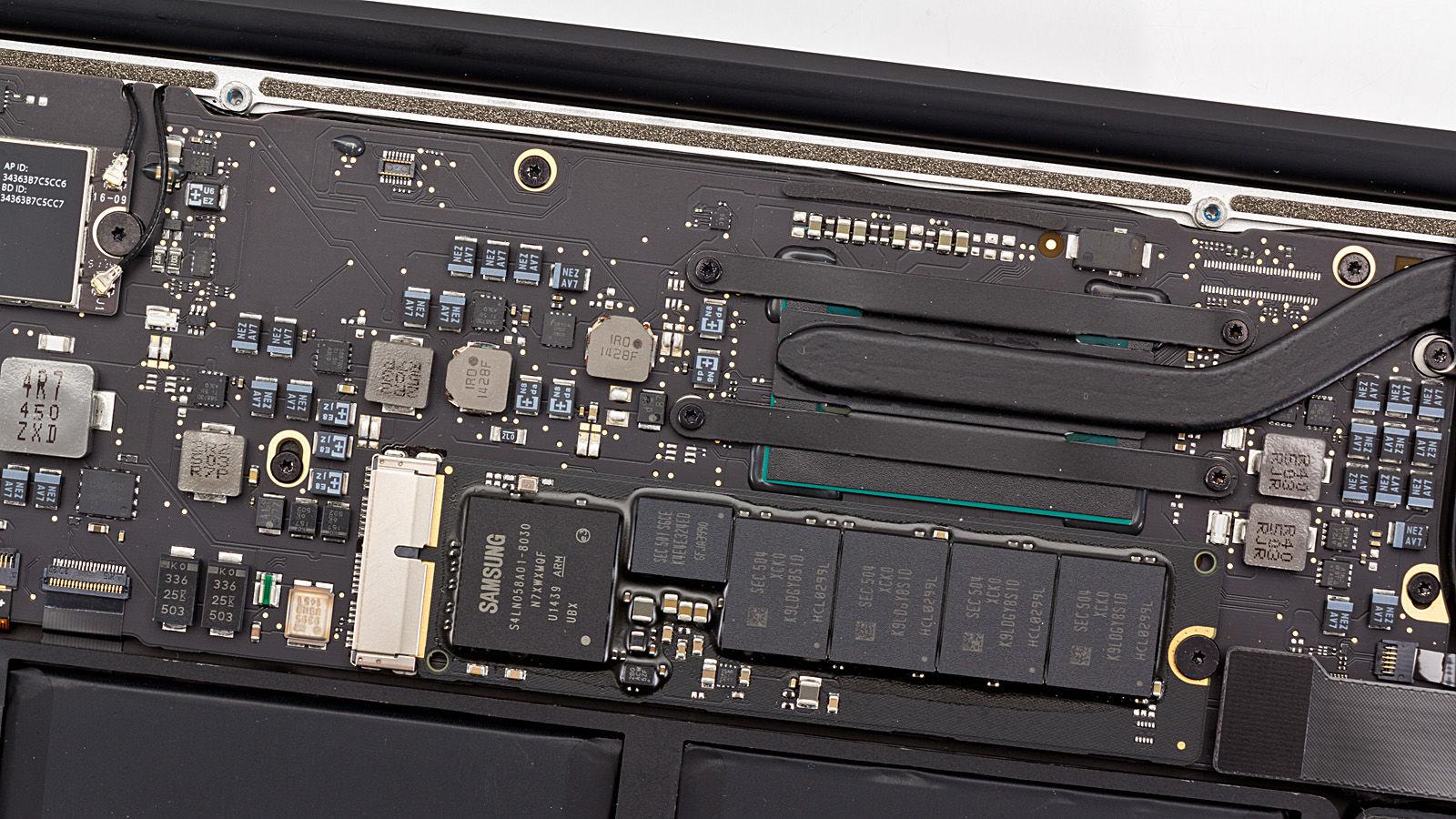
You may be wondering if spending money to improve your Mac, or fix a hardware problem, might be more savvy than buying a brand new Mac.
If your Mac is in the Obsolete category above and something goes wrong with it then you are going to struggle to get the necessary parts if you wanted to attempt to get it fixed as Apple won’t provide the parts. You might be able to buy an old Mac on eBay or similar and scrap if for the parts, but we’d suggest that it really wouldn’t be worth the effort.
Even if your Mac is in the Vintage list then Apple might be able to provide the required parts, but there is no guarantee. If you are lucky enough to get the part an Apple service provider might even be able to fix the Mac for you – but the cost of the work is likely to be prohibitive.
Similarly, if you are considering adding more RAM, or doubling your storage by adding a new SSD, you will be similarly prohibited because with most modern Macs there is no way to update the hardware.
It’s been years since it was possible to upgrade the RAM in a Mac. Now Apple solders RAM in place and hides components away to make access impossible (or at least impossible if you don’t want to completely destroy your Mac attempting to get to them). With M-series Macs memory, GPU and CPU are all integrated onto the chip, so it is impossible to upgrade them. Nor can you update the SSD as it is soldered onto the motherboard.
There are other ways to upgrade your Mac, though. Read: How to upgrade your Mac mini for ideas.
Apple repair programs
You might find that the Mac was included in part of a recall due to the issue you are experiencing, in that case, it might be worth enlisting in a repair program. However, if the time period in which Apple was offering the repairs has passed (which is unfortunately likely) then you will still have to find the money for the repair, which again might be prohibitive.
If the Mac you own, or are considering buying would be affected by any of the problems listed below that’s another reason to avoid it.
Apple’s current Mac repair programs include:
- A recall for 15-inch MacBook Pro units due to a battery fault. September 2015 to February 2017 models affected.
Current service programs:
- There is a Mac mini service program with a No Power Issue. This relates to the 2023 Mac mini, but specifically devices manufactured between June 16, 2024 to November 23, 2024.
Service programs that have now ended:
- There was a keyboard services for some Mac laptops bought since 2016, but this is no longer running.
- A 13-inch MacBook Pro backlit service program for models from 2016-2018.
- A SSD service program for 13in MacBook Pro models from 2017-2018.
- A battery replacement program for 13in MacBook Pros from 2016-2017.
We have more information about Apple’s product recalls and repair programs here. Plus, visit this page for more information on the above repair programs.
Assuming your fault isn’t one of those listed above, you may be faced with a pricy repair bill. We suggest that if your Mac is older than five years then repairing it will not be worth it – unless of course there are important documents or photos on it that you want to retrieve in which case it might be worth looking at how to recover these files or the best software to recover data on your Mac.
How long do Macs last?
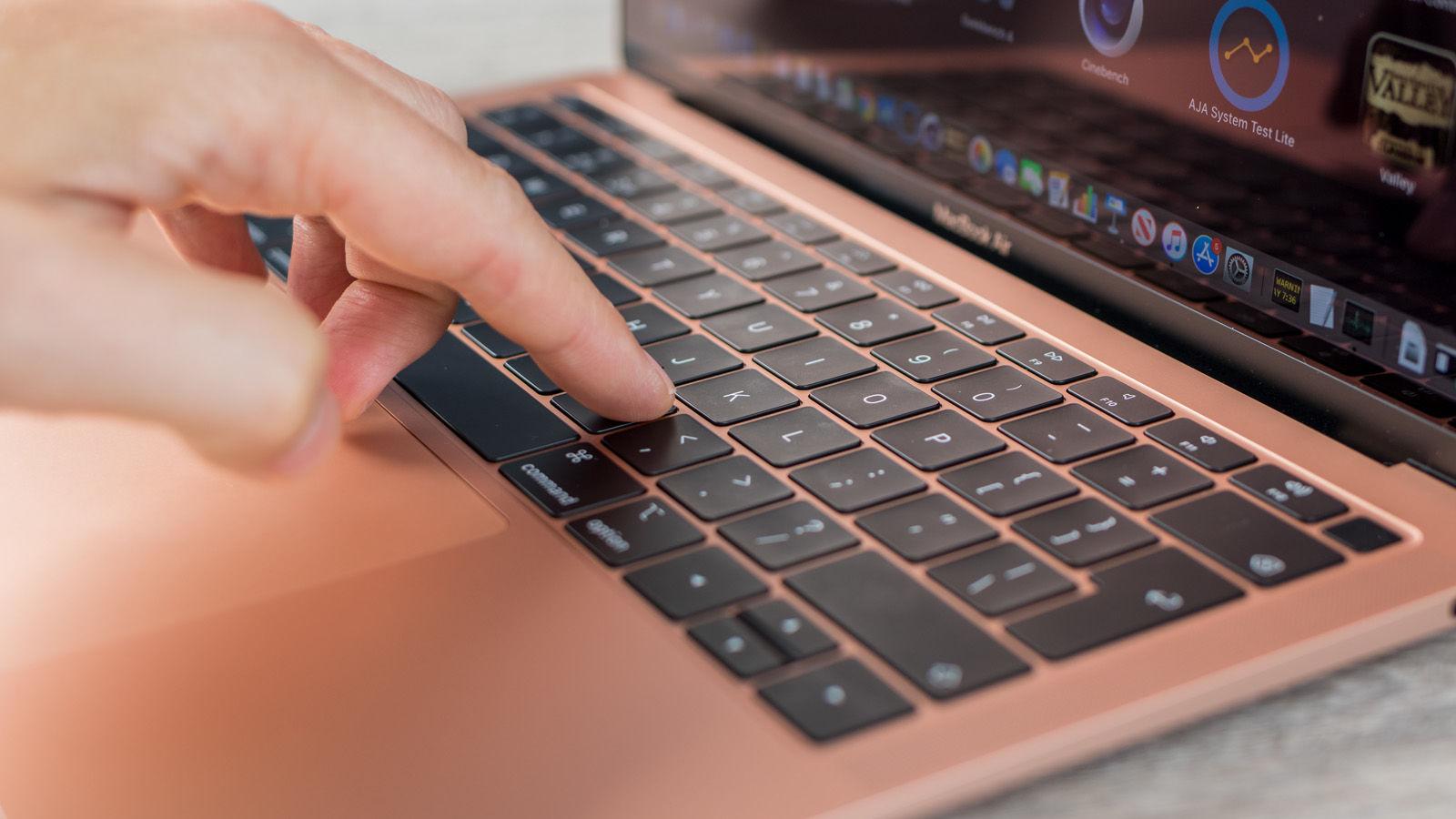
So, in answer to the question: How long do Macs last? We’d say five to eight years, but beware that you may not be able to replace any faulty parts in a Mac when more than five years have passed since Apple last sold it.
With Apple saying that it will stop support for Intel-powered Macs with the version of macOS that launches at the end of 2026, we recommend that you avoid buying an Intel-powered Mac now.
So, our advice right now is to avoid buying a Mac that is more than five years old – especially if it has Intel inside. And if you haven’t yet updated to the series Apple silicon powered Macs, what are you waiting for!
If you decide to buy a new Mac check out our round-ups of the best Mac deals you can get:
Before you buy a new Mac, read our article about the best time to buy a Mac or MacBook.
You may also want to read our Best Mac Buying Guide for help deciding which Mac to buy. We also have a guide to the Best MacBook.