Even the most loyal Mac users recognize that Windows still rules the roost in the world of desktop and laptop computers, and there are many important apps that only run on Windows. For example, the Windows version of Microsoft Office includes the Access database that has never been available for the Mac, and there are many professional graphics and video tools that are Windows-only. And, of course, there are all those A-List games that have never even glanced in the direction of us poor, forgotten Mac gamers.
If you need to run Windows software or games on your Macs then this article will reveal the best way to do so.
Read on to discover the best options for running Windows, and Windows apps, on your Mac. You may also like to read our guide to How to install Windows and run Windows apps on a Mac (M-series models). We also cover how to run Windows on an Intel Mac separately.
Best Virtual Machine for Mac 2026: Best VMs to run Windows on a Mac
Read on for the best virtual machines for Mac. Our top choice is Parallels, but we also consider VMware and alternative options, including emulators that let you run Windows apps on a Mac without even installing Windows to Microsoft’s Windows 365 service.
PROMOTION
Run the work apps your Mac can’t replace
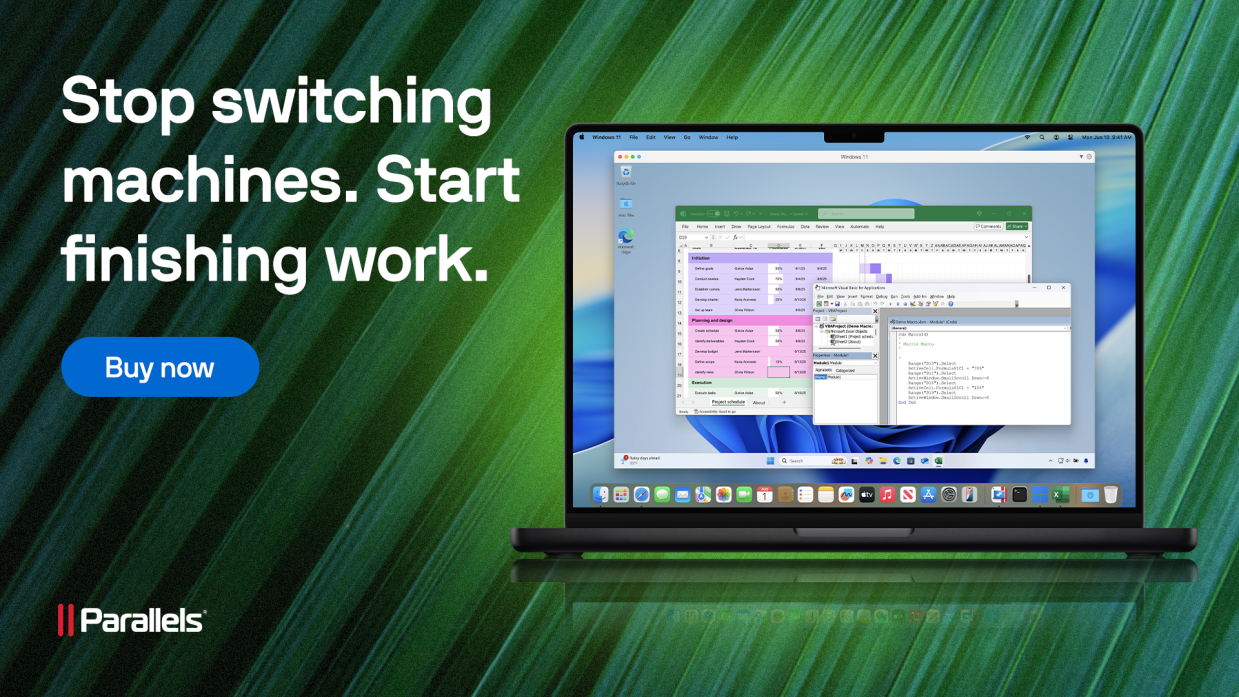
Need Power BI, Access, Visio, Project, QuickBooks, or advanced Excel on Mac? Parallels Desktop keeps your Windows work apps running on one Mac.
At a Glance Best VM Comparison
| Tool | Best For | Price | Apple Silicon Support |
|---|---|---|---|
| Parallels Desktop | Best overall | Paid | Yes |
| VMware Fusion | Free personal use | Free | Yes |
| CrossOver | Windows apps w/o Windows | Paid | Yes |
| UTM | Best for open-source developers | Free/$9.99 | Yes |
1. Parallels Desktop: Best VM software for Mac
Pros
- Frequent updates and new features.
- Good performance on multi-core Apple chips.
- Slick, easy-to-use interface.
- Ability to run x86 Windows on M-series Macs.
Cons
- Most editions require a subscription.
- Virtual machines require a lot of memory and processor power.
- Windows On ARM is expensive.
Best Prices Today:
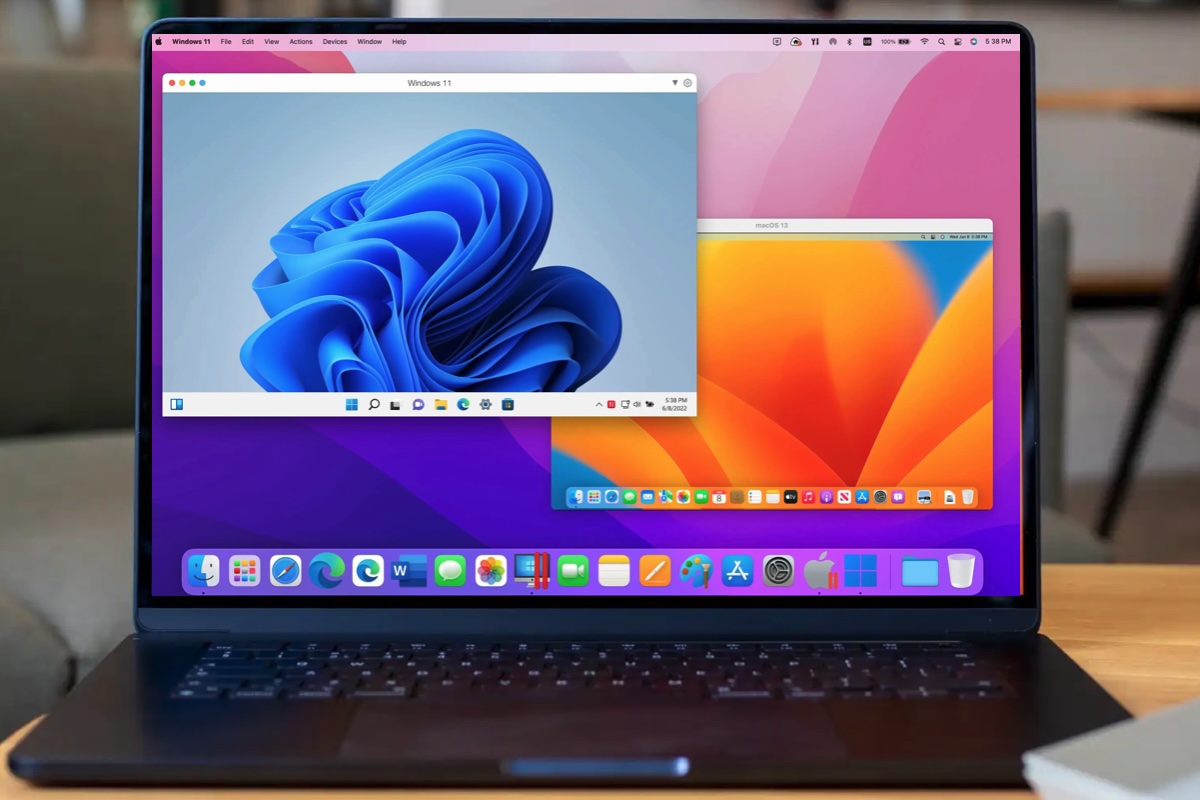
Parallels Desktop is the best virtual machine for Mac users who need to run Windows, Linux or another copy of macOS alongside macOS. It creates a virtual PC on your Mac, allowing you to run Windows applications without rebooting or partitioning your drive.
One of Parallels’ biggest strengths is its seamless integration with macOS. You can keep Windows and macOS completely separate or use Coherence mode, which lets Windows apps run alongside Mac apps as if they were native. You can even pin Windows applications to the Dock, while shared folders, drag-and-drop and copy-and-paste make moving between the two operating systems effortless.
Installing Windows is equally straightforward. Parallels can download and install the ARM version of Windows 11 for Apple Silicon Macs, although you’ll still need to purchase a Windows 11 Pro or Enterprise licence. It also offers limited support for running older Intel (x86) versions of Windows on M-series Macs, but performance is slower and there are restrictions, including an 8GB memory limit and no sound support.
Performance is excellent on Apple Silicon, making Parallels ideal for productivity software, development, testing and many creative applications. Features such as snapshots, cloning and Rollback mode – which restores a virtual machine to its original state after a restart – are particularly useful for developers experimenting with new software.
Parallels receives regular updates alongside new macOS releases. The latest version supports macOS Tahoe and Windows 11 25H2, while recent releases have added AI-focused developer tools, including the Parallels AI Package for creating AI-ready virtual machines.
The main downside is cost. Parallels is subscription-based for most users, and Windows requires a separate licence. Virtual machines are also memory-intensive, so Macs with 16GB of RAM or more provide the best experience.
Combining outstanding performance, polished macOS integration and powerful developer features, Parallels Desktop remains the best virtualization software for most Mac users especially software developers.
Read our full
Parallels Desktop for Mac review
2. VMware Fusion – Best free virtual machine
Pros
- Fusion allows you to use it for free if it’s for personal, home and student use.
Cons
- VMware doesn’t update Fusion as regularly as Parallels is updated.
For many years, VMware Fusion and Parallels Desktop competed head-to-head as the leading virtualization software for Mac, with both companies regularly updating their software with new features and performance improvements. In recent years, however, VMware has slowed development, and Fusion no longer receives the same level of attention. In fact, the software has become surprisingly difficult to find on VMware’s website since Broadcom acquired the company.
Fusion 13, released in November 2022, added support for virtualization on Apple Silicon Macs, allowing M1 and M2 users to run the Arm version of Windows. Like Parallels Desktop, Apple Silicon Macs can only virtualize Windows on Arm rather than older Intel versions of Windows. VMware initially required users to source a Windows on Arm licence themselves—a frustrating process, as Microsoft didn’t make these licences readily available to consumers.
Subsequent updates addressed some of these shortcomings. Fusion 13.5, released in October 2023, introduced DirectX 11 support for improved graphics performance and added a Get Windows option that simplified downloading and installing Windows 11 on Arm. Version 13.6 followed in September 2024 with vmcli command-line support and compatibility with newer guest operating systems, although the pace of development still lagged behind Parallels.
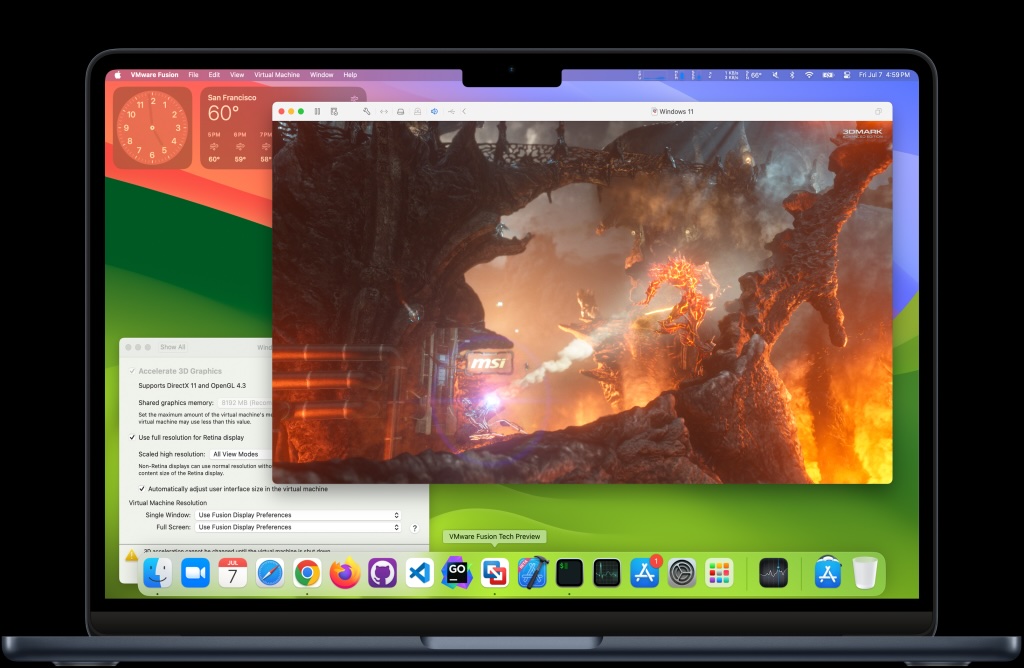
One of Fusion’s biggest advantages is its price. VMware first introduced a free personal edition with Fusion Player in 2020, but it now offers the full-featured Fusion Pro free for personal, home and student use. After creating a VMware account, users can download the software without paying a licence fee, making it one of the best-value virtualization solutions available.
Like Parallels, Fusion creates a virtual machine that lets you run Windows, Linux and other operating systems alongside macOS without rebooting. It supports Intel and Apple Silicon Macs, allows users to customise CPU and memory allocation, create snapshots, drag and drop files between operating systems and accelerate graphics using DirectX 11.
However, Fusion no longer matches Parallels for ease of use. Downloading the software still involves navigating Broadcom’s confusing website, and while the Get Windows feature has simplified installation, the overall setup process remains more technical than Parallels. Fusion has also dropped its Unity mode, which previously integrated Windows applications directly into the macOS desktop, and it still lacks DirectX 12 support, limiting compatibility with many modern games.
Although VMware Fusion has fallen behind its main rival in polish and new features, its strong performance and free personal licence make it an excellent choice for developers, IT professionals, students and home users who occasionally need to run Windows on a Mac. Users looking for the smoothest, most beginner-friendly experience, however, will still find Parallels Desktop the better all-round option.
You’ll need to register for a VMware account, but Fusion Pro is free to download here.
Read our full
VMware Fusion review
3. UTM Virtual Machines: Best open-source VM/emulation
Pros
- Affordable/free option for running Windows on Mac
- Runs on Intel and Apple Silicon
- Runs older versions of Windows and Linux
Cons
- More complex than its rivals
- No tech-support
Best Prices Today:
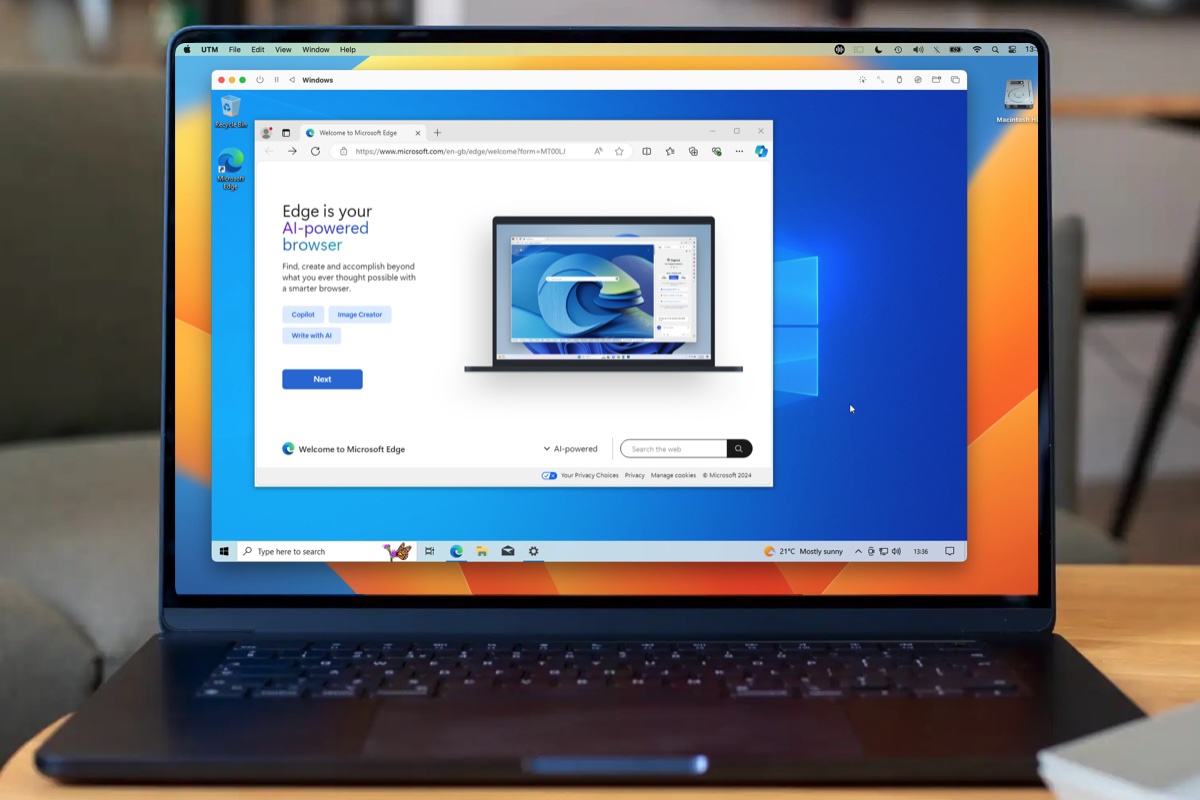
UTM Virtual Machines from Turing Software is currently sitting at no.1 on the Business section of the Mac App Store. It costs $9.99/£9.99 on the Mac App Store, but, because UTM is an open-source project, there’s also a free version–simply called UTM–available on the Turing website.
UTM can run on Macs with either Intel or Apple Silicon processors (running macOS Big Sur 11.3 or later). It provides two different options depending on the type of Mac you’re using–virtualization and emulation.
So, if you have an Intel Mac, UTM can use virtualization to create a virtual machine that runs the Intel version of Windows. And, if you have a Mac with Apple Silicon you can use virtualization to create a virtual machine that runs Windows On Arm. But, if you want to run the older Intel version of Windows on a Mac with Apple Silicon, then UTM will use emulation in order to run Window since that version isn’t designed for the Mac processors. Virtualization provides better performance, but emulation is useful if you need to run Windows apps or software that require a specific version of Windows.
Having those two options available within UTM makes it a more versatile than Parallels Desktop and VMware Fusion, which focus on virtualization rather than emulation. However, this adds complexity to UTM, and the app lacks the polished interface and ease of use of Parallels and VMware. You’ll need a basic understanding of Windows disk image files, such as ISO and VHDX, in order to download and install your copy of Windows. Don’t expect the level of step-by-step help available in Parallels Desktop.
Performance is good, though. The one weakness is that UTM doesn’t currently support 3D graphics acceleration on its Windows virtual machines, which means that you won’t be able to play most Windows games that have 3D graphics. But if you just want to run business apps or check out the new AI features in Windows, then UTM is a good, low-cost option that will appeal to developers and technical users.
Read our full
UTM Virtual Machines review
4. CodeWeavers CrossOver: Best for running Windows apps without Windows
Pros
- 14-day trial
- Doesn’t require a full version of Windows
- Improved interface and ease of use
- Regular updates, good technical support
Cons
- Some Windows apps aren’t compatible
- Can be complicated to use
- Requires Rosetta on Apple Silicon
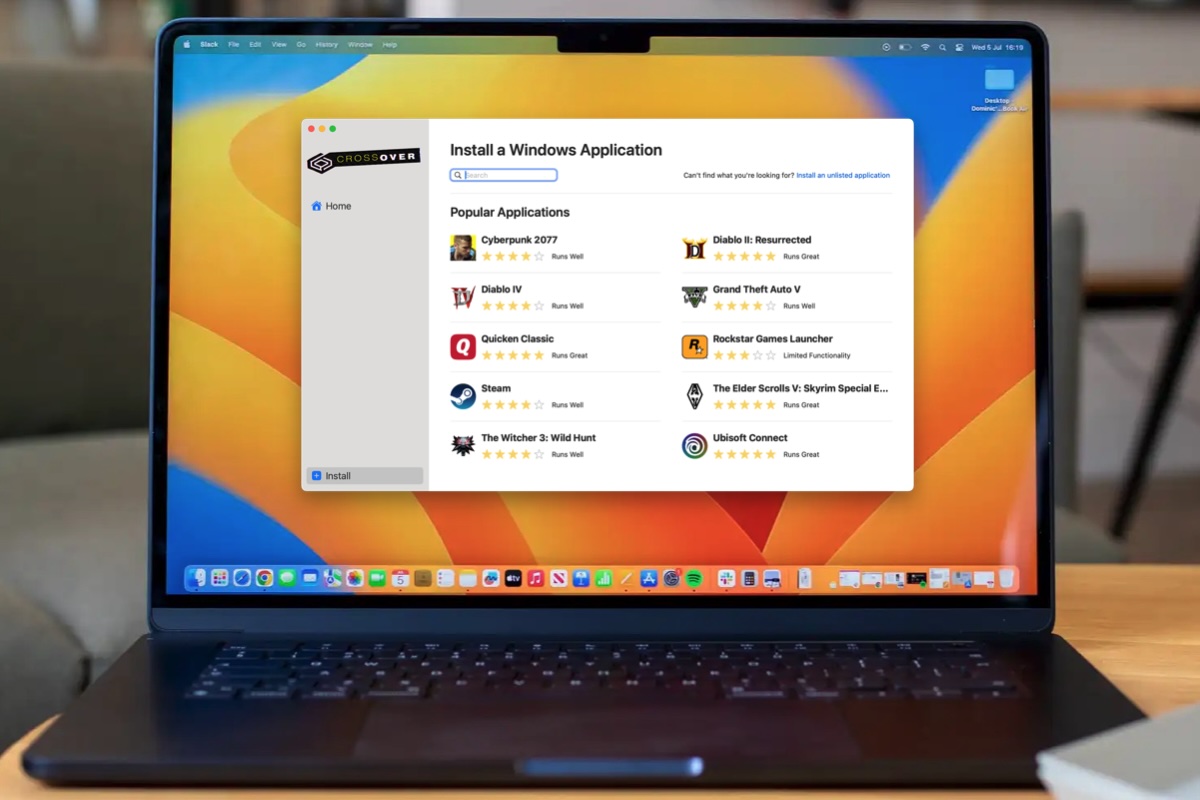
CrossOver is one of the easiest ways to run Windows software on a Mac without buying or installing Windows itself. Built on the open-source WINE compatibility layer, it translates Windows API calls into macOS equivalents, allowing many Windows apps and games to run natively rather than through a virtual machine.
Unlike Parallels Desktop or VMware Fusion, CrossOver doesn’t require a Windows licence, making it a lighter and more affordable option. CodeWeavers has also added a polished interface, technical support and installation tools that make it far easier to use than WINE itself.
CrossOver’s biggest strength is gaming. Apple’s Game Porting Toolkit is based on CodeWeavers technology, and regular updates continue to improve compatibility with popular titles. Recent releases have added or enhanced support for games including Diablo IV, Path of Exile 2, Kingdom Come: Deliverance II, The Outer Worlds 2 and Clair Obscur: Expedition 33. It also handles many productivity applications and older Windows programs surprisingly well.
Compatibility is still its biggest limitation. Some applications work flawlessly, others have minor glitches, and some won’t run at all. Fortunately, CodeWeavers provides an online compatibility database, and the generous 14-day free trial lets you test your essential software before buying.
Performance on Apple Silicon Macs remains good despite the current version relying on Apple’s Rosetta translation layer. That should improve significantly with CrossOver 27, expected in early 2027, which will run natively on Apple Silicon as Apple will retire Rosetta. The trade-off is that CrossOver 27 will drop support for Intel-based Macs, although existing users can continue using older versions.
CrossOver 26 and its subsequent 26.1 and 26.3 updates have focused on performance improvements, Wine 11.0, better graphics support through D3DMetal 3.0, interface refinements for macOS Tahoe, bug fixes and expanded game compatibility.
At $74/£60 for a one-year licence (or $494/£414 for a lifetime licence), CrossOver isn’t free, but it’s still considerably cheaper than buying Windows and virtualisation software.
CrossOver isn’t perfect, but if you want to run Windows software or games on a Mac without installing Windows, it’s one of the best and most convenient solutions available.
Read our full
Codeweavers CrossOver for Mac review
5. Windows 365 Cloud PC – Best cloud Windows PC
Pros
- Can run Windows on your Mac and also your iPad or iPhone.
Cons
- Needs a fast – and always on – Internet connection.
- Expensive.
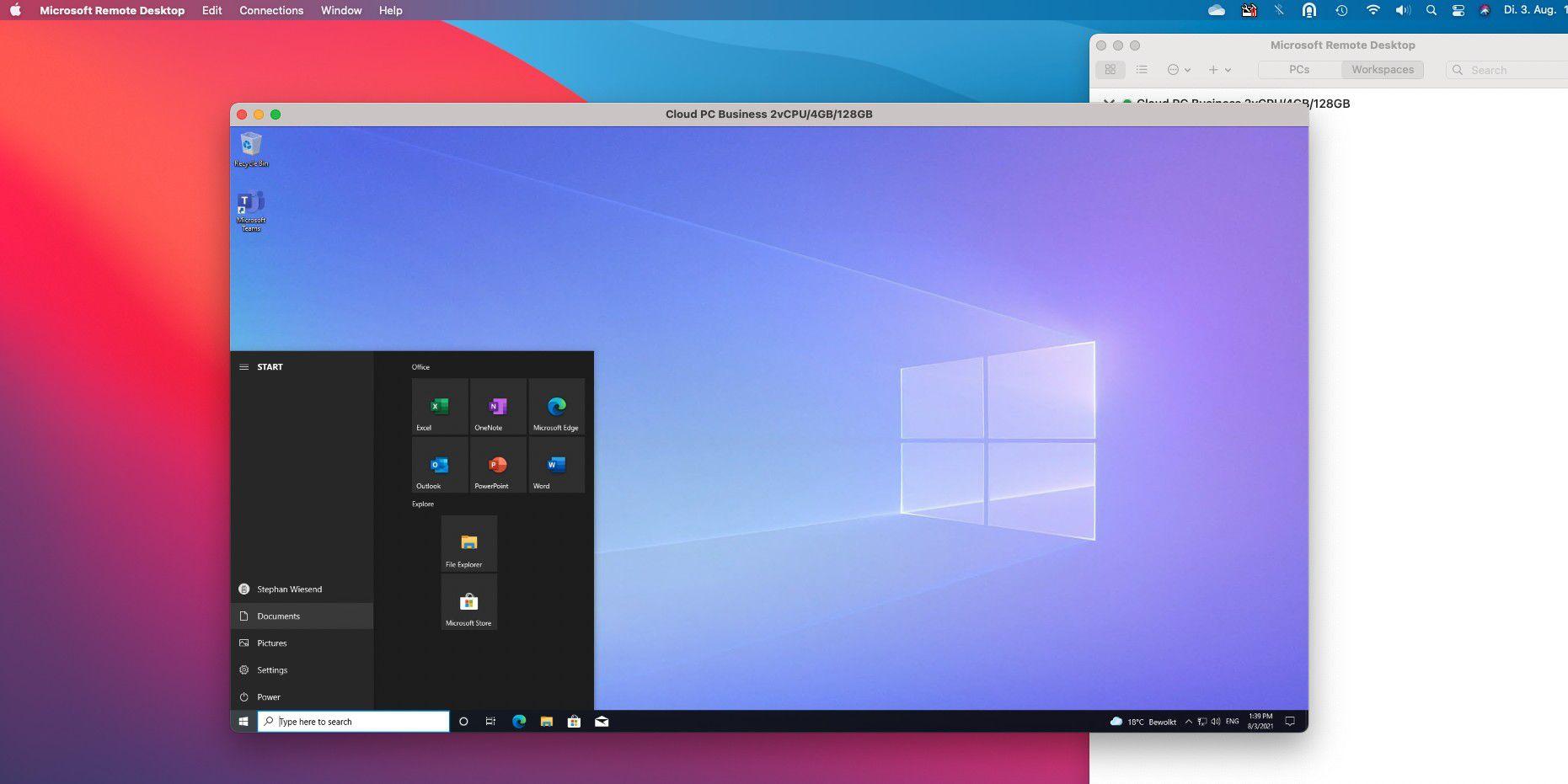
Windows 365 (which launched in July 2021) has the potential to really challenge traditional virtualization programs such as Parallels Desktop and VMware Fusion. However, at the moment, Windows 365 is still pretty expensive and is very much aimed at large corporate users, rather than the individuals and smaller businesses that tend to use Parallels and Fusion.
Microsoft describes Windows 365 as a Cloud PC, but its technical notes make it clear that Windows 365 is a form of virtual machine. The difference is that Parallels and Fusion create virtual machines that are stored locally on your Mac itself, and these virtual machines rely on your Mac’s own processor power, memory and storage to run Windows and Windows apps.
In contrast, Windows 365 creates a virtual machine that is stored up in the cloud, and runs on Microsoft’s own servers. The video image for the Windows desktop on your cloud PC is then streamed to your Mac – or any other device, such as an iPad or even another Windows PC – via your broadband connection.
This form of virtual machine can work well, as long as you have a fast enough – and always-on – Internet connection. But, as mentioned, Windows 365 is quite expensive, with prices ranging from $31/£26.40 to $66/£56.20 per month. That’s compared to $99.99/£89.99 for a full year for the home user version of Parallels Desktop, while Fusion even has a completely free version for home users and students.
Windows 365 certainly has appeal to larger businesses that want to provide a standardized cloud PC that their staff can connect to from any location that has an Internet connection – it’s ideal for hybrid working and the ‘new normal’. However, it’s too expensive for ordinary home users, students and smaller businesses, so existing users of Parallels and Fusion will probably want to stick with those apps for the time being.
Read more here:
How to use Windows 365 on Mac, iPad and iPhone.
6. Wine: Free, but complex
Pros
- Free.
Cons
- Not really for beginners.
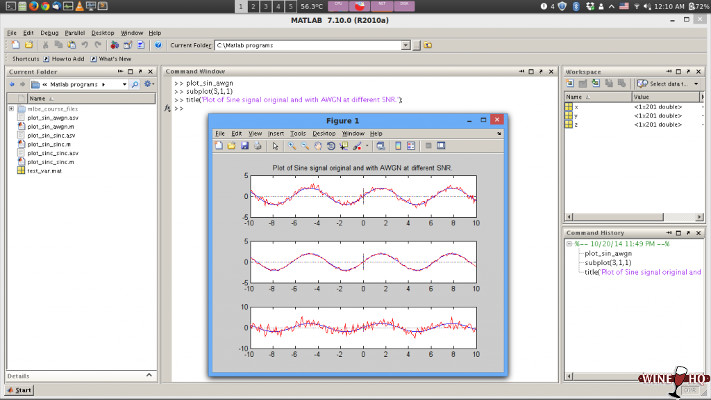
As we mentioned above, the third technology option – after Boot Camp and virtualization – is Wine, which allows you to run Windows apps without Windows itself.
Version 8 of Wine arrived at the end of January 2023, like version 7.5 of Wine, which arrived in March 2022, Wine still runs on M1 and M2 Macs via Rosetta 2. Wine 8 includes support for the latest versions of the Vulkan graphics engine and Microsoft Direct3D. It also adds support for the OCSP networking protocol.
If you don’t mind rolling up your sleeves and getting your hands a bit dirty, then Wine is an unusual but feasible option for running Windows software on your Mac.
Like VirtualBox, Wine is an open-source program that you can download for free. However, it doesn’t use conventional virtualization technology to create a virtual machine for installing Windows – in fact, Wine is the only program in this group that doesn’t even require a copy of Windows at all.
Instead, Wine acts as a kind of software middleman that translates the programming routines – called APIs – in Windows apps so that they can talk directly to macOS, without needing a full copy of Windows itself. And as you don’t need a lot of extra memory or processor power in order to run Windows, you may find that Wine can actually provide better performance than using a virtual machine (especially for games and graphics apps).
Wine also gets very regular updates from a team of dedicated developers who provide the software for free.
The downside is that Wine can be spectacularly confusing for beginners – to the point where we can only really recommend it to hobbyists who like a bit of a challenge.
CodeWeavers CrossOver for Mac is a little easier to use than Wine, despite being closely related to the software. But of course Wine is free, which is a big bonus.
7. VirtualBox: Free, but not easy
Pros
- Free for personal/educational use.
Cons
- Very complicated, not for beginners
This open-source virtualization program is free for personal use – but it’s more at home in a corporate environment.
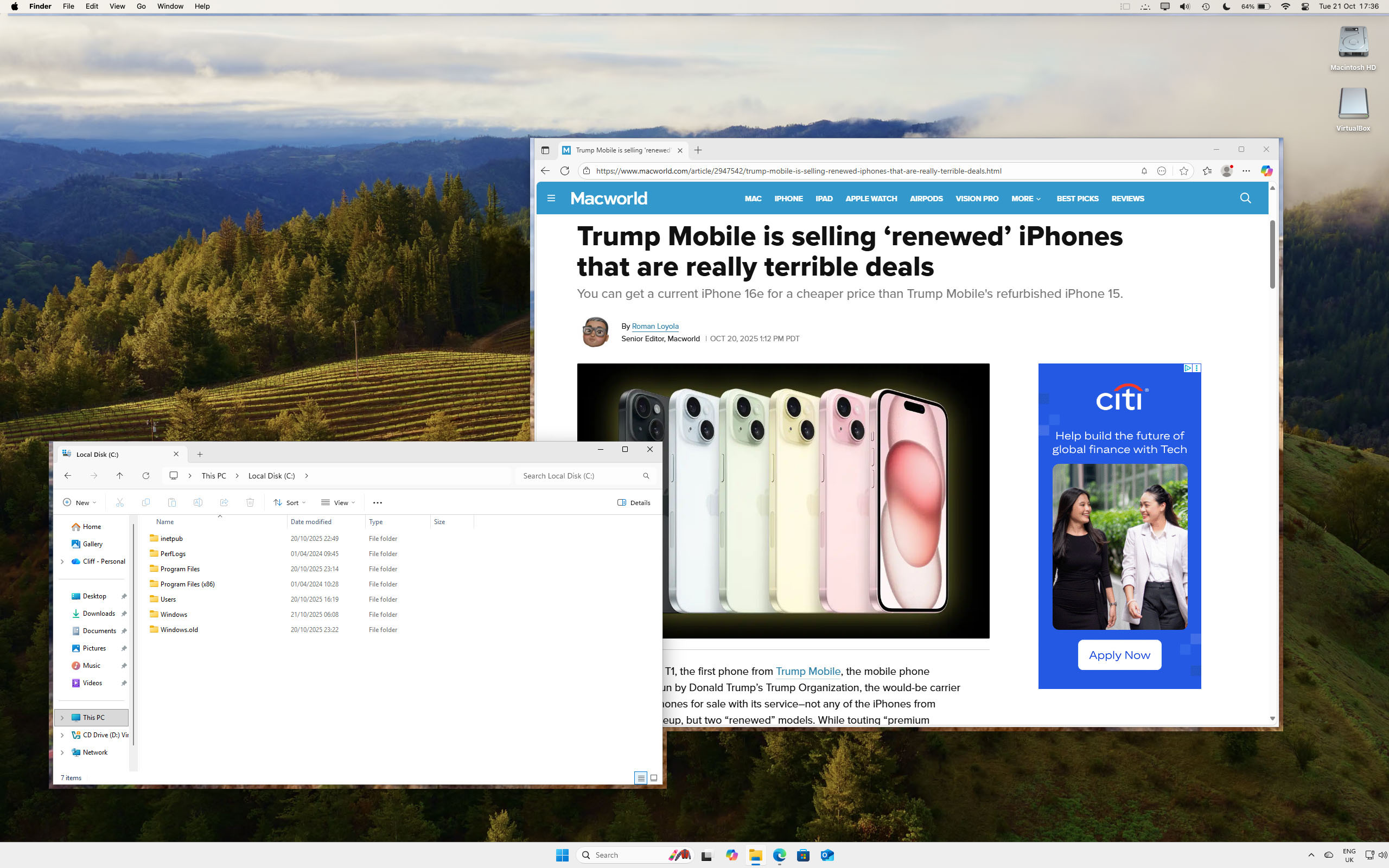
VirtualBox is a bit of a mixed bag. Like Parallels Desktop and VMware Fusion, it allows you to create a virtual machine that can run Windows and Windows apps from within macOS itself. You’ll need to purchase a Windows license for installation and a special version of Windows, Windows On ARM, for Apple Silicon Macs.
If you want it for personal or educational use then VirtualBox is free. The disadvantage of open-source software is that VirtualBox isn’t as polished or easy to use as Parallels or Fusion. As the program is free, you also don’t get any technical support and the 200-page manual is designed for IT managers and developers, making even simple tasks like changing the virtual machine window resolution baffling.
Luckily there is a busy user forum where you can ask a few questions when you need to. Which is a good thing because VirtualBox throws a lot of jargon at you and if you don’t know the difference between a virtual hard disk and a virtual machine disk then you might find it a bit tricky to get started.
Version 7.1 did introduce a new StartUp Wizard to simplify the setup process with separate ‘Basic’ and ‘Expert’ modes. However, this only partially addresses the program’s complex interface, and creating a Windows VM from a Windows 11 On ARM disk image on our M2 MacBook Pro took several attempts.
Version 7.1 also added support for Apple Silicon (aka M-series Macs). The support for Apple Silicon is limited though. VirtualBox can run Windows VMs in its own window or in ‘Seamless’ mode, where individual Windows apps run as native Mac apps. However, we found apps in Seamless mode sometimes move around on the screen, leaving odd graphical after-images. We also experienced occasional crashes when shutting down the Windows VM.
Oracle is really aiming VirtualBox at large corporations that have a proper IT department to help them out. However, business users do need to pay £49/$61 for the VirtualBox Enterprise edition, and you may need to commit to buying 100 licenses at a time, which pretty much rules it out for all but the largest businesses, or educational users who are prepared to tackle the free version.
Read our full
VirtualBox review
8. Apple Boot Camp: Intel only
Pros
- Windows can run at full speed because its not being run at the same time as macOS.
Cons
- Intel only. Absent from M-series Macs.
- You can’t run Windows and macOS at the same time.
- You can’t run Windows 11.
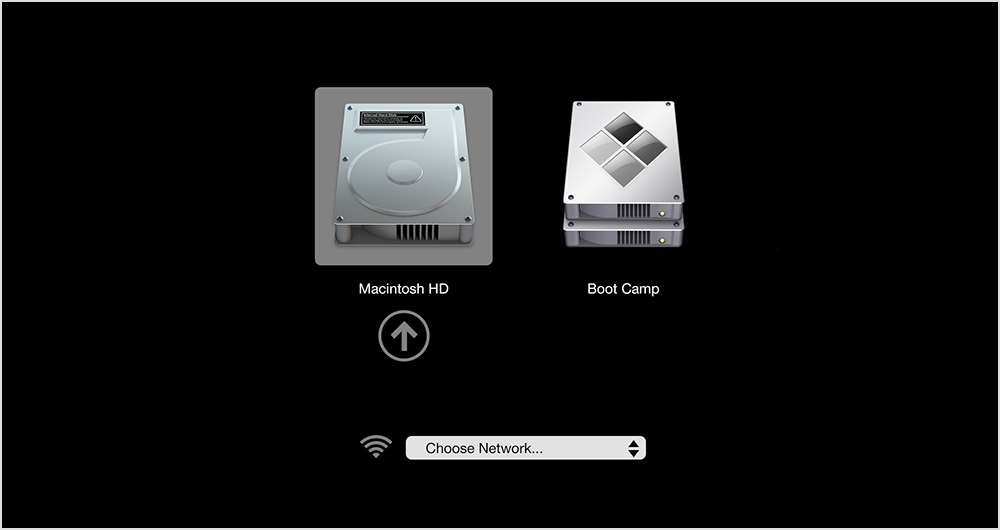
Using dual-boot rather than virtualization technology, Boot Camp provides the best performance for Intel-based Macs that need to run Windows. (As we explained above, M1 or later Macs do not offer Boot Camp).
It’s important to make a distinction between Boot Camp and the virtualization programs that we look at here, such as Parallels Desktop, VMware Fusion and VirtualBox. Instead of creating a virtual machine that allows you to run Mac and Windows apps together at the same time, Boot Camp is a dual-boot system that simply allows you to boot (start) your Mac using either the native macOS or Windows (but not both at the same time).
Thanks to Boot Camp your Mac can act as a straightforward Windows PC, and devote all its processor power and memory to running Windows and your Windows apps. And, crucially, if your Mac has a decent graphics card, it can use the full power of the graphics card to help run your Windows software. That’s definitely the best option for people who need to run high-end graphics software or 3D games, as you get much better performance than when running Windows in a virtual machine.
The disadvantage of using Boot Camp is that you lose access to all your Mac apps while you’re running Windows. If you use Apple Mail for your emails then you’ll need to shut down Windows and Boot Camp, and switch back to macOS every time you want to send or receive an email. And, if truth be told, the current version of BootCamp 6.1 isn’t quite as straightforward to set up as it used to be.
Previous versions of Boot Camp did all the work for you – they would partition your hard drive, install Windows from a normal installer disk, and also install any driver software that you needed so that components such as your graphics card, keyboard and mouse all worked properly within Windows.
Boot Camp 6.1.19 (as of August 2022) can only be used to install Windows 7, Windows 8.1 or Windows 10. Windows 11 requires the host computer to have a TPM (trusted platform module) which Macs don’t have (some VM solutions, such as Parallels, can allow Macs with a T2 chip to run Windows 11). Since not all Macs will work with all versions of Windows, so before you even start to run the Boot Camp Assistant you’ll need to check the compatibility tables on Apple’s website to see which version of Windows will work on your Mac.
You can’t install Windows from an old installer disk anymore either, so you’ll either have to download a disk image file for Windows – called an ISO file – from Microsoft’s own website, or use your Windows disk to create one. Boot Camp includes driver software for setting up Windows 8 and Windows 10, but if you’re a fan of Windows 7 (which some people prefer for gaming) then you’ll have to hunt around on Apple’s website for the drivers you need and make sure you follow the correct procedure when copying them on to your Boot Camp partition.
Still, if you persevere with all that, you will eventually have Windows running at full speed on your Mac, giving you access to a wide range of Windows software and games that require more power and speed than you can get from using virtual machine technology. Just as long as you don’t have an M1 Mac…
For more advice about accessories and software for your Mac, iPad or iPhone see all our Best Picks.
How to run Windows on Mac: Apple Silicon vs Intel
If you are still using an Intel-based Mac you can use Apple’s Boot Camp to run Windows. However, in 2020 Apple started using its own processors that are based on Arm architecture rather than the x86 architecture used by Intel. Now every Mac Apple sells has an Apple-made M-series processor. Boot Camp is not available on M-series Macs.
That doesn’t mean that M-series Macs can no longer run Windows, it just means they can’t use Boot Camp and they need the Arm version of Windows.
If you want to run Windows on an M-series Mac. You can choose from virtualization options like Parallels Desktop and VMware Fusion, or emulation solutions like CrossOver and Wine, and even Microsoft’s Windows 365 service. You can read about all of these choices in our group test below as well as our individual reviews.
Our top choice is Parallels Desktop, but all the others have some benefits that may suit you. For example, CrossOver doesn’t actually need a copy of Windows to run Windows apps, and there are even free options like Whisky and Wine.
What are Apple’s Virtualization.framework tools?
Apple’s Virtualization.framework is a native macOS framework introduced by Apple that lets developers create and manage virtual machines without relying on third-party hypervisors like Parallels or VMware. Unlike Parallels Desktop, it’s not an end-user application. Instead, it’s a set of APIs that developers use to build virtualization software.
VirtualBuddy, a free open-source app for running macOS and Linux VMs is built on Apple’s Virtualization.framework. Other similar options include Tart and OrbStack. These tools are aimed at developers rather than consumers.
Virtualization.framework offers some advantages that developers appreciate, including:
- Native support from Apple.
- Lower resource overhead.
- Integration with macOS security features
However, there are limitations compared to running Parallels and other apps.
FAQ
What is a Virtual Machine?
Virtualization programs such as Parallels Desktop and VMware Fusion run on the macOS, but allow you to create a Virtual Machine (or VM) that mimics the hardware of a Windows PC. This makes it possible to create a VM on your Mac and then install Windows – or another operating system, such as Linux – on the VM. This is a great solution as it allows you to run the Windows apps that you need right alongside your main Mac apps as well. The only disadvantage is that you need a pretty fast Mac with plenty of memory and storage to run Windows as a VM, since it means that your Mac is effectively running two operating systems at the same time.
What is emulation?
Emulation is a process that allows individual Windows applications to run on a Mac without the need for the Windows operating system to be installed. This is achieved through emulation tools, such as Wine and CrossOver, which are typically used by technically proficient users.
Do I need a Windows license?
It depends on which of those two methods you are using. If you are running Windows in a VM then you need a license in order to create a Windows VM on Macs with Apple Silicon processors, and, unfortunately, the less expensive Home edition isn’t supported. However, it is possible to use an existing Windows license if you have one and Microsoft doesn’t differentiate between Windows On Intel and Windows On Arm, see Parallel’s website here.
If you are using emulation you won’t need a copy of Windows.
How can I get the Arm version of Windows
If you want to run Windows on a Mac with a M-series chip you will need the Arm version of Windows. (Although, as mentioned above, Parallels Desktop version 20.2 can run some versions of Windows that were written for Intel processors, albeit with some limitations (one being that it runs really slow).
The good news is that an Arm version of Windows does exist. Windows On Aar, aka WoA, is Microsoft’s version of Windows is designed to run on ARM chips.
The Arm version of Windows isn’t normally licensed to individual users. Fortunately, Parallels has worked closely with Microsoft to simplify the process of creating VMs that use the ARM version of Windows. With the arrival of Parallels Desktop 18 in 2022 Parallels gained the ability to download and buy the ARM version of Windows 11 directly within Parallels itself. Microsoft even endorsed Parallels for Windows on M1 and M2 Macs, effectively authorizing Parallels Desktop 18 users to run Arm versions of Windows 11 Pro and Windows 11 Enterprise. Read our full review of Parallels Desktop for more information.
To download and buy the ARM version of Windows 11 directly within Parallels itself. All you need to do is:
- Press the button that says Get Windows 11 From Microsoft.
- Parallels will download the relevant version of Windows 11 for your Mac (if your Mac has an ARM processor then it will download the ARM version of Windows 11).
- You can then use the Microsoft Store app within your Windows VM to purchase a license or use an existing Windows 11 license if you have one.
You can also buy a license through the Download option from the Microsoft store.
How do I run the X86 version of Windows on a Mac
One option, if your Mac has an M-series chip is Parallels Desktop – version 20.2.0 – but it will run slowly.
If you are looking to run Windows on a Mac that isn’t powered by an Apple M-series chip, then you can download Windows 11 for free (as long as your Mac has the necessary specs, such as the Trusted Platform Module, to qualify for the free upgrade).
- Download Windows 11 from Microsoft, free upgrade as long as you qualify.
You could take advantage of various deals for Windows 11 Pro including:
- Windows 11 Professional, $79.99 (usually $199.99).
Can I run Windows 11 on a Mac using VM software?
You can run Windows 11 on a Mac using virtual machine (VM) software. This method allows you to run Windows and its applications alongside macOS without needing to reboot your computer.
If your Mac has an M-series chip it use ARM-based processors and requires the ARM version of Windows 11, officially called Windows on ARM (WoA) or Windows 11 Arm64. You cannot run the standard Intel (x86) version of Windows on these Macs through virtualization without significant performance loss via emulation.
A popular solution for accessing Windows-exclusive software, games, or development tools on a Mac is to create a “virtual machine” on your Mac, which is software that simulates the hardware of a PC. You can then install Windows 11 on this VM.
To run Windows 11 in a VM, your Mac needs to be powerful enough to run two operating systems simultaneously. This means having sufficient memory (RAM), storage space, and processor power. a machine with at least 16GB of RAM is recommended for a smooth experience.
Which Virtual Machine app is best for developers?
Parallels Desktop is the best choice for developers thanks to its excellent performance on Apple Silicon and Intel Macs, broad support for Windows and Linux, and features such as snapshots, cloning and seamless macOS integration. It provides a stable, efficient environment for software development, testing and debugging.
UTM and VMware Fusion are capable alternatives, with UTM appealing to open-source users and VMware Fusion suiting those already invested in VMware’s ecosystem. However, Parallels offers the strongest overall balance of speed, ease of use and developer-focused features for everyday cross-platform workflows.