It’s a table-stakes feature for almost all headphones, but for some reason Apple has resisted adding it to AirPods. Until now. With iOS 27, Apple is adding a simple equalizer to its AirPods controls, after years of user complaints.
Here’s how to use it.
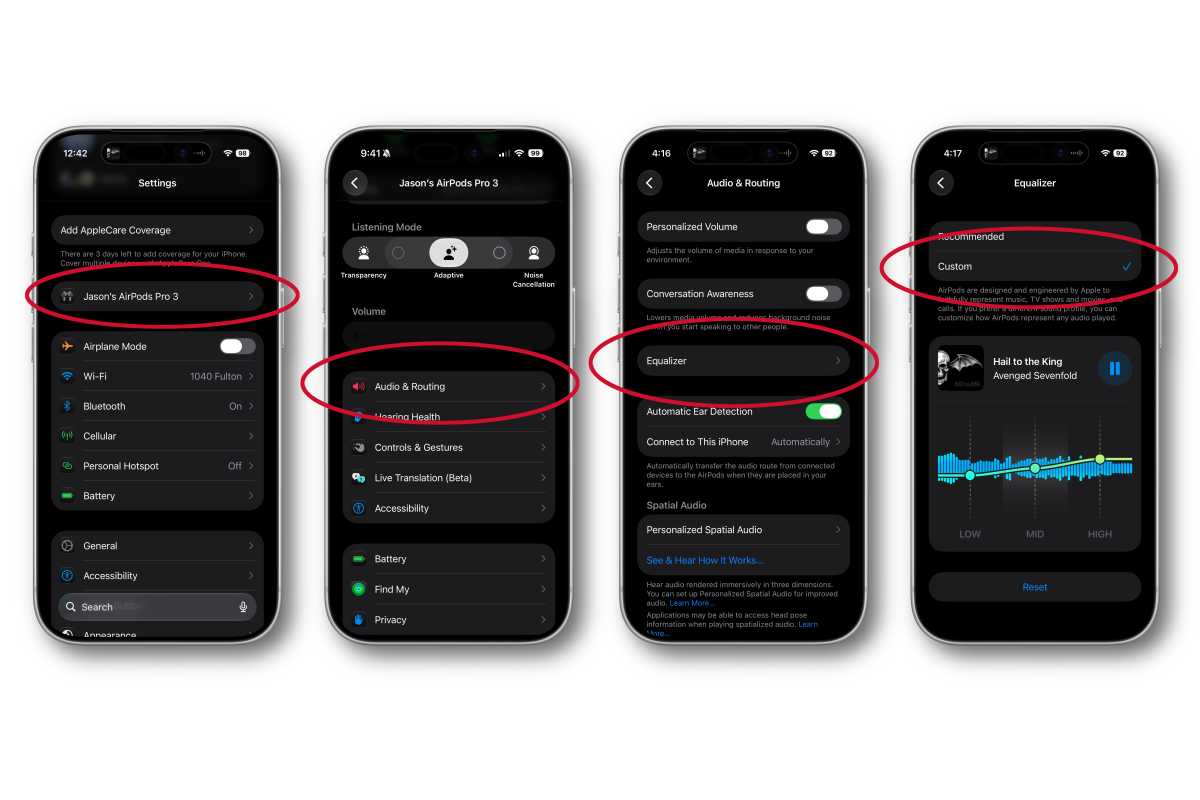
How to find and use the custom EQ for AirPods
With your AirPods connected to your iPhone, enabling and adjusting the custom EQ is simple once you know where to look.
- Open the Settings app.
- Tap your AirPods name at the top of the screen.
- Select Audio and Routing.
- Tap Equalizer and then select Custom.
Foundry
The EQ is a very simple three-band adjustment that only lets you increase or decrease the lows, mids, and highs. But if you find your new AirPods are too bass-heavy or that your hearing needs a little help with bright high frequencies, it gets the job done.
This is a new iOS 27 feature and requires you to run both iOS 27 and have a related firmware update to your AirPods. If you’re using the beta, you’ll need to enable Beta Updates for your AirPods.
To do this, open Settings, tap your AirPods name, then scroll to the bottom and select AirPods Beta Updates. Make sure Beta Updates is enabled, then put your AirPods back in the case and plug them in to charge. It can sometimes take hours or more for new firmware to be delivered to your AirPods, and there’s not much you can do to make it go faster. You’ll need firmware newer than 8B41. The first beta firmware to support this feature was 9A292e.