If you need to fix a faulty iPhone that will not start up properly, you can use Recovery mode. This lets you connect your iPhone to a Mac or PC and use it to update or restore iOS. If your iPhone is having problems, try updating the software first. This can reinstall iOS without wiping your data. If that does not solve the problem, you may need to restore the iPhone and start again.
If updating the software fails, you can use Recovery mode to restore your iPhone. Restoring wipes the device and installs the latest compatible public version of iOS. Once the restore is complete, you can set up the iPhone again and recover your settings, data, and apps from an iCloud or computer backup made before the problems started.
Recovery mode is also useful if you want to remove an iOS beta. This is not quite the same as wiping your iPhone to prepare it for sale – in that case, you should follow the normal erase process so that your data is removed and the iPhone is properly unlinked from your Apple Account.
Note: If you are considering Recovery mode because you have been unable to erase an iPhone using Erase All Content and Settings in Settings > General > Transfer or Reset iPhone, first check that the iPhone has a working internet connection. That erase process may need to contact Apple’s servers, so make sure the device is connected to Wi-Fi or cellular data.
How to put your iPhone into Recovery mode
- Tools required: You will need the Finder on the Mac or the Apple Devices app on a PC to enter Recovery mode. Your Mac or PC will need to have a working internet connection.
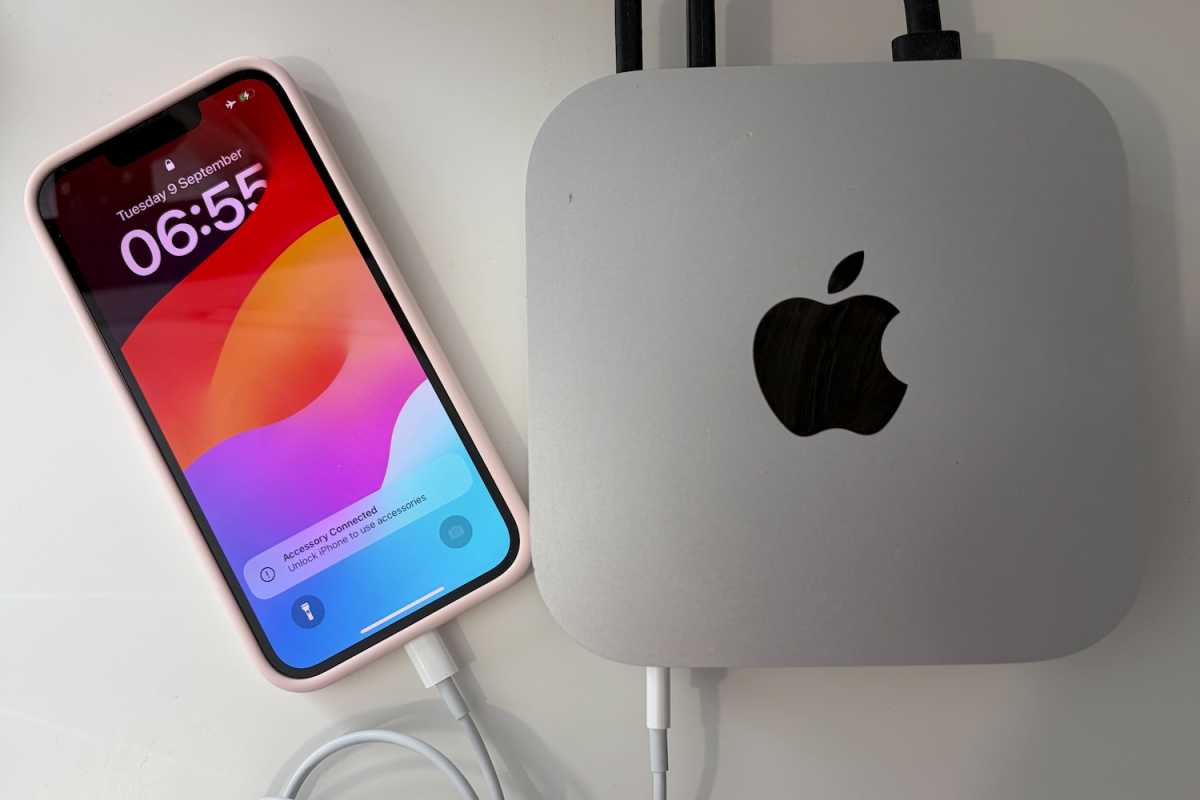
Plug your iPhone into your computer using a cable that supports data
Foundry
You may see a message indicating that you need to unlock the iPhone to use the accessory – you can ignore this because you don’t need to unlock the iPhone to put it into Recovery mode.
Open the Finder (if you are on a PC it’s the Apple Devices app you need)
Finder on the Mac.
Foundry
If you were able to unlock the iPhone, you should see it in the Locations section in the right-hand column. If you don’t, don’t worry – the next step will put the iPhone into Recovery mode.
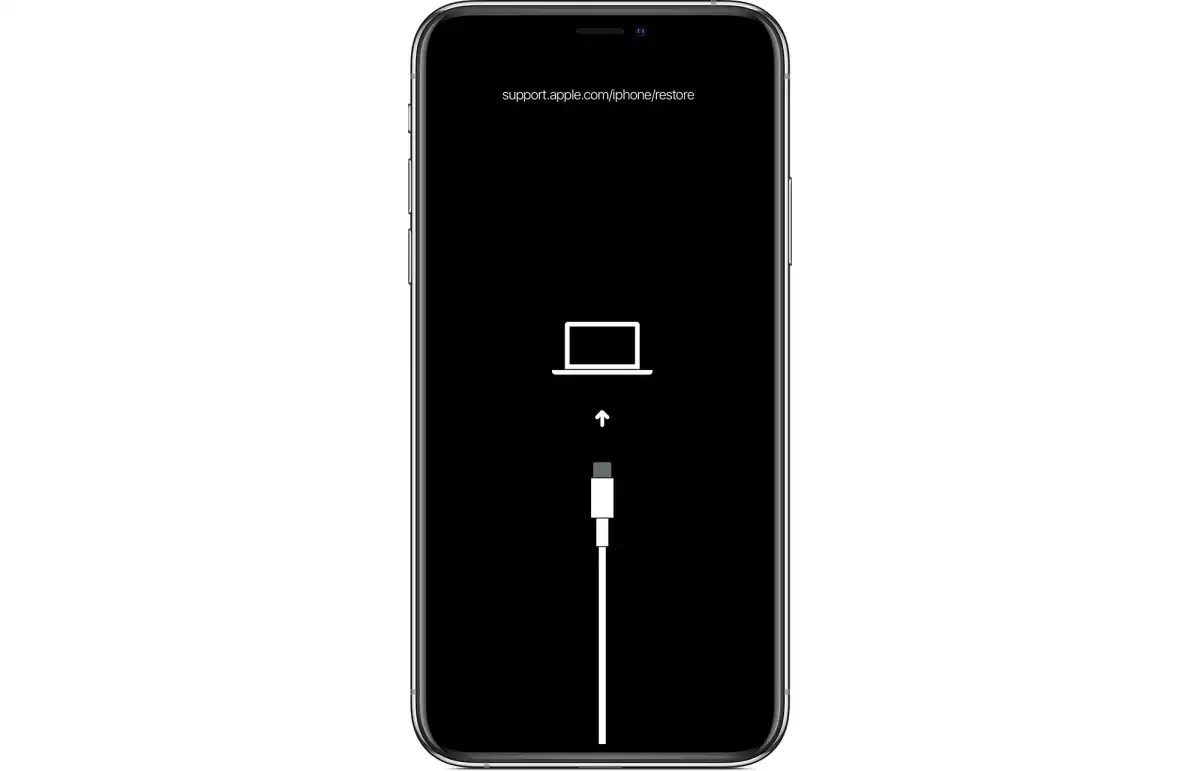
Shut down your iPhone and enter Recovery mode
Foundry
To shut down the iPhone you need to follow these steps:
- Press volume up
- Press volume down
- Press and hold the side button while the phone shuts down and starts up again – this means you must keep holding the side button even when it gives you the slider to turn the phone off and even when the Apple logo appears.
- Wait till the Recovery mode screen (shown above) is in place before releasing the side button.
Your iPhone is now in recovery mode.
To enter recovery on older iPhones the steps are slightly different:
iPhone 7: Press and hold the Side button and Volume Down until the Recovery mode screen appears.
iPhone 6s and older: Press and hold the Home button and Side/Top button until the Recovery mode screen appears.
This should work even on an unresponsive iPhone, as long as it has enough power. If the iPhone is completely dead, connect it to power for a while, then try again.
Update the software on your iPhone
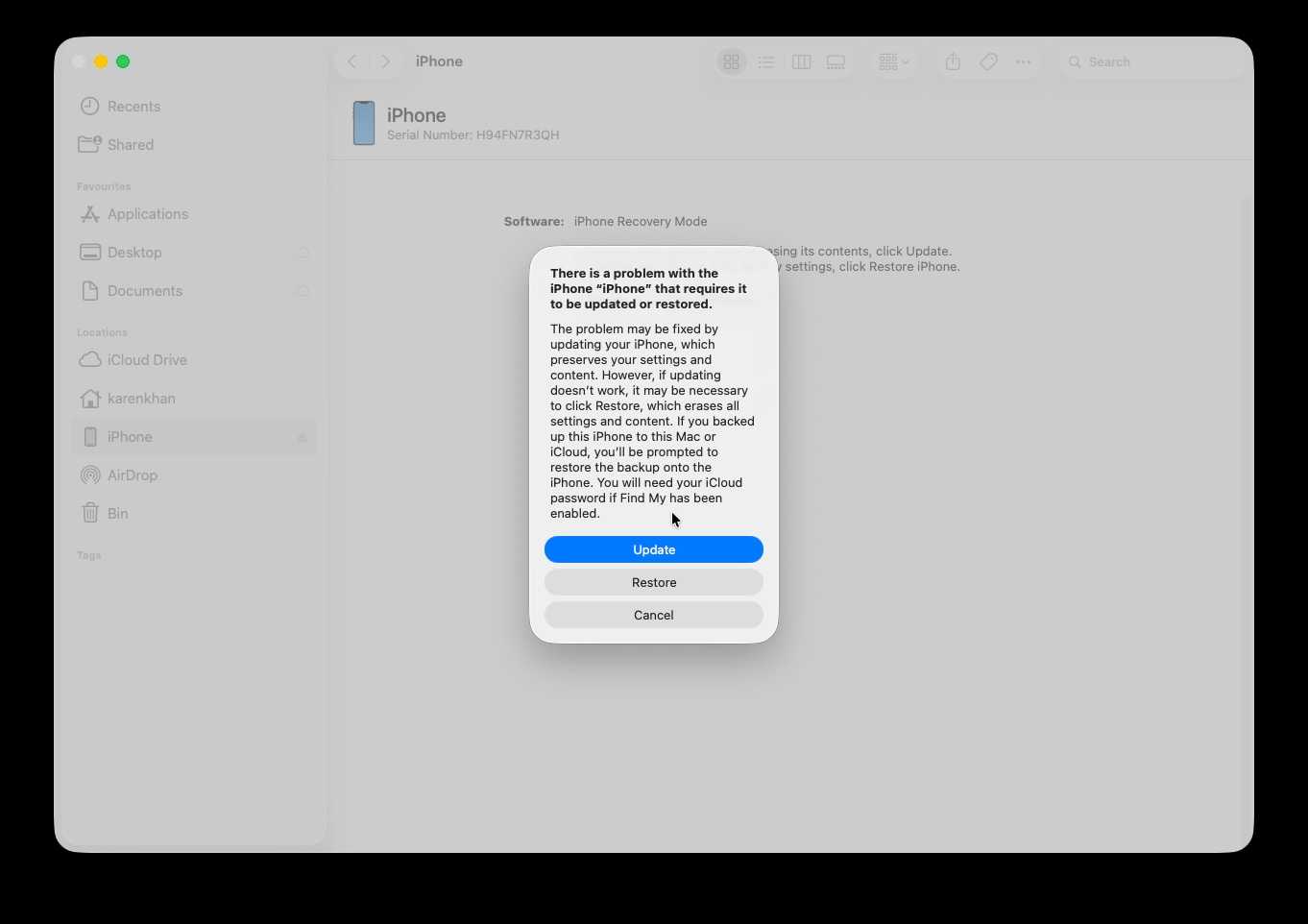
Choose Update to update the software (and avoid wiping your iPhone)
Foundry
In the Finder click on iPhone, which should have appears under Locations on the right hand side.
You should now see a message indicating that there is a problem with the iPhone that requires it to be updated or restored.
Try the Update option first because that will update the software to the latest compatible version, without the need to wipe your iPhone.
Updating the software may fix the issue you are having with your iPhone, but if that fails, you need to click on Restore.
Restore your iPhone (if the step above doesn’t work)
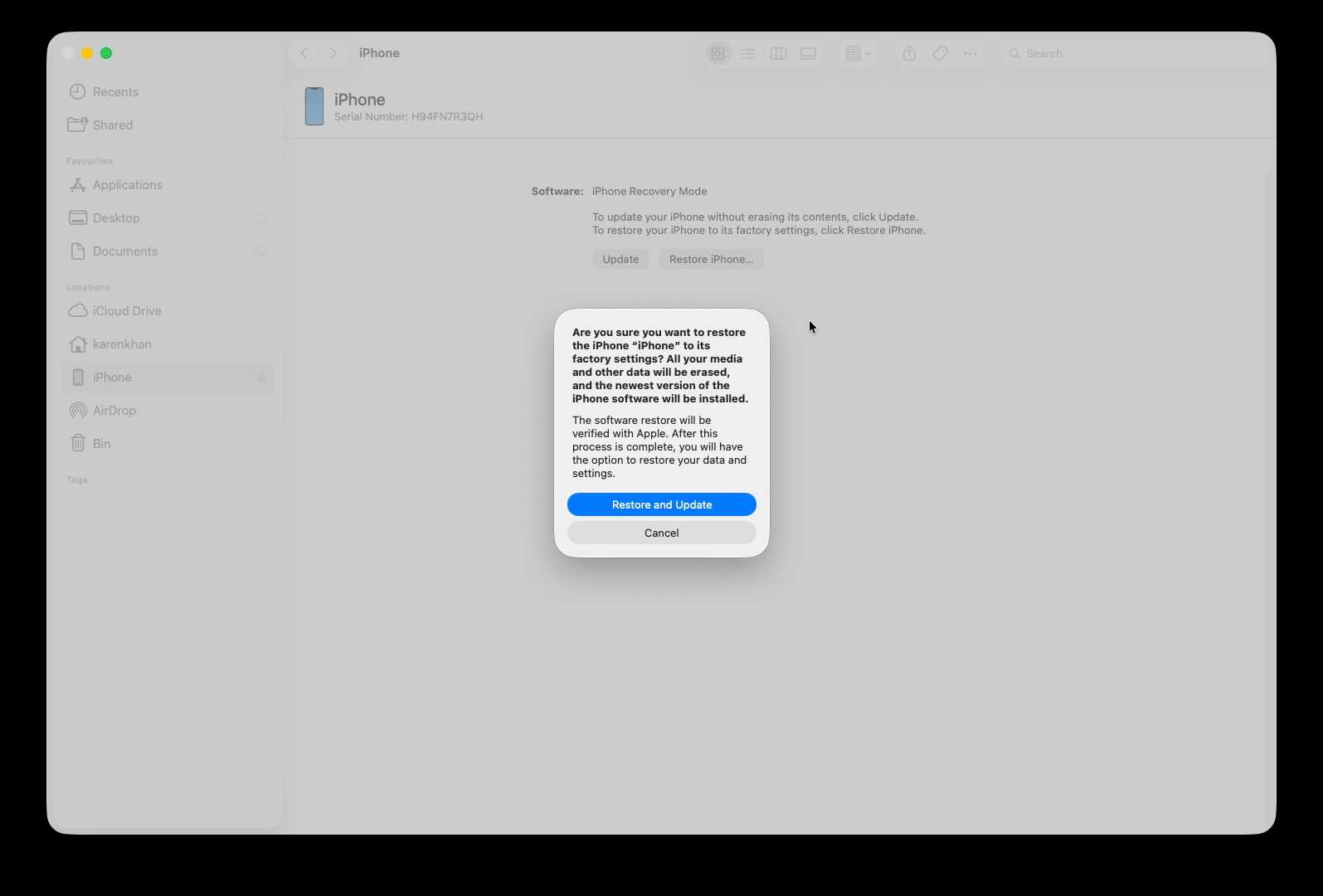
Restoring your iPhone will wipe it.
Foundry
You will now see a message asking you to confirm you want to restore the iPhone and warning that it will be reverted to factory settings and all data erased.
You will need to agree to Apple’s Terms.
Your Mac will start to download the software (expect this to take a while).
Wait while your Mac downloads the software
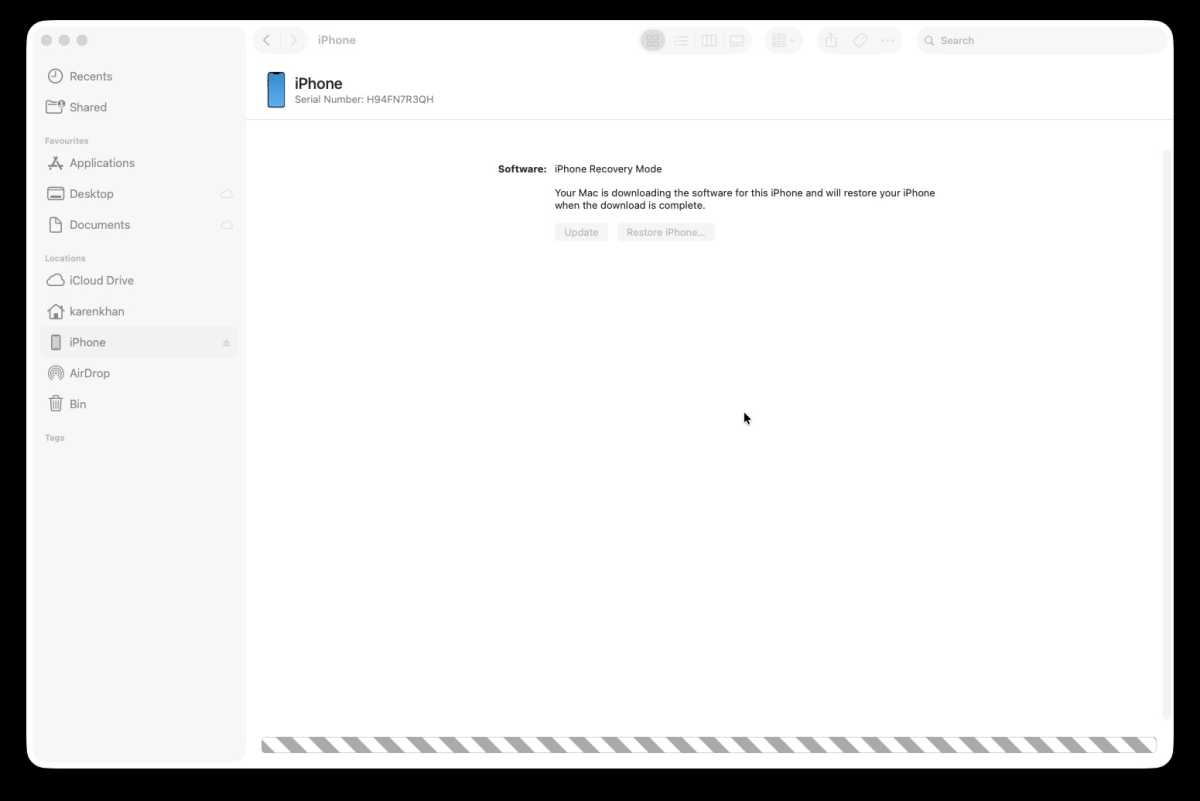
Mac downloading software in the background.
Foundry
Wait while the software update is downloaded and applied. Our’s estimated 20 minutes.
Your phone will exit Recovery mode after 15 minutes, but the Mac should continue to download the software update.
You will need to put the iPhone back in Recovery mode to apply the update.
Your Mac will now apply the software update to the iPhone
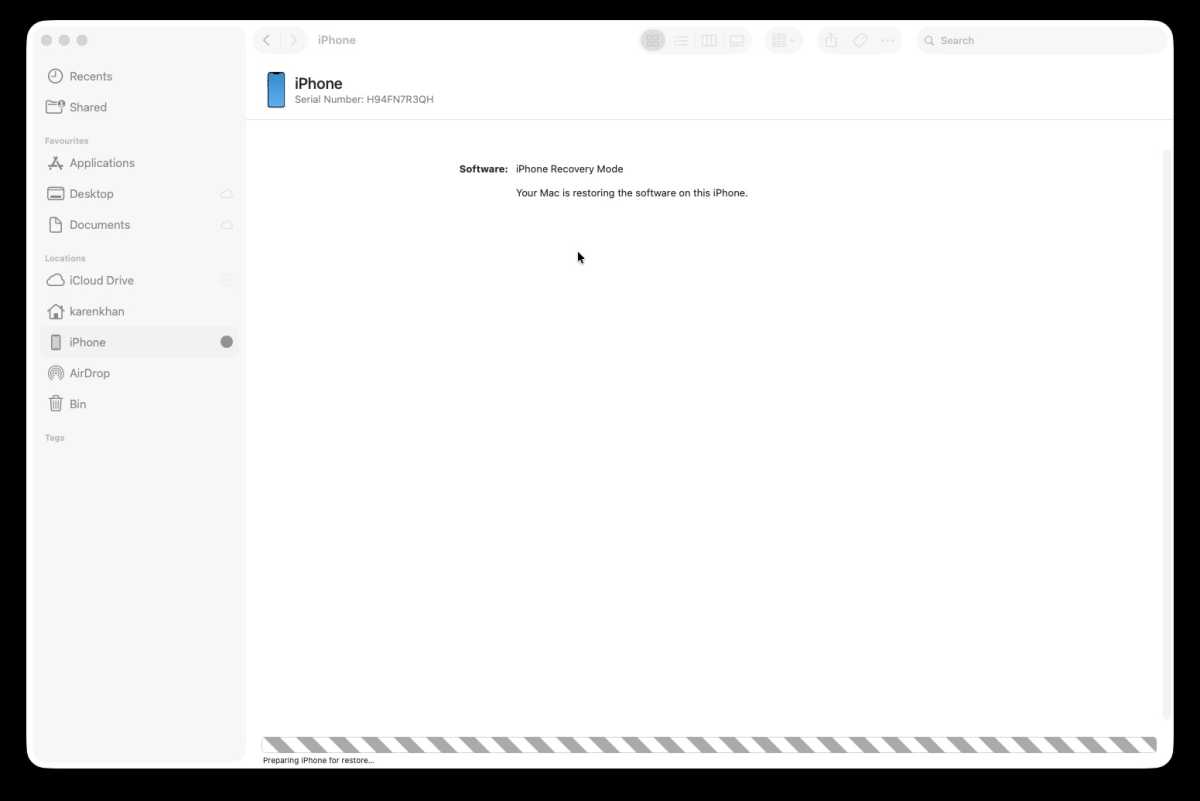
The Mac applies the software update.
Foundry
Wait a few minutes while the software is applied.
Your iPhone will display the Apple logo and a progress bar, first while the update is applied and the again as it sets itself up. (Expect that to take a few minutes).
Set up the iPhone as new
Foundry
Eventually the iPhone should restart with the Welcome screen if this process has worked.
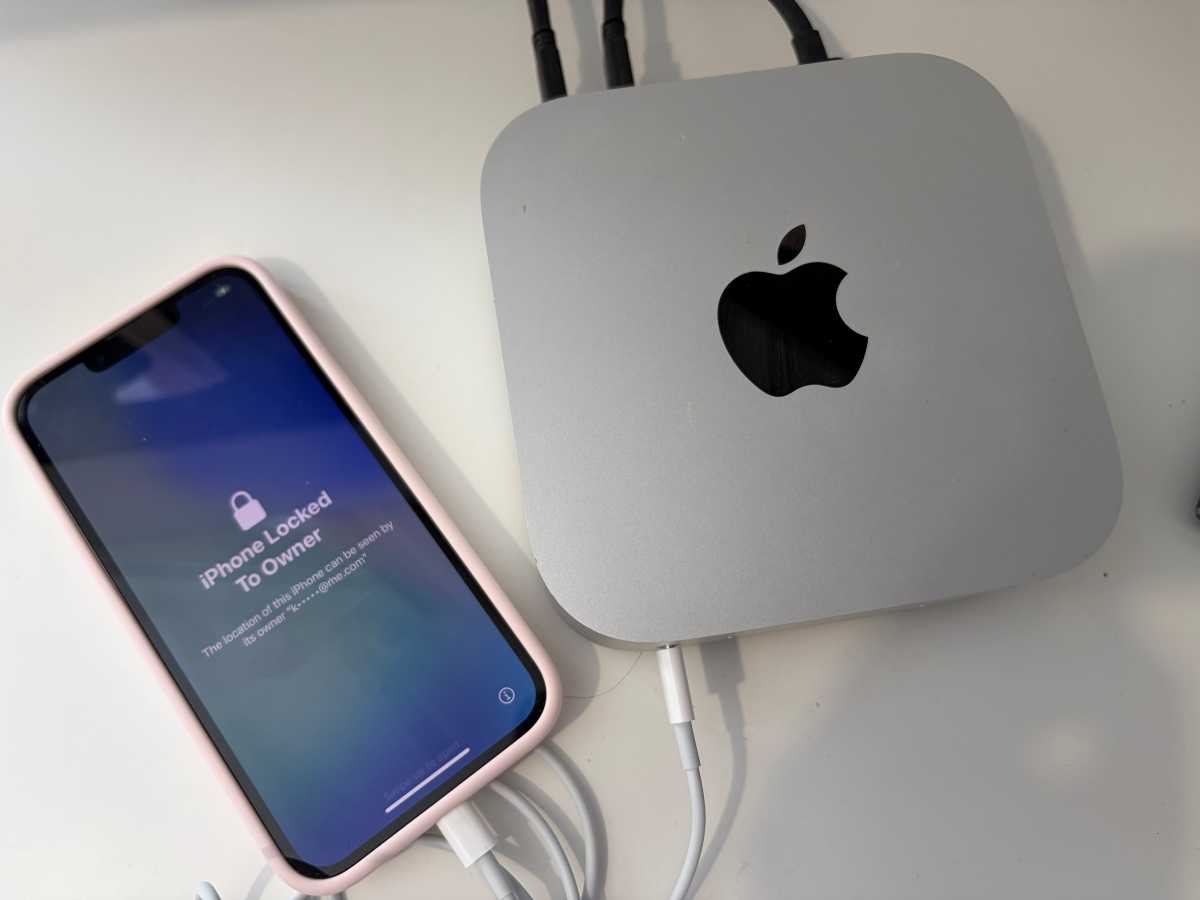
You may see a screen that says “This iPhone is Locked to Owner” in various languages. If you know the password for the owner this shouldn’t be a problem.
Now you can either set up your iPhone as new, or restore it from an iCloud backup.
- Tap on your country or region.
- On the Quickly Set Up iPhone screen Click on Set Up Without Another Device (unless you have another iPhone you want to clone).
- Connect to Wi-Fi.
- Wait for your iPhone to activate.
- At this stage, if your iPhone is locked to a user you will need to add their email and password. You can also choose to unlock with the passcode.
- Now work through the various steps until you get to the Transfer Your Apps & Data screen and tap on From iCloud Backup (or Android). Check the date to make sure it’s the backup you want.
- Log into your Apple ID and wait while your device signs in.
- Now choose an iCloud backup from before you had problems with your iPhone. Click on Show more backups to find an older one if you don’t see it.
- Wait while the Restore from iCloud takes place, which could take a while.
What to do if you don’t know the password or pin
Apple
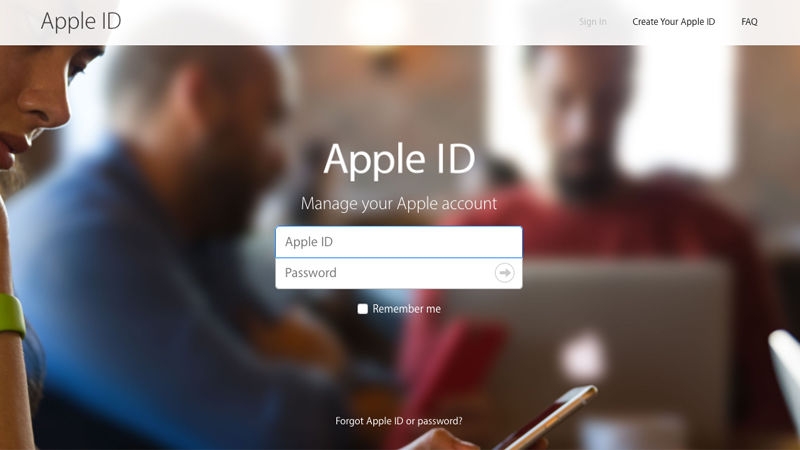
If the iPhone had Find My enabled on it and you don’t have the owners password or pin Activation Lock is triggered when you start the phone up after the restore.
Unfortunately, you will need the owner’s Apple Account credentials to use the iPhone again after restoring.
However, you could try the steps in this article to help you unlock an Apple ID that’s locked or disabled.