Every year, iPadOS borrows a couple of desktop features, bringing Apple’s tablet closer to the Mac. At this point, some professionals have effectively replaced their MacBooks with iPads, simplifying their setups and making them more portable. An iPad on its own, however, is insufficient to mimic a MacBook. One cannot practically type long-form text using the virtual keyboard or rely exclusively on touch controls for daily tasks. Fortunately, with just a few accessories, you can completely transform your iPad experience and upgrade it to a MacBook-like computer.
Keyboard
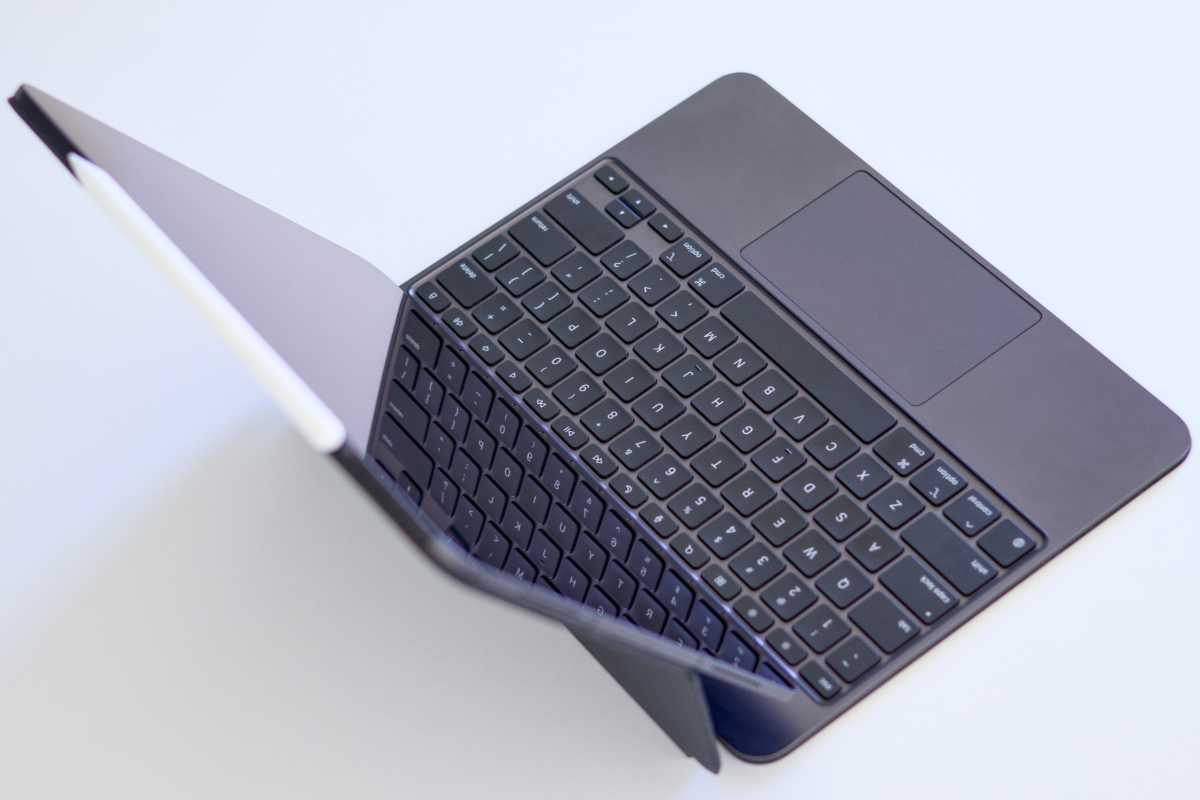
A keyboard is the most essential productivity accessory you can get for your iPad. Not only does it make typing more intuitive, but it also unlocks advanced keyboard shortcuts across apps—accelerating your workflows in the process. Luckily, iPadOS supports a wide range of keyboards, including most standard Bluetooth ones. Apple sells the Magic Keyboard for various iPad models, which doubles as a stand and protective case. It also includes an embedded trackpad, essentially turning your iPad into a laptop. For something more budget-friendly, you can’t go wrong with the Logitech Keys-to-Go Bluetooth Keyboard. It is designed specifically for Apple products, supports multi-device connections, and features a portable design.
Foundry
Mouse
Like keyboards, iPadOS supports most Bluetooth mice and trackpads, and will show a dedicated cursor when using one. This spares you from touching the display for interacting with on-screen elements and replicates the Mac experience. For a reliable, ergonomic mouse, go with the Logitech MX Master 4. It features a comfortable build and long battery life, making it suitable for long work hours. If you’d rather spend less, you can buy a Microsoft-branded Bluetooth mouse for a fraction of the price. It may not offer as many customization options or perks as certain alternatives, but it’ll reliably get the job done.
External display
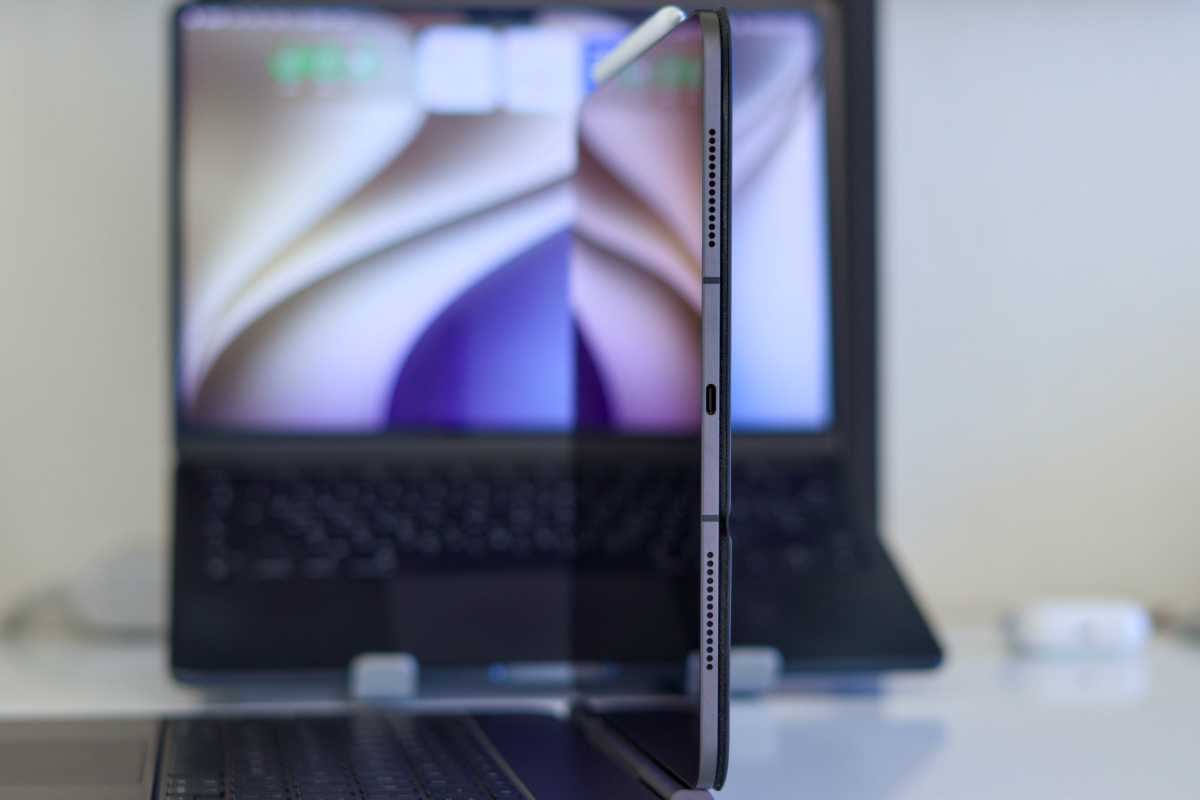
iPadOS is natively compatible with external monitors, letting you get work done on larger displays. M-series iPads support secondary workspaces, allowing you to simultaneously interact with different windows on the built-in screen and external one. Less powerful iPad models limit external display support to screen mirroring, which is still decent for those seeking a wider canvas. For a dependable option, you may want to consider the Dell 27 Monitor S2725QC. It features a 4K resolution, USB-C connectivity, 120Hz refresh rate, and more. Planning to work on the go? Go with the Asus ZenScreen 15.6 Inch Portable Monitor instead. It may not be as advanced, but it’s certainly sufficient for mobile setups.
Foundry
USB-C dongle
iPads only offer a single USB-C port, and that can limit the peripherals you can connect to them—especially during charging sessions. Fortunately, you can add more ports to your iPad by connecting a dongle. There are endless options offered by a wide range of brands, featuring various port types and price ranges that cater to all sorts of customers. Some solid dongles include those from Anker, Acer, and Ugreen. Ensure your iPad model is compatible with your selection before completing your purchase.
Docking Station
If you’re not a big fan of dangling dongles, you could opt for a docking station instead. Several excellent brands offer dedicated stands that incorporate additional ports for your iPad. They are ideal for stable setups and will maintain your desk’s minimalistic, clutter-free look. The Satechi 6-in-1 USB-C Stand Hub and Anker 551 USB-C Hub with Foldable Stand will both transform your iPad into a serious workstation.
Stand
If your setup is primarily wireless, you could still get a stand without any of the extra ports. This allows you to fix your iPad at a comfortable viewing angle and makes using standalone Bluetooth keyboards and mice more practical. Some of the popular stands include those from Moft, Ugreen, and Lisen.
External storage
While wireless cloud solutions tend to be more convenient, certain fields limit us to local file storage and transfer. The iPad supports hard drives and USB sticks, letting you quickly browse and move data using the built-in Files app. The WD 2TB My Passport is a high-end option for those handling large files. Those with more basic needs can safely go with the Sandisk 512GB Ultra Dual Drive Go Flash Drive.
Game controller
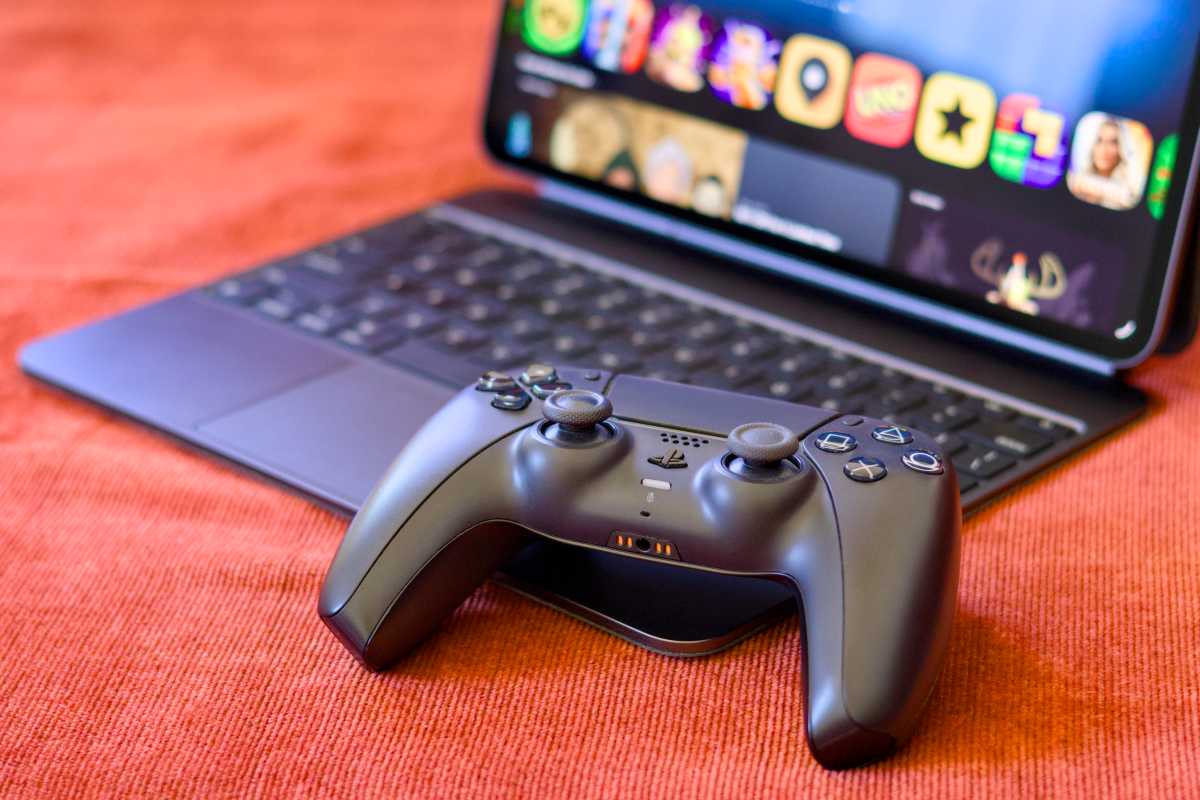
If you’re using your iPad as a MacBook replacement, you’ll want to prepare for gaming sessions. Like macOS, iPadOS fully supports Sony DualSense, Xbox, and MFi controllers, allowing you to wirelessly pair and customize them as needed.
Foundry
Speaker
Laptops are often used for consuming media, including music while working and movie streaming when away from a TV. If you’re planning to use an iPad as your main computer, you’ll want to invest in some audio output accessories. For private listening, you’ve got the Beats Studio Buds +, Sony WH-CH720N, and Bose QuietComfort Ultra Gen 2. Otherwise, you could get some loud speakers, like the Bose Lifestyle Ultra, Sonos Era 100, or JBL Charge 6.
Microphone
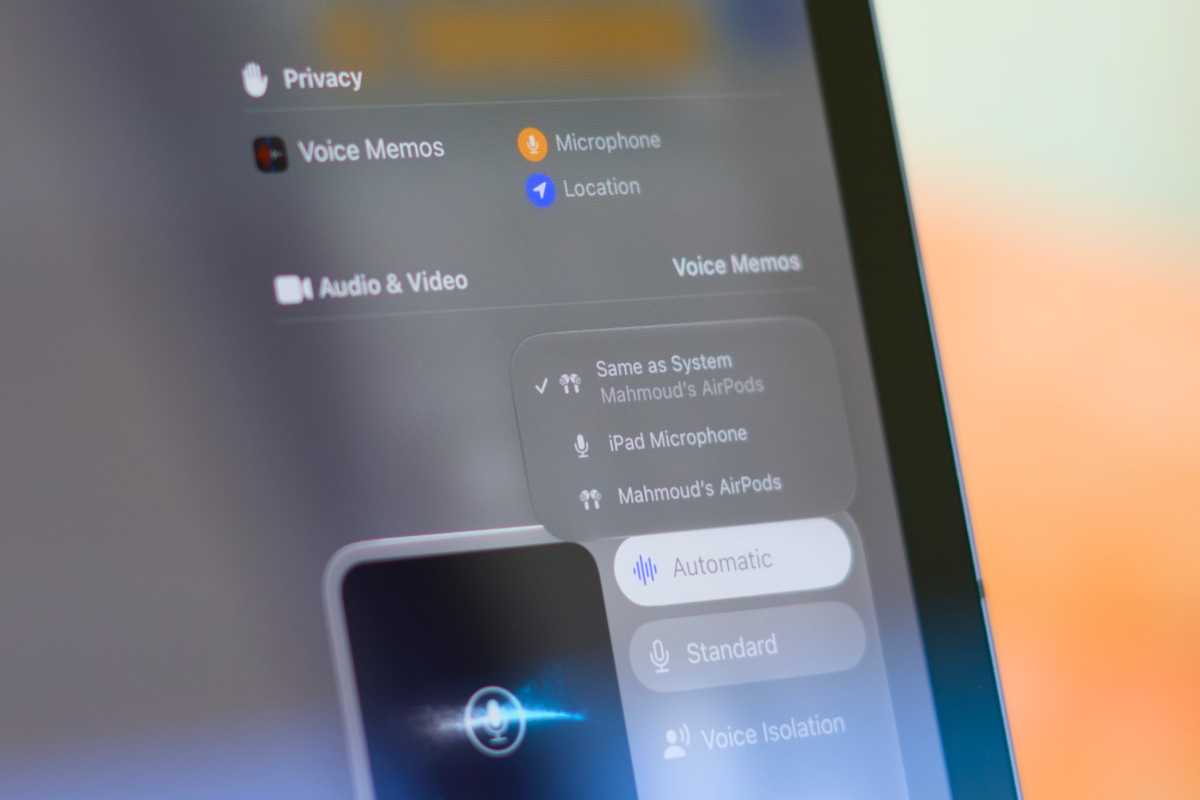
With the digital content creation boom, a professional microphone has become a must-have accessory for many iPad users. Whether you’re podcasting, attending virtual conferences, or starting an ASMR YouTube channel, you’ll need something crisper-sounding than your iPad’s built-in mics. iPadOS supports both wired and wireless microphones, so your options are plentiful. Some of the best microphones include the Rode Wireless Go Gen 3, Shure MV7+, and DJI Mic Mini.
Foundry