Apple updates its macOS desktop and laptop operating system once a year, like clockwork, bringing new features and improvements. That’s all very well, but Apple’s most recent version – macOS Tahoe – only runs on M-series Macs and a few of Intel-powered Macs (the 16-inch MacBook Pro from 2019, 13-inch MacBook Pro with four Thunderbolt ports from 2020, the 2020 27-inch iMac, and the 2019 Mac Pro). What if you want to run macOS Tahoe, or any version of macOS, on an unsupported Mac?
If Apple deems your Mac too old to run a version of macOS updating is not simple, but it is often possible with an OpenCore Legacy Patcher.
The patcher functions by injecting necessary drivers and data into the macOS boot process, allowing the operating system to recognize and function on older Intel-based hardware.
This unofficial workaround is not for the faint hearted though, as it means that hardware checks are bypassed, some features missing due to unsupported hardware, and drivers missing – so expect problems. Updating your system will also be much more complicated, leaving you vulnerable to security threats and your Mac less stable.
Can you run macOS Tahoe on an unsupported Mac?
- At the time of writing the OpenCore Legacy Patcher isn’t available for Tahoe, but it is expected in February 2026.
There can also be a delay while the patchers are developed, so don’t expect them to be available for some time after the macOS launch.
In the case of macOS Tahoe, it is not yet possible to run it on unsupported Macs because the OpenCore Legacy Patcher hasn’t been released (as at January 2026). The patcher is expected to be available in February 2026.
Can you run macOS Sequoia on an unsupported Mac?
Yes, it is possible to run macOS Sequoia on many unsupported Mac models by using third-party patching tools. While Apple officially limits Sequoia to specific hardware (see our macOS compatibility checker for more information about which Macs are supported by which macOS update) the developer community has created workarounds to bypass these restrictions.
The primary method for installing macOS Sequoia on hardware that Apple no longer supports is through the OpenCore Legacy Patcher (OCLP).
When the OpenCore Legacy Patcher for Tahoe is realised it is likely to run in a similar way to the OpenCore Legacy Patcher allows macOS Sequioa to be installed on an unsupported Mac.
Patchers are also available for macOS Sonoma, Ventura, Monterey and Big Sur.
What are the risks of using a patcher to run an unsupported version of macOS?
Before you go ahead and follow our tutorial, a word of warning: there is a reason why Apple chooses not to support the new Mac operating system on older Macs. Older Macs just don’t have the necessary components or power required to cope with the demands of the more modern systems. So if you do install Tahoe, Sequoia, Sonoma, Ventura, Monterey, or older, on an unsupported Mac don’t expect it to run smoothly.
Be aware that there can be issues if you choose to run an unsupported version of macOS.
Here are some of the risks and limitations of running Sequoia via a patch:
- Performance Issues: Older Intel processors may struggle with the graphical demands of Sequoia. For example, while some games like Civilization VII list Sequoia as a minimum requirement, they are optimized for Apple Silicon and may not perform well on older Intel chips even if the OS is patched.
- Feature Gaps: The most significant limitation is the absence of Apple Intelligence. These AI-driven features are strictly limited to Macs with M1, M2, or M3-series chips . Even if you successfully install Sequoia on an Intel Mac, you will not have access to these tools.
- Stability and Security: Beta versions of the software are particularly unstable, and third-party app compatibility is never guaranteed on patched systems. For example, there was a problem with the T2 security chip in certain MacBook Air models when booted through OpenCorePkg as outlined here. Additionally, while Apple provides security updates for the current and previous two versions of macOS, running a patched version may complicate the delivery of these updates.
- Installation Bugs: Even supported Macs have faced issues; for instance, some M3 Ultra Mac Studio users were initially unable to install Sequoia 15.7 due to driver conflicts, though this was later resolved in macOS 26.0.
If you decide to proceed, it is highly recommended to back up your data and, if possible, install the OS on a separate volume rather than your primary partition to minimize the risk of data loss. Be prepared for the fact that your Mac will not function optimally and you could lose data. Running macOS on an unsupported Mac may also be considered against Apple’s terms and conditions.
If your Mac supports by the version of macOS you want to install, read: How to update macOS for a simple way to update your Mac to the latest compatible operating system.
If you really want to run a newer version of macOS then maybe it’s time to upgrade your Mac and sell your old one. Read How to sell an old Mac and take a look at our frequently updated best Mac deals to get the best prices:
How to install Sequoia on an unsupported Mac
If your Mac is more than a few years old and you try to install macOS Sequoia (or Sonoma, Ventura or Monterey) on it you will hit a few hurdles – the first being the fact that Software Update won’t let you install the new version of macOS.
However, this doesn’t mean that installing Sequoia on an older Mac isn’t possible. It is – you just need a patch. Luckily there’s a patcher for installing macOS Sequoia on older Macs available – the OpenCore Legacy Patcher. The download and instructions can be found here.
Note that macOS patchers cannot perform magic and not all Macs will be compatible. Before installing Sequoia on an older Mac, make sure that your Mac is compatible with the patcher. You can find a list of all the Macs supported here.
The procedure for updating to a new version of macOS on incompatible Macs is as follows. We recommend following the instructions on the GitHub page.
- Before you do anything back up your Mac.
- First you will need to obtain the installation files for the version of macOS you are after – in this case Sequoia. You’ll have to obtain these using a compatible Mac. If they don’t show up in Software Update you can get the installation files from the Mac App Store. They are over 12GB so expect the download to take a while.
- Once they are downloaded you need to load these installation files onto a USB stick and prepare the USB stick for installing macOS Sequoia. We explain how to create a bootable installer of macOS in a separate article. You’ll be able to find the installation files in Finder > Applications. (Open Finder and press Shift + Command + A). The patcher also guides you through creating the macOS Installer.
- Next you need to obtain the patcher software that will essentially trick the installation files of the version of macOS you want to install into believing that the Mac is compatible. You can download the latest version of the patcher we mentioned above here. Click on OpenCore-Patcher-GUI.app.zip and it should Download.
- After extracting the archive from your download you will find the application OpenCore-Patcher.
- Run the OpenCore-Patcher app.
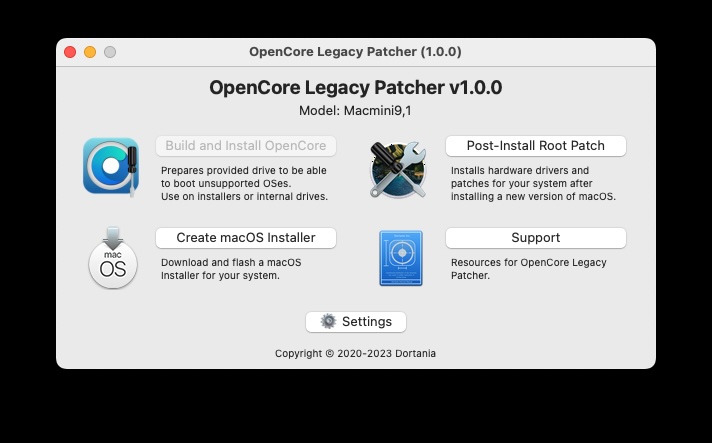
- Choose Build & Install OpenCore. If you are planning to install on a different Mac you need to select the correct Mac – click on Settings.
- Once in Build OpenCore the process should quickly build and then you will return to the main menu.
- The next step is to choose Install OpenCore to USB/internal drive from the options. (The recommendation is to install on a FAT32 drive.
- Once that has been created you need to reboot your Mac while holding down the Option (Alt) key.
- When the Mac starts up there will be a black screen with a few drive options. Select EFI Boot.
- This will load up OpenCore. Next you need to select Install macOS, you should see the option Install macOS Sequoia in the OpenCore Picker.
- Now install macOS Sequoia.
Foundry
We recommend that you follow the steps outlined here if you have any problems. Expect the update to take several hours.
How to install macOS updates on an unsupported Mac
Once you have installed macOS Sequoia (or whatever version of macOS you choose), updates will appear in Software Updates as soon as they are available. However, you should not install these.
Instead you need to create a USB stick with the new installation files and install the update in that way.
See How to create a bootable USB macOS installer.
How to install older macOS versions on an unsupported Mac
The process is the same if you want to install Sonoma or another version of macOS on your Mac. As above, the download and instructions can be found here.
You can check to see if your Mac is compatible with the patcher here. The same patcher is used which ever version of macOS you want to install.
The procedure for updating to a new version of macOS on incompatible Macs is the same as above, although you’ll need to use the Sonoma (or other) installation files (which you can get from the Mac App Store).
Once OpenCore is up and running you will be able to select Install macOS, you should see the option Install macOS Sonoma in the OpenCore Picker.
The update can take several hours. In our case it sometimes looked like the installer had crashed during the update. In this case you should wait, as the installation is usually still in progress. Over time, better ways to update a machine may be found. Currently, the safest approach is to update using a bootable USB stick.
If you are trying to install an older version of macOS on a newer Mac see How to install an older macOS over a new one and How to download old macOS Versions.