If you’ve ever wanted an early look at new versions of Apple’s operating systems before they officially launch – and maybe even help shape them in the process – Apple’s beta program is worth considering. It offers early access to headline features, interface redesigns, and new tools months before release.
The initiative isn’t limited to developers. Public beta testers can also try upcoming software updates before launch, helping Apple identify bugs and test new features before the operating systems are released to everyone. There are two beta tracks available: the Developer Beta, which offers the earliest access but carries the greatest risk, and the Public Beta, which is generally more stable and aimed at enthusiasts and general users.
Both beta programs are free to access and a paid developer account is no longer required. However, installing beta software should always be approached with caution. Betas can cause crashes, data loss, app compatibility issues, excessive battery drain, and other problems. For that reason, we recommend avoiding installation on a primary device and making a full backup beforehand in case you need to revert to the current public release.
Apple typically unveils the next generation of operating system updates for iPhone, Mac, iPad and Apple Watch at its Worldwide Developers Conference (WWDC) in June, with developer betas arriving shortly afterward and public betas following later in the summer, usually around the beginning of July. With WWDC scheduled for June 8, it will soon be possible to start testing the beta versions of iOS 27 and macOS 27.
In this article, we explain how to join Apple’s beta programs and install the latest test software – and help you decide whether running beta software is worth the risk.
What is Apple’s beta program?
Apple
Apple’s beta program is a voluntary initiative that allows users to test pre-release versions of operating systems and software before they are officially launched to the public. Its primary purpose is to help Apple identify bugs, performance issues, and usability concerns through feedback submitted via the built-in Feedback Assistant app. By participating, testers help improve the stability and quality of upcoming software releases.
The beta process does not end with the major September launch. Apple continues developing “point releases” – such as iOS 26.1 or 26.2 – throughout the year to introduce features that were not ready for the initial release. The company typically issues official software updates roughly every six weeks during an operating system’s lifecycle.
Smaller updates focused on bug fixes and security patches, such as iOS 26.3.1, are often developed and released more quickly. In urgent cases, these updates may bypass the standard beta cycle entirely and roll out directly to users.
Developer Beta vs Public Beta: What’s the difference?
Apple offers two beta tracks across platforms including iOS, iPadOS, macOS, watchOS, tvOS, and visionOS:
- Developer Beta: Designed for software developers, this beta version allows early testing of app compatibility with upcoming system changes. Developer betas are released first, typically immediately after Apple’s WWDC keynote. Early access enables developers to prepare their apps for launch and integrate new technologies such as the Game Porting Toolkit 2 and AI-related frameworks.
- Public Beta: Aimed at enthusiasts and early adopters, the public beta is usually released days or weeks after the developer beta, often around early July. It is generally more stable, as it includes fixes for major issues identified during the initial developer testing phase. Public beta users can try major updates and new features months before their official release.
| Feature | Developer Beta | Public Beta |
|---|---|---|
| Release timing pre-launch | The first version is released immediately after Apple’s WWDC keynote in June. Apple then rolls out updates every one to two weeks, with releases becoming more frequent as launch approaches. | The first public beta usually arrives in early July. Updates typically follow a day or two after the corresponding developer beta release. |
| Stability | Generally less stable, with more bugs, unfinished features, and performance issues. Early developer builds are primarily intended for testing. | Usually more stable because it benefits from fixes identified during the developer beta phase, though bugs and occasional instability can still occur. |
| Feature parity | Includes all features, including experimental APIs, developer tools, and frameworks. Some features may never reach the public beta. | Typically includes the same major consumer-facing features, although some developer-focused tools or unfinished features may be delayed or excluded. |
| Target audience | Software developers and advanced users testing app compatibility, APIs, and new frameworks ahead of release. | Enthusiasts, early adopters, and general users interested in previewing upcoming features before the official launch. |
| Are developer betas worth it? | Worthwhile for developers or advanced testers who need immediate access for app development and compatibility testing. | A better option for most people who want early access to new features with fewer bugs and a more reliable experience. |
Is it safe to install Apple’s beta?
Installing beta software carries risks because it is unfinished by design and intended for testing. Bugs, performance issues, excessive battery drain, overheating, and even the possibility of “bricking” a device are all potential problems.
While anyone can sign up for Apple’s beta program, these pre-release versions are generally not recommended for primary devices or mission-critical data. For most users, the safest option is to wait for the official fall release, when the software is more polished, stable, and fully supported.
The Developer Beta is typically the least stable version, as it is released first and aimed primarily at app developers testing compatibility with new features and APIs.
The Public Beta is usually more reliable because it includes fixes identified during the earlier developer testing phase. However, it is still unfinished software and may contain significant bugs. For users eager to try new features early, the Public Beta is generally the safer choice, though anyone relying on their device for work, study, or everyday reliability is still better off waiting for the final public release.
Common issues reported with beta software include:
- Battery drain and overheating: Early beta versions can significantly reduce battery life and cause devices to run hotter than usual during everyday use.
- Performance issues: Users may experience lag, slowdowns, freezes, or general system instability.
- App crashes: Third-party apps may not work properly or could crash frequently due to compatibility problems.
- Bricked devices: A beta update can render a device unusable.
- Data loss: Software bugs may corrupt files or force users to perform a factory reset, potentially erasing data.
- Connectivity problems: Wi-Fi, Bluetooth, AirDrop, and syncing services can behave unpredictably or stop working altogether.
- Higher hardware demands: Older devices may struggle with the performance requirements of unfinished, unoptimized software.
- Security risks: Beta software can introduce new vulnerabilities or complicate the delivery of security updates.
Also note that Apple does not provide the same level of support for pre-release software as it does for public releases, which can increase security and stability risks.
How to join Apple’s beta program
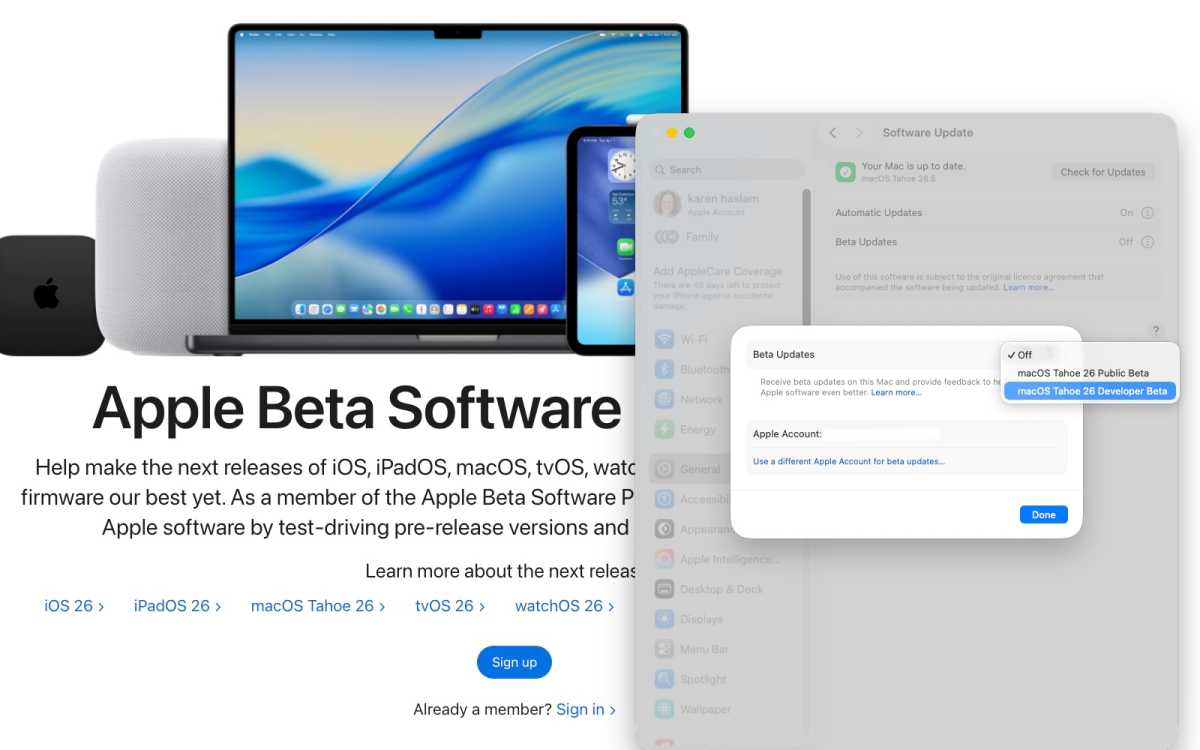
It is simple to register and then set your device to accept beta updates.
Foundry
Joining Apple’s beta program is a relatively straightforward process, though the steps differ slightly depending on whether you want to enroll in the Public Beta or the Developer Beta.
How to join Apple’s Public Beta Program
The public beta is accessible to anyone with a valid Apple ID.
- Visit the Apple Beta Software Program webpage and click Sign Up.
- Sign in with your Apple ID and agree to the terms and conditions.
- Select the operating system you want to test – such as iOS, iPadOS, or macOS – and follow the prompts to enroll your device.
- Enable Updates:
- On iPhone/iPad: Go to Settings > General > Software Update > Beta Updates and select the Public Beta.
- On Mac: Go to System Settings > General > Software Update. Click the information (i) icon next to Beta Updates and choose the Public Beta.
How to join Apple’s Developer Beta Program
Apple now allows anyone with a free developer account to access developer beta builds.
- To get a free developer account download the Apple Developer app from the App Store. Tap on Account, select Sign In, and use your standard Apple ID.
- Follow the on-screen prompts within the app or on the Apple Developer website to complete the free registration process.
- Once registered, enable developer beta updates through your device settings:
- On iPhone or iPad: Go to Settings > General > Software Update > Beta Updates and select the Developer Beta.
- On Mac: Go to System Settings > General > Software Update, click the information (i) icon next to Beta Updates, and choose the Developer Beta.
Is Apple’s beta program free?
Joining Apple’s beta program is free. While access to the developer beta was previously restricted to those paying a $99/£79 annual fee to join the Apple Developer Program, Apple opened access in 2023 to anyone with a free Apple developer account.
Do you get paid for being an Apple beta tester?
No. This is strictly a voluntary pursuit.
What to do before you install a beta
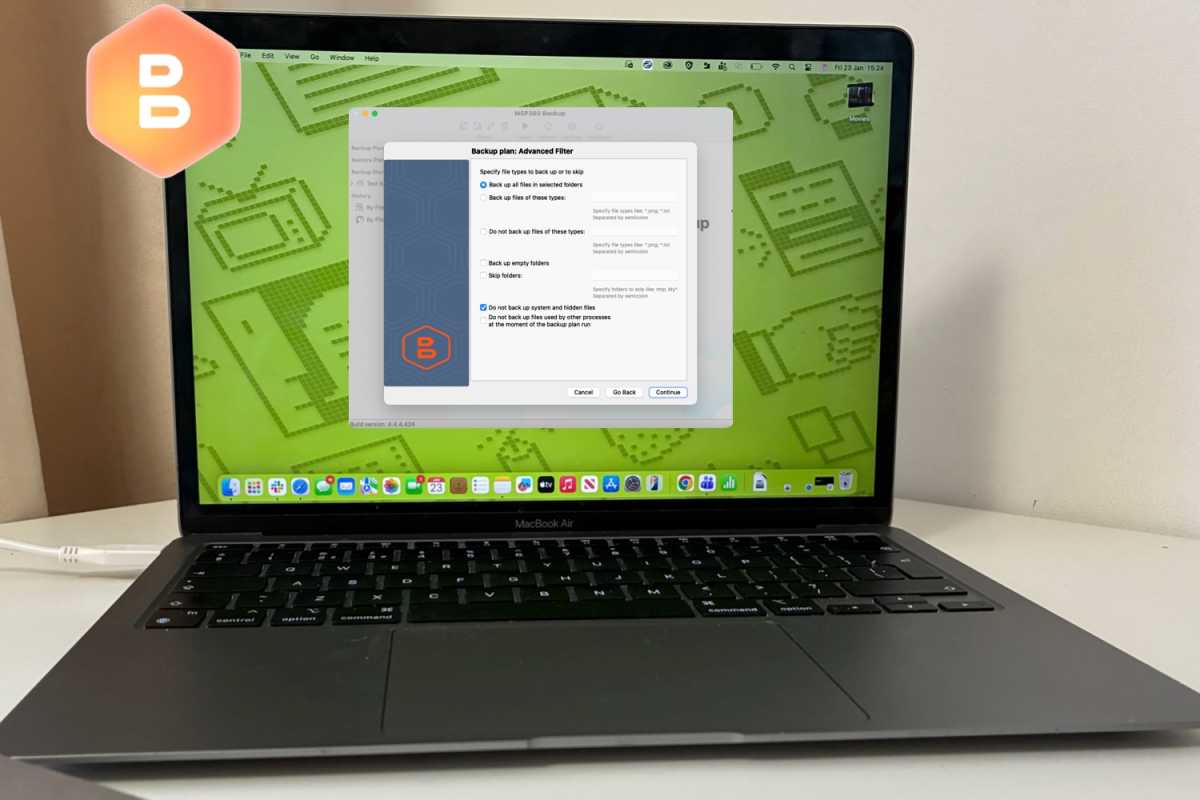
Before you begin, backup!
Foundry
If you decide to install a beta, it is important to take precautions to protect your data and ensure you can return to a stable version if necessary.
We advise that you:
- Use a secondary device: Avoid installing beta software on your primary iPhone, iPad, or work computer. If possible, use an older or spare device instead.
- Create a full backup: Back up your device before installing the beta so you can restore your data if something goes wrong. Mac users should use Time Machine, while iPhone and iPad users should create an archived backup on a computer.
- Consider a separate installation on Mac: Installing the beta on a separate volume, partition, or external SSD allows you to test the software without affecting your main system or files.
- Check available storage: Ensure you have at least 15GB of free space, as beta installers can be large and insufficient storage may cause installation failures.
Backups are especially important because downgrading from a beta often requires completely erasing the drive. Mac users should note that restoring from a Time Machine backup created on a newer beta version of macOS may reinstall that same version rather than reverting to the older OS.
What do Apple beta testers have to do?
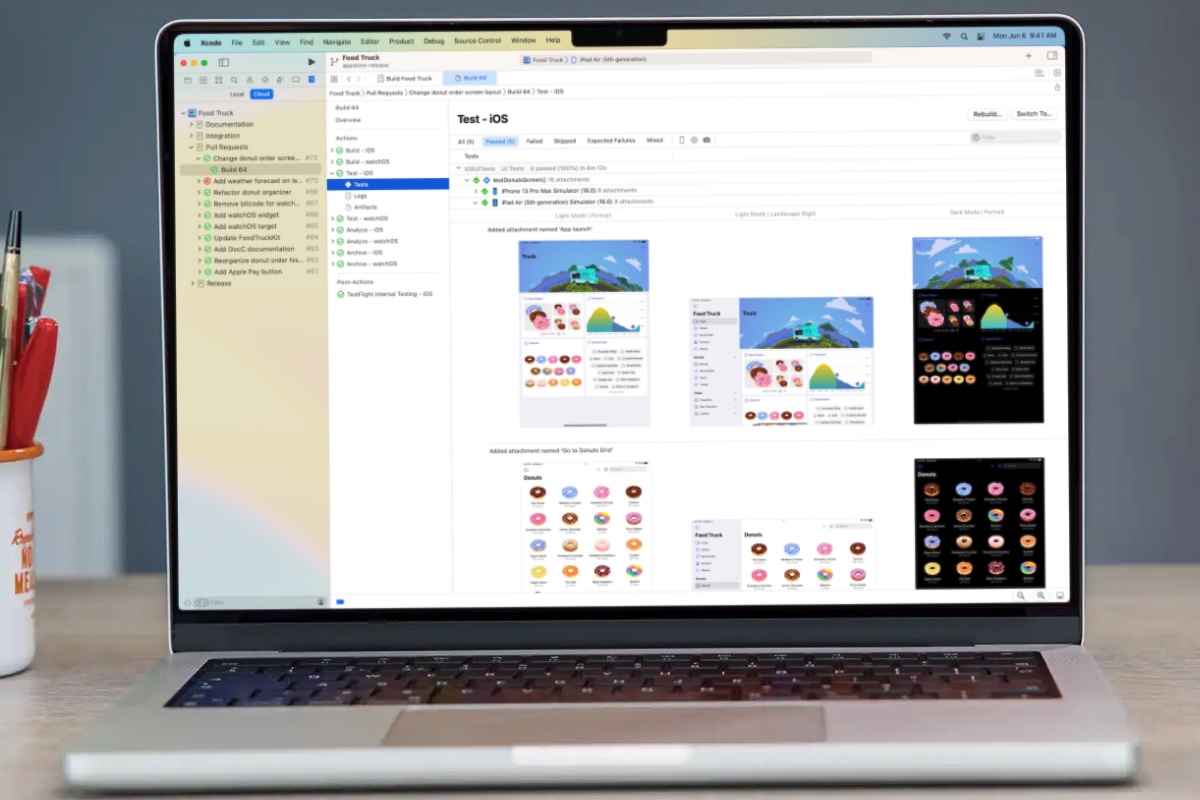
Test that your apps work on the upcoming Apple software.
Foundry
Apple beta testers are volunteers who help Apple refine its software before public release. Their primary role is to use pre-release software in everyday scenarios and report any issues they encounter.
Beta testers help Apple identify bugs, improve performance and stability, evaluate new features, and refine the overall user experience before the software’s official release.
Key responsibilities include:
- Reporting bugs: Testers use the Feedback Assistant app to submit detailed reports about glitches, crashes, and other “behavioral anomalies” that may not surface during internal testing.
- Providing user interface feedback: Testers share insights about confusing design choices, interface inconsistencies, or usability issues.
- Testing app compatibility: Testers check whether third-party apps function properly on the new operating system and report compatibility problems.
- Submitting diagnostics: Feedback Assistant may collect app crashes and error logs, screenshots, and diagnostic data to help Apple engineers reproduce and resolve issues.
- Evaluating performance and stability: Testers monitor system responsiveness, battery life, and reliability across different beta versions.
- Reviewing new features: Public beta participants help Apple understand how new features perform in real-world use and how users respond to them.
- Testing hardware compatibility: Beta software is often tested across different Mac, iPhone, and iPad models to ensure compatibility with current and upcoming hardware hardware features.
Confidentiality
Participants in the Apple Beta Software Program are bound by a non-disclosure agreement (NDA), which prohibits testers from sharing information about pre-release software with anyone outside the program.
Users must agree to the NDA before accessing beta software. Under the agreement, testers are generally prohibited from publicly discussing the software, posting screenshots, or demonstrating unreleased features.
How to install the beta
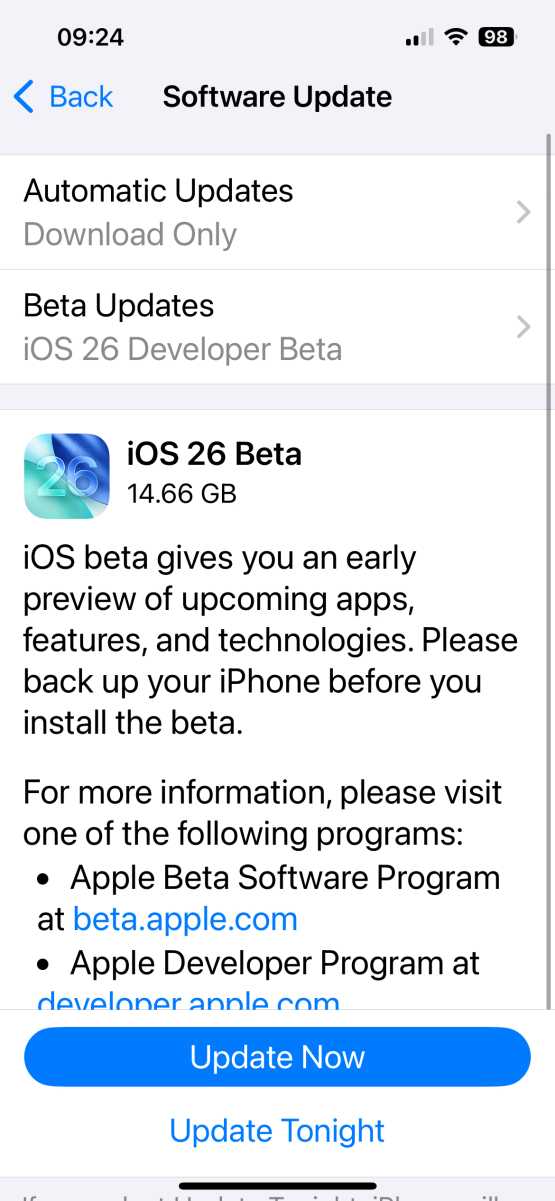
Karen Kahn / Foundry
If you want to run the developer or public beta on your device, we have in-depth guides: How to get the macOS beta and How to get the iOS beta for more advice and details of the latest beta version. Here are some at-a-glance instructions.
To install the iOS or iPadOS beta:
- Back up your device to ensure your data is safe.
- Open the Settings app and navigate to General > Software Update.
- Tap on Beta Updates (this may take a few moments to appear after registration).
- Select either the iOS Public Beta or iOS Developer Beta.
- Return to the main Software Update screen and follow the prompts to download and install the update.
To install the macOS beta:
- Back up your Mac.
- Go to System Settings > General > Software Update.
- Click the (i) info button next to Beta Updates.
- Choose the desired beta version (e.g., macOS Tahoe Public Beta) and click Done.
- The beta should then appear as an available upgrade; click Upgrade Now to begin the process.
To install the watchOS beta:
- Open the Watch app on your paired iPhone.
- Select General > Software Update.
- Tap Beta Updates and select the watchOS Developer Beta or watchOS Public Beta.
To install the HomePod beta:
- Open the Home app on your iPhone.
- Go to Home Settings > Software Update.
- Select HomePod Beta Updates.
- Choose the HomePod mini or HomePod (2nd generation) you want to install the beta on.
How to uninstall the beta
The process for uninstalling beta software depends on your device and whether the final version of the software has already been released.
Once Apple releases the final version of the software, leaving the beta program is relatively simple. You can stop receiving beta updates by disabling them in your settings, and the next available public release will install automatically when it becomes available. For more information, visit Apple’s Unenroll page.
Before the final release, however, reverting to a stable version often requires wiping the device and performing a clean installation of the latest public version of the operating system. Unless your data has been backed up in a compatible format, you may lose any data created while using the beta.
In general, removing a beta is more complicated than installing one, especially if you want to downgrade to an older stable version, which may require a full device reset.
For iPhone and iPad users, the method varies based on your current goal:
- To stop receiving future beta updates: If you want to stay on your current version but receive only official public updates moving forward, go to Settings > General > Software Update > Beta Updates and select Off.
- To revert to a stable version (Before the final release): If you are running a beta (like the iOS 27 beta) and want to go back to the previous stable version (like iOS 26), you must completely wipe your device and reinstall the official software.
- To switch to the final version (After release): Once the official version of the software is launched, you can simply turn off “Beta Updates” in your settings. Your device will then prompt you to install the official non-beta update when it becomes available.
For Mac users, removing a macOS beta, follows a similar logic to iOS but involves different system tools:
- Leave the Beta Program: Navigate to System Settings > General > Software Update and click the “i” next to Beta updates to turn them off.
- Wipe and Reinstall: To immediately revert to a previous version, you must erase your Mac. You can use the Erase All Content and Settings option in System Settings, then use macOS Recovery to reinstall the stable OS.
- Restore Data: After reinstalling the stable OS, you can use Migration Assistant to import your data from a backup made before you installed the beta.
For more advice about this process, we have in-depth guides on how to remove a beta from your iPhone and your Mac.