If your Mac is warning that you are running out of storage, you need room for a macOS update, or your Mac simply seems to be slowing down, you may have looked at the large chunk of storage labelled System Data and wondered if you can safely delete it to save space on your Mac.
Low storage can cause all kinds of problems on a Mac – you might see warnings that your startup disk is almost full, struggle to install macOS updates, notice performance slowdowns, or in extreme cases even have trouble starting up your Mac. Maintaining at least 10% of your total storage as free space is generally recommended to ensure your Mac continues to run smoothly.
So what exactly is System Data, why can it grow so large, and is it safe to remove anything from it? The answer is yes — at least some of it. Just beware that deleting some files from System Data could seriously damage your installation of macOS, so we recommend that you backup your Mac before deleting anything, just in case!
In this guide, we’ll explain what’s included in System Data, why it can take up so many gigabytes, and the simple steps you can take to delete System Data and reclaim space on your Mac. If you aren’t sure how to see how much disk space your Mac has read: How to check how much disk space you have.
PROMOTION
Manage disk space on Mac with EaseUS

EaseUS Partition Master for Mac offers you with an easy way to check and manage disk space on Mac. You don’t need extra efforts to get the most of the disk space by checking hard drives, creating new partitions, allocating volumes and converting disk/partition format to read-write ExFAT. What’s more, it allows NTFS read/write so that you will use your Mac like daily operations under Windows. Now 25% OFF by using code: MACWORLD25.
What is System Data on Mac?
System Data on Mac is a broad storage category that serves as a catch-all for various files that do not fit into standard classifications like Applications, Documents, or Photos.
While the specific contents vary for every user, System Data typically includes the following types of files:
- Caches and Logs: System and application caches designed to help your Mac run more smoothly.
- Temporary Files: Data created during daily use that is often intended to be deleted automatically by the OS.
- Backups: Local Time Machine snapshots and iOS backups.
- Plug-ins and Extensions: Support files for various applications.
- Disk Images: Downloaded .dmg files used for upgrading apps or macOS.
- App Leftovers: Bits of data that remain on the drive even after the main application has been deleted.
System Data, System, macOS and Other
Apple has changed how this storage category is labeled in different versions of macOS.
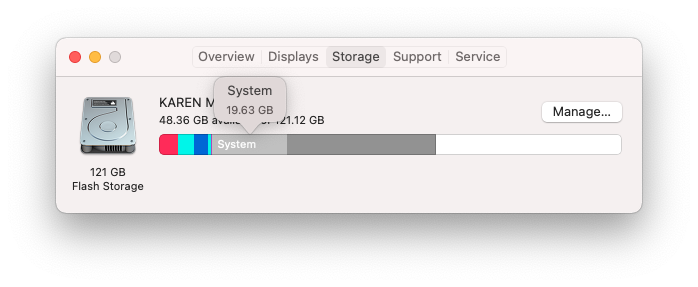
In macOS Big Sur (macOS 11) and earlier, much of this storage was grouped under a category called “Other.” In macOS Catalina (macOS 10.15) and the subsequent Big Sur, there was also a separate category labeled “System,” which included core macOS files and other system-related data.
Starting with macOS Monterey (macOS 12), Apple reorganized these categories, replacing much of the System/Other terminology with “System Data,” while also introducing a separate “macOS” category for the operating system itself.
In newer versions of macOS, including Sequoia and Tahoe, the category continues to appear as “System Data” alongside the separate “macOS” category.
Why is System Data so large?
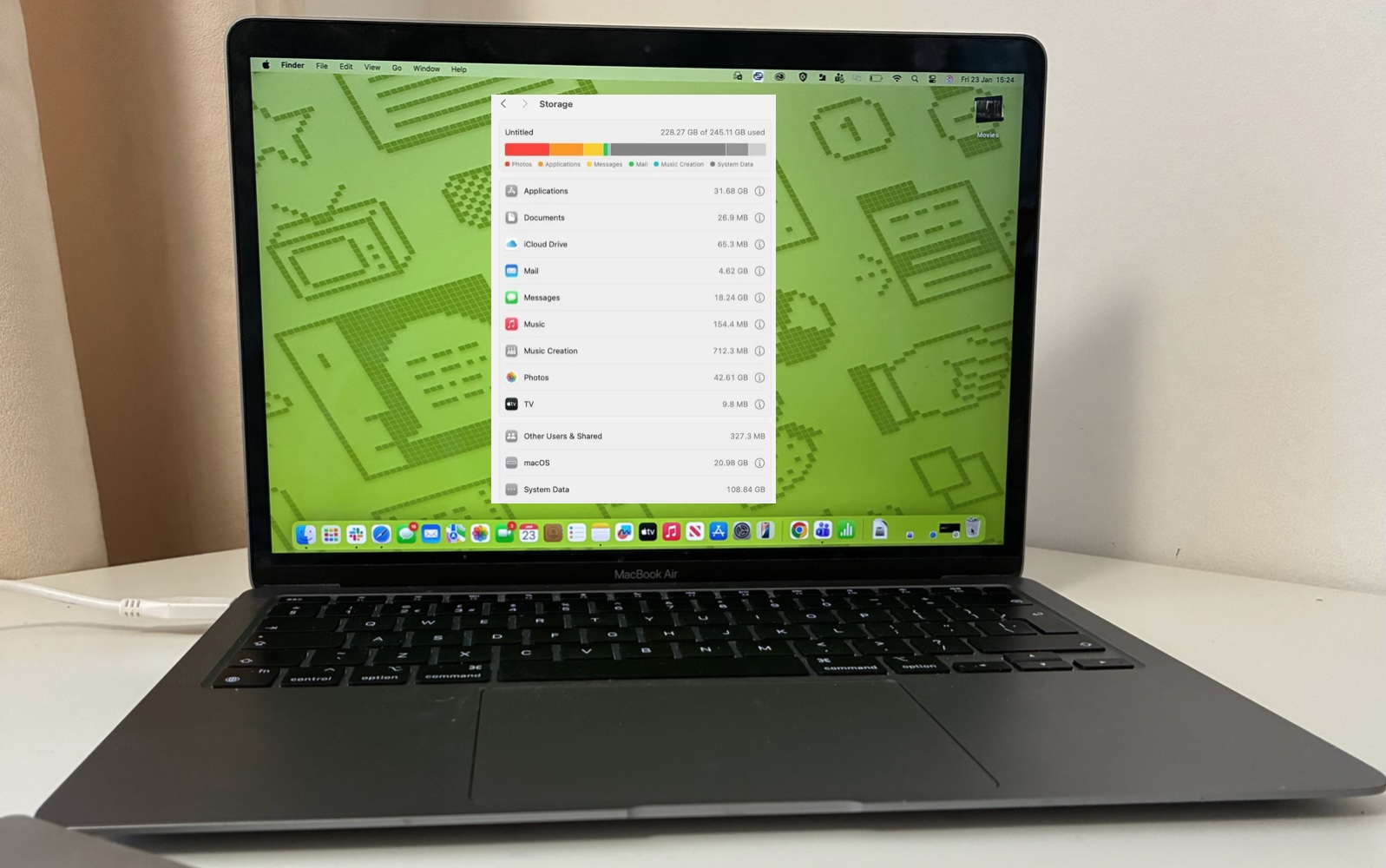
System Data was over 100GB. Is that a record?
Foundry
System Data is intended to be managed automatically by macOS, but it can occasionally balloon to an unexpected size, sometimes taking up more than 100GB of storage. This is particularly problematic on Macs with smaller 256GB SSDs, where System Data can unexpectedly consume nearly half of the available space.
This happened to us when macOS started temporarily storing update-related files inside System Data as well as reindexing iCloud and Spotlight files while preparing to install an update to macOS. That was when we concluded that a 256GB SSD is too small for a Mac.
So, how does System Data get so large? System Data serves as a catch-all category for files that do not fit into standard classifications like Apps, Photos, or Media, System Data can is become a significant consumer of storage. The primary reason this category grows is the accumulation of temporary files and background processes.
Key factors that drive the growth of System Data include:
- Streaming Caches: One of the biggest culprits is streaming high-quality music and video. While downloaded media is indexed separately, streamed content creates large caches to ensure smooth playback, which are categorized as System Data.
- Browser and App Caches: Safari and other browsers store website data to speed up loading times. Over time, these caches can grow to several gigabytes.
- Messaging Data: If you frequently send and receive high-resolution images or videos via apps like Messages, the cached attachments can significantly inflate system storage.
- System Maintenance: Files such as Time Machine snapshots, iOS backups stored on a computer, and macOS update installers often reside in this category.
The impact of local AI models on System Data
A new and increasingly common cause of large System Data storage is the rise of local artificial intelligence features. Modern operating systems, browsers, and apps now download sizeable AI models so they can perform tasks directly on your device rather than relying entirely on cloud processing.
These local AI models can have a significant impact on macOS storage because the model files themselves are often several gigabytes in size.
Features such as Apple Intelligence, offline transcription tools, coding assistants, and image-generation apps may all store large language models, caches, and other AI assets locally on your Mac. Many of these files are saved in hidden Library folders, caches, containers, or developer directories, so they don’t appear in obvious categories like Applications or Documents. Instead, they can dramatically increase the amount of storage attributed to System Data.
AI workloads can also create large temporary files, caches, and logs while models are running, further increasing storage usage over time.
Is it safe to delete System Data on a Mac?

Foundry
Apple does not provide a simple Delete button for System Data because the category contains many files required for macOS to function properly. If it were possible to remove everything included in System Data, it could seriously damage your installation of macOS.
However, some files classed as System Data are non-essential and can be safely removed to free up space. These may include certain caches, logs, temporary files, old backups, and unused application support files.
That said, you should proceed carefully and only delete files if you are confident you understand what they are. Removing the wrong files can lead to application errors, system instability, or, in extreme cases, prevent your Mac from starting up properly.
In particular, you should avoid deleting:
- Operating System Files: Core macOS files required for the system to run.
- System Caches: These help macOS and apps run efficiently, and deleting the wrong cache files can cause problems.
- Hidden System Files: Apple hides many critical files specifically to prevent accidental damage.
What System Data files can I safely delete?
If you need to free up storage space on your Mac, there are several types of System Data files that are generally safe to remove.
- Old Time Machine Snapshots: Local Time Machine snapshots can sometimes consume large amounts of storage space. These are temporary backups stored on your Mac and can usually be safely deleted if you already have backups saved elsewhere.
- iPhone and iPad backups: Old iOS and iPadOS backups stored on your Mac can take up many gigabytes. If you no longer need them, they can be safely removed.
- Application caches: While you should avoid deleting core system caches, clearing caches created by individual apps is usually safe. Keep in mind that many apps will simply recreate these files over time.
- Disk image files (.dmg): Downloaded installer files for apps you have already installed are often left behind in the Downloads folder and can safely be deleted once they are no longer needed.
- Temporary files and logs: Some temporary files and log files generated by apps and macOS can be removed, especially if they are old or unusually large. However, proceed with caution, as some of these files are necessary for system performance and stability.
- Unused AI model files: Modern versions of macOS and some third-party apps may download large AI models for on-device features. macOS does not currently provide a simple way to manually delete individual Apple Intelligence model files, so the most effective way to remove some of these assets is to disable Apple Intelligence entirely.
We’ll explain how to manually remove files from each of these categories below. We’ll also recommend some apps that can help you with this.
Best apps to delete System Data on a Mac
If you don’t feel confident deleting these files manually, you may prefer to use a dedicated cleanup tool to reduce the risk of accidentally damaging macOS or deleting important system files.
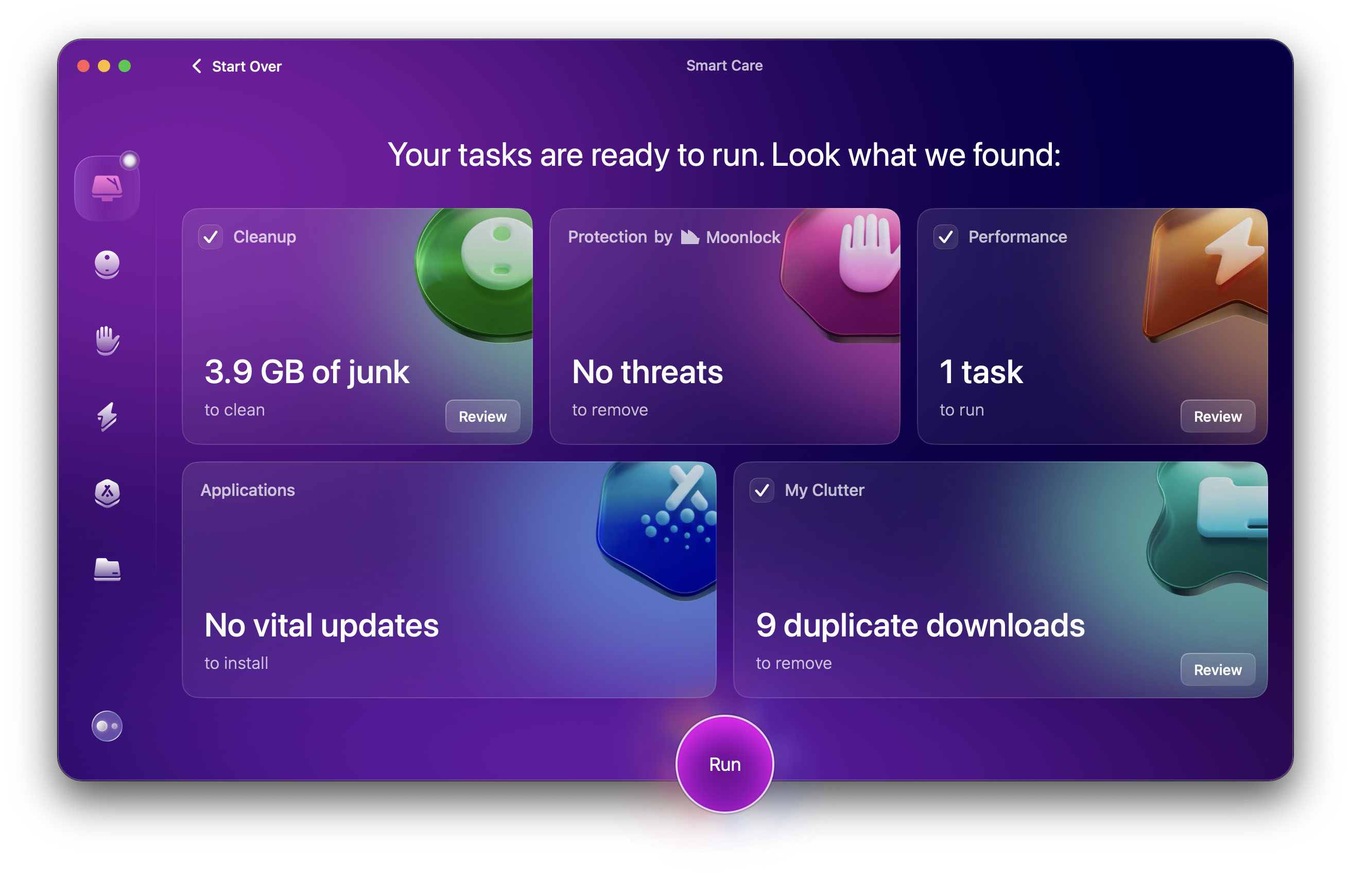
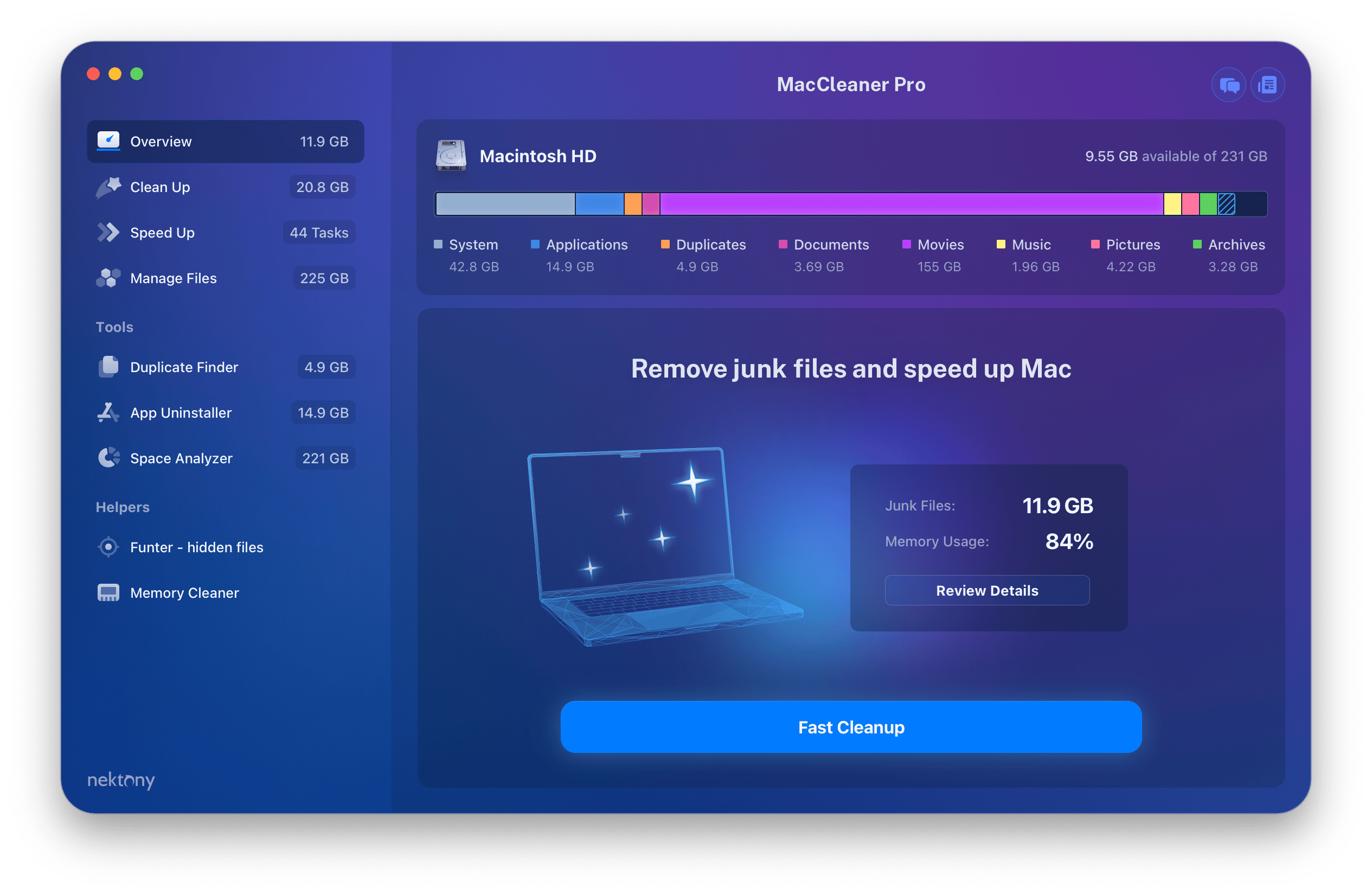
There are several specialized cleaning utilities specifically designed to identify and remove System Data files including large caches, logs, and temporary files that are often difficult to locate manually. They can can safely automate the process of removing hidden system junk and reclaiming gigabytes of drive space. Take a look at our guide to the best Mac cleaner software and optimisation utilities for our recommendations, which include:
How to delete System Data on a Mac
If you feel confident deleting files manually rather than paying for a dedicated cleanup tool, here’s what you need to do to reduce the size of System Data on your Mac.
Before you begin, there are a few things you should do:
- Empty the Trash: Large deleted files may still count toward your System Data storage until the Trash is emptied.
- Restart your Mac: This can clear temporary caches and other system files that macOS no longer needs.
- Back up your Mac: It’s recommended to back up your Mac before deleting anything categorized as System Data. Some files in this category are essential to macOS, and deleting the wrong files can cause instability, data loss, or even prevent your Mac from booting properly.
Look for other data to delete first
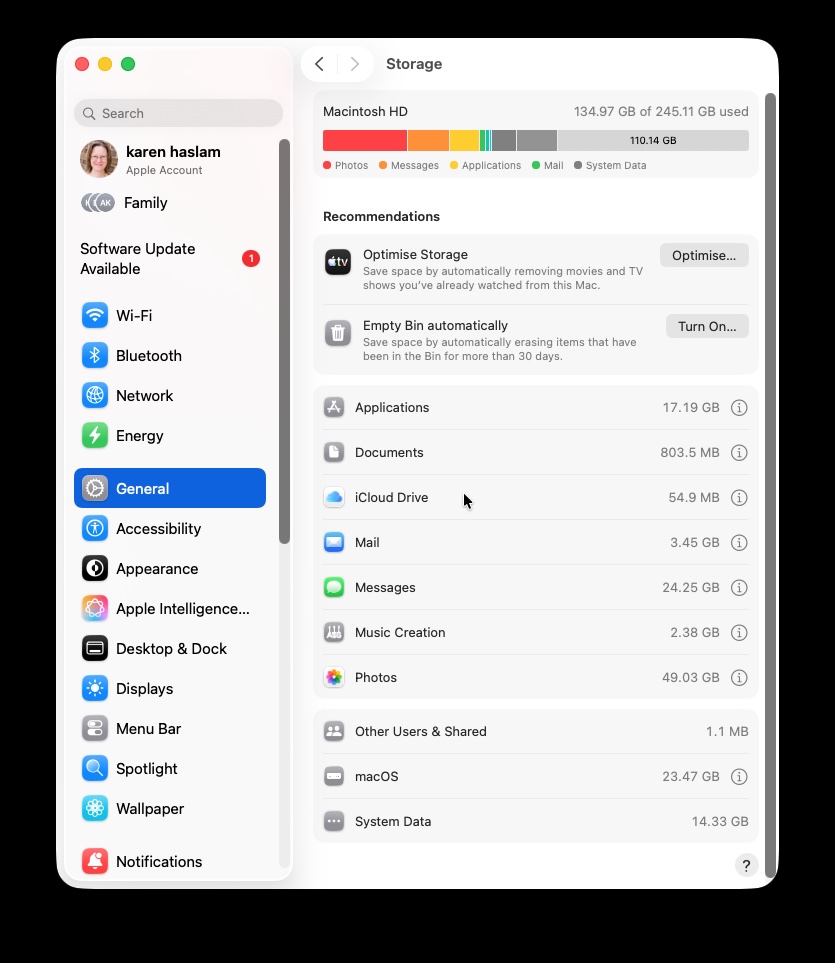
Before you attack System Data check to see what else you can delete.
Foundry
Before you start deleting System Data files, check whether there’s anything else you can safely remove first.
macOS includes built-in storage management tools that can help you identify large files and unnecessary clutter. In macOS Ventura and later, go to System Settings > General > Storage to see a breakdown of how your storage is being used.
This view shows how much space is being used by System Data and macOS, Apple doesn’t provide a simple way to directly remove those files from here, however, you may be able to reduce the size of System Data with
Apple provides quick links to categories including Documents, Mail, Messages, Photos, and Applications. By clicking the “i” icon next to each category, you can review and remove files that may be taking up unnecessary space.
For example, the Documents section highlights Large Files you may no longer need, while Messages provides quick access to images, videos, and attachments cluttering up the Messages app.
You’ll also see recommendations to help optimize storage, such as enabling iCloud Photos or automatically emptying the Trash.
If you would rather avoid deleting files altogether, another option is to move data to external storage or cloud services instead.
Remove Time Machine Snapshots
EaseUS
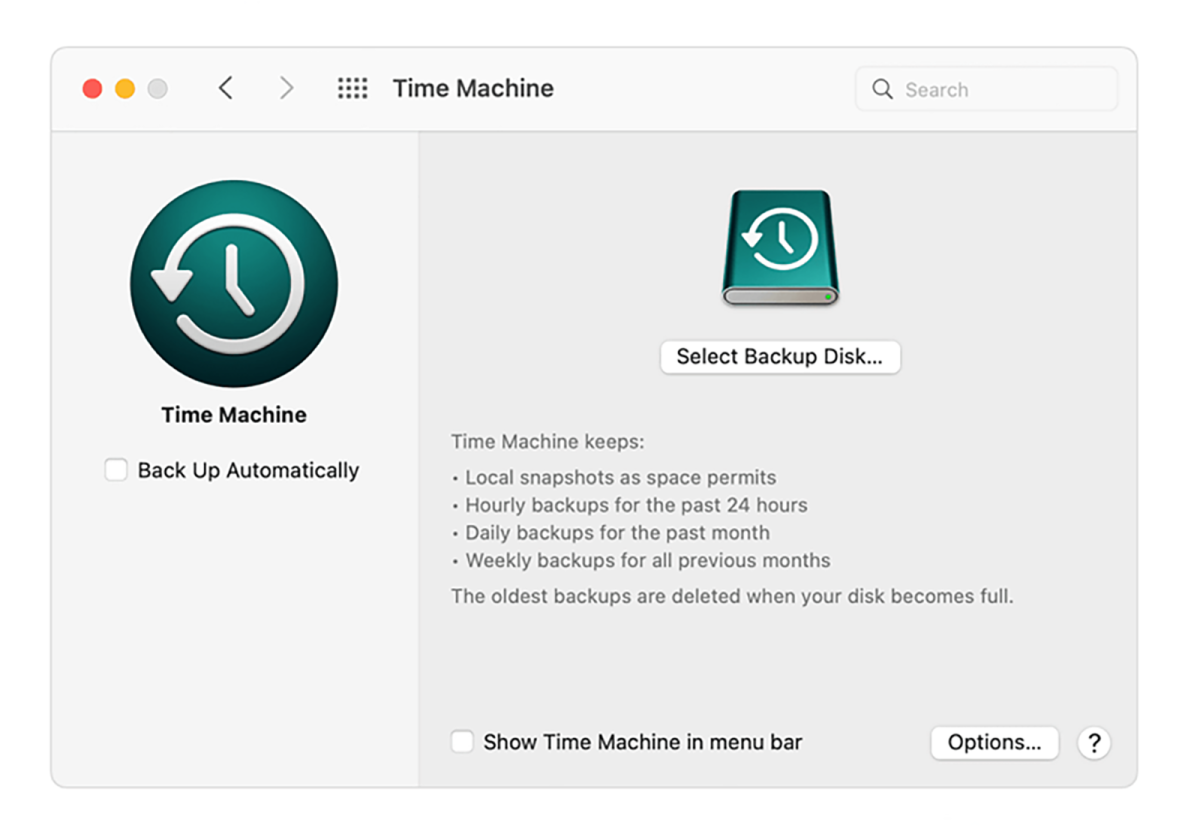
If you use Apple’s Time Machine to back up your Mac, it may also create local snapshots on your Mac. These snapshots allow you to recover recently deleted files or restore earlier versions of documents even when your Time Machine drive is not connected. This is a useful feature until those snapshots start to take up a significant amount of storage space.
Local snapshots created by Time Machine can consume considerable disk space. macOS should automatically delete these snapshots when space is needed; however, if you want to remove them manually, you can do so using Terminal commands.
To see all local snapshots, open Terminal and enter:
tmutil listlocalsnapshots /
Note the date of any you want to delete and then paste in:
sudo tmutil deletelocalsnapshots 2026-05-10-120102
Replace the date above with the snapshot date relevant to your case.
If you would prefer to remove multiple snapshots at once, you can enter the following command, which asks macOS to free approximately 10GB of snapshot storage:
sudo tmutil thinlocalsnapshots / 10000000000 4
To stop further Time Machine snapshots from being created, disconnect the backup disk and go to: System Settings > General > Time Machine and turn off Back Up Automatically.
Delete old iOS backups
Foundry
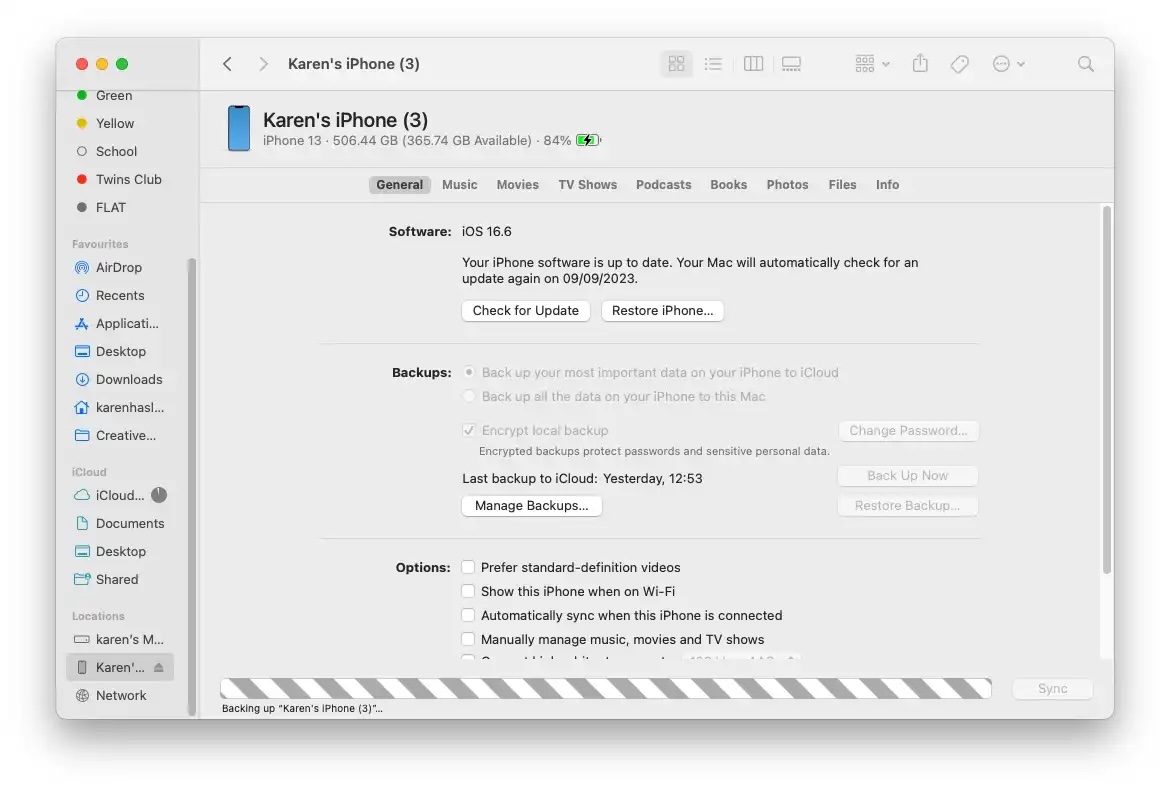
If you back up your iPhone or iPad to a computer rather than to iCloud, those backup files can quickly take up a significant amount of storage space.
Deleting old iOS backups is an effective way to reclaim storage space.
If you’re using macOS Catalina or later, follow these steps:
- Connect your iPhone or iPad to your Mac.
- Open Finder.
- Select your device from the sidebar.
- Under the General tab, click Manage Backups.
- Select any outdated backups and click Delete Backup.
Before macOS Catalina, iOS backups were managed through the now-discontinued iTunes app.
Clear Caches
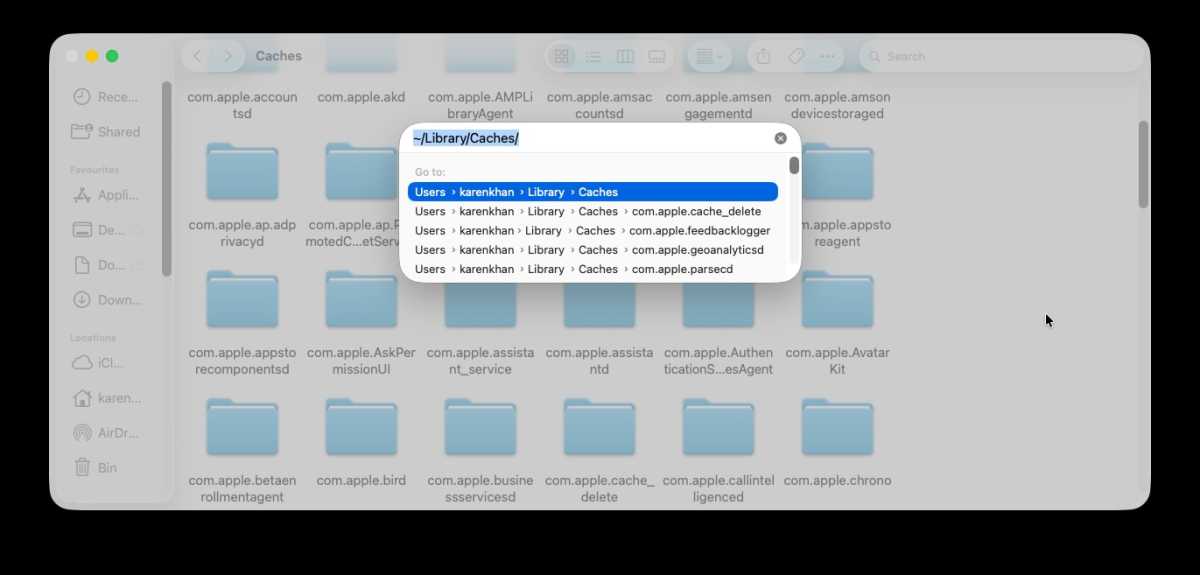
Delete Caches from the Finder.
Foundry
Clearing caches on a Mac can help free up storage space and sometimes improve performance. In most cases, it is safe to delete cache files because they are recreated automatically when needed.
You can manually clear different types of caches through Finder.
Important: You can delete the contents of cache folders, but do not delete the cache folders themselves.
- Delete User Caches: These are files created by your applications. To access them, open Finder > press Command+Shift+G > type ~/Library/Caches/. You can generally delete the contents of these folders safely, especially for apps you no longer use. Applications will rebuild caches automatically when needed.
- Delete System Caches: These are used by macOS itself. To access them open Finder > press Command+Shift+G > and type /Library/Caches/ (without the ~) in the Go to Folder box. Use extra caution when deleting files here. Removing the wrong files is unlikely to permanently damage macOS, but it can cause temporary instability or require apps/system services to rebuild data.
- Delete Browser Caches: Safari, Firefox, and other browsers store cached website data that can sometimes cause slow loading or display issues. You can clear data directly within their settings to speed up sluggish web browsing. See our article on Deleting Browser Caches for details.
- Restart: Restarting your Mac or quitting apps that have been running for a long time can automatically clear some temporary cache files and recover system resources.
We also have a guide to how to clear cache on a Mac.
Delete Disk Images
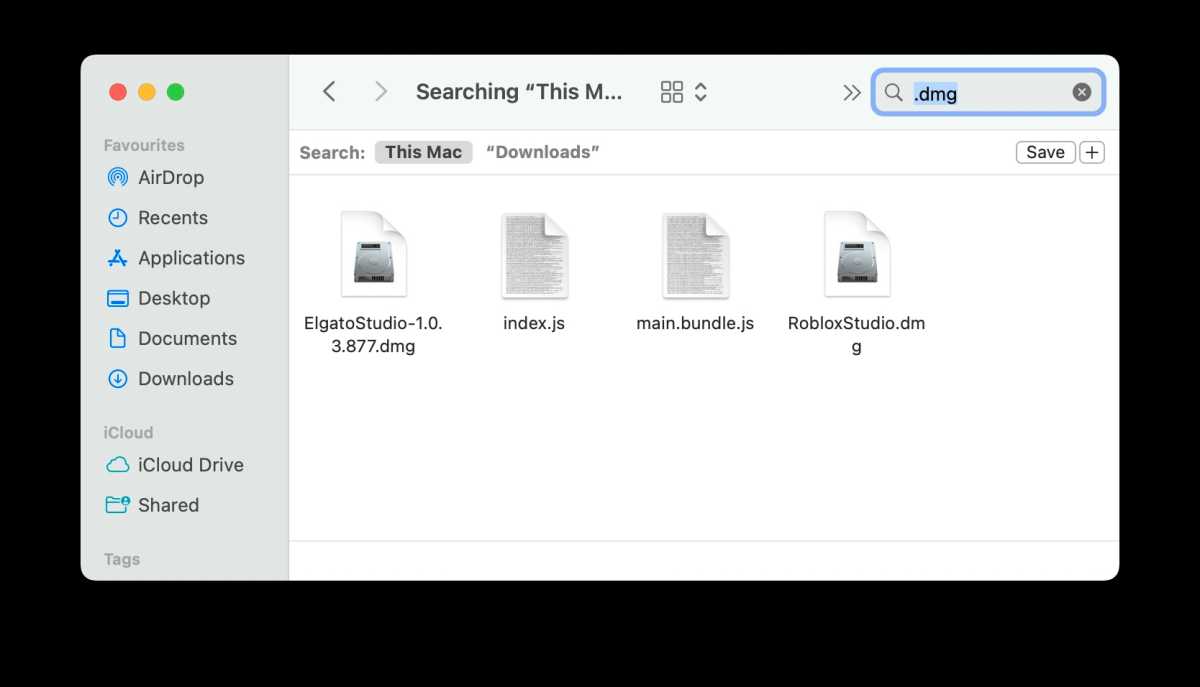
Search for DMG files in the Finder.
Foundry
Typically, when you install software on a Mac using a disk image, the .dmg file remains in your Downloads folder (or wherever it was originally saved).
Even after you drag the application into your Applications folder, the .dmg file remains on your Mac until you delete it manually.
The mounted disk image itself – the volume that appears on your Desktop or in Finder – is usually ejected automatically when you restart, log out, or manually eject it. However, the original .dmg file still remains on disk.
These files can contribute to the storage categorized as System Data or Documents until they are deleted.
To locate these files:
- Open Finder
- Use the search bar and search for files ending in .dmg or .pkg
These files can usually be safely deleted after installation if you no longer need them for reinstalling software later.
You can also reduce the amount of wasted storage on your device by following the tips in how to free up space on Mac. For more advice read our tips for cleaning up your Mac to make it run faster.