Many Mac users want to turn their MacBook into a desktop-style workstation, using an external display, keyboard, and mouse with the lid closed – a setup often called clamshell mode.
Running a MacBook this way can make sense for several reasons, from supporting multiple external monitors on certain Apple-silicon models to freeing up desk space and improving ergonomics. Others may want their Mac to keep working with the lid closed while it downloads files, runs backups, plays music, or so you can keep your AI agents running.
The problem is that macOS is designed to put a MacBook to sleep as soon as you close the lid. Apple does support clamshell mode (or closed-display mode), which lets you use a MacBook like a desktop by connecting an external display, keyboard, and mouse while the lid is closed. However, this setup comes with strict requirements: clamshell mode won’t work without an external monitor, and it can introduce performance or thermal trade-offs. If those limitations don’t suit your needs, there are alternative approaches – including third-party apps and system settings – that can keep a Mac awake with the lid closed. Just ensure that if your Mac is running in clamshell mode you do not put it inside a bag or enclosed space as it is likely to get hot.
In this article we cover: What you need to use a MacBook with the lid closed, the steps to follow to use a MacBook with the lid closed, different methods to stop a Mac sleeping when the lid is closed, how to play music or continue a download while a MacBook lid is closed, and how to turn on a MacBook with the lid closed.
Why would you want to use a MacBook with the lid closed?
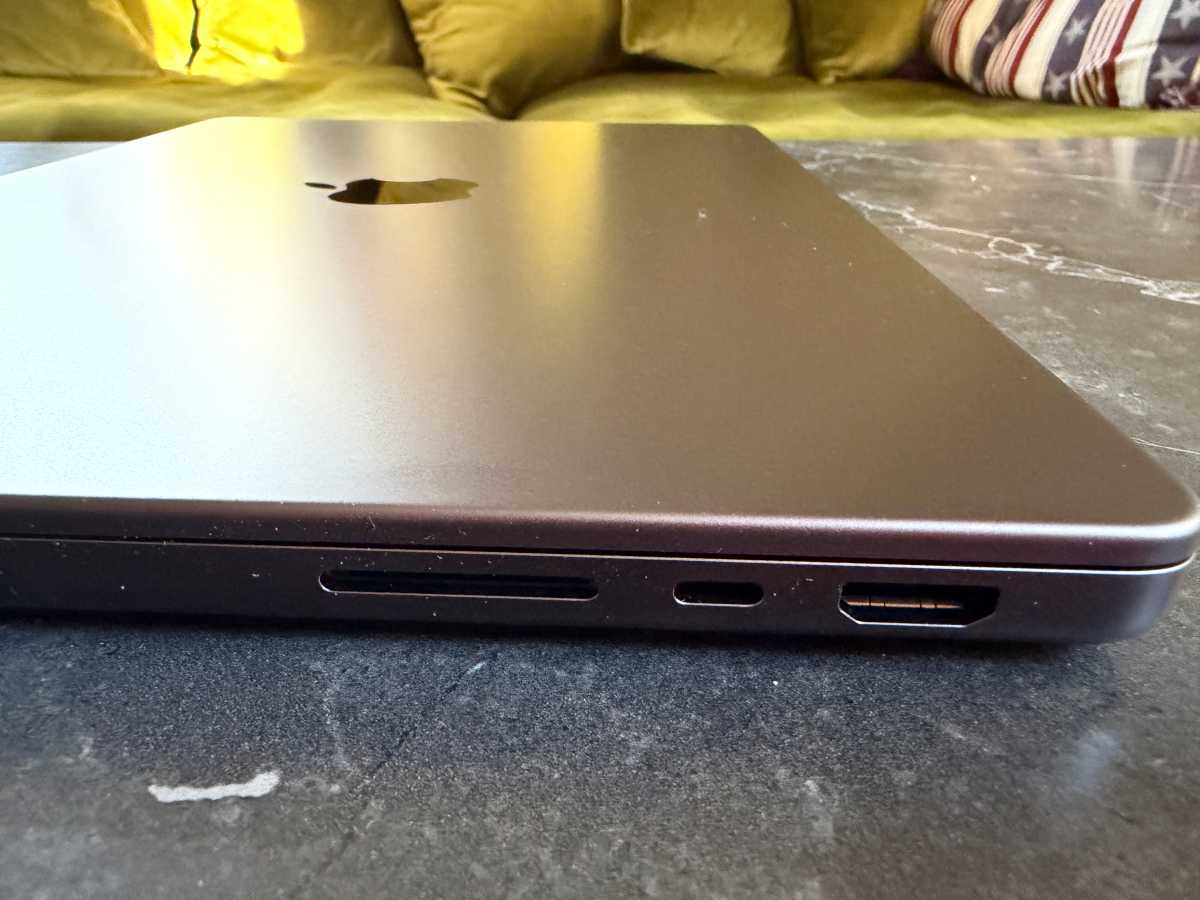
Using a MacBook with the lid closed.
Petter Ahrnstedt
There are several functional and technical reasons why you might choose to operate your MacBook with the lid closed.
Multi-Monitor Support: One common reason to use clamshell mode is to maximise external display support. For example, on some earlier base-model Apple Silicon MacBooks, including the M3 MacBook Air and certain 14-inch M3 MacBook Pro models, dual external display support is only available when the built-in display is closed. When running macOS Sonoma 14.6 or later, these systems can support up to two external displays – but only in clamshell mode because the internal display is disabled, freeing hardware resources to power a second external monitor.
Desk Organization and Ergonomics: Using a MacBook in clamshell mode allows you to move it out of the way to free up physical desk space, perhaps tucking the laptop into a vertical stand or a docking station, significantly reducing its footprint on your desk. This is particularly useful if you prefer using a full-sized mechanical keyboard and a dedicated mouse rather than the built-in laptop peripherals.
Uninterrupted Background Tasks: You may want to close the lid while the Mac is busy with long-running tasks, such as downloading large software updates, syncing a Time Machine backup, or playing music during a DJ set, or keeping AI agents running.
Normally, closing the lid puts the Mac to sleep, but specific settings or third-party apps like Amphetamine can keep the system active for these tasks.
See also: Best stands for MacBook and Best MacBook docking stations.
Why does my MacBook sleep when I close the lid?
Apple doesn’t officially support disabling sleep when the lid is closed without an external monitor and power source by default, but there are workarounds.
MacBooks are designed to enter a sleep state when the lid is closed primarily to manage power consumption and protect the hardware. This automatic transition helps preserve battery life and prevents the device from overheating while stored in a confined space like a backpack.
The reasons for this behavior include:
Power Management: Closing the lid triggers a standby mode that significantly reduces power usage. For instance, newer memory standards like LPCAMM2 can reduce standby power usage by up to 80% compared to older modules.
Hardware Protection: If a MacBook remains active while closed in a bag, it can overheat and become really hot because it is still processing tasks without adequate ventilation.
Automatic Updates: While asleep, macOS may occasionally wake the system to install updates or sync data, though this can sometimes lead to the device becoming unexpectedly warm if it doesn’t return to sleep properly.
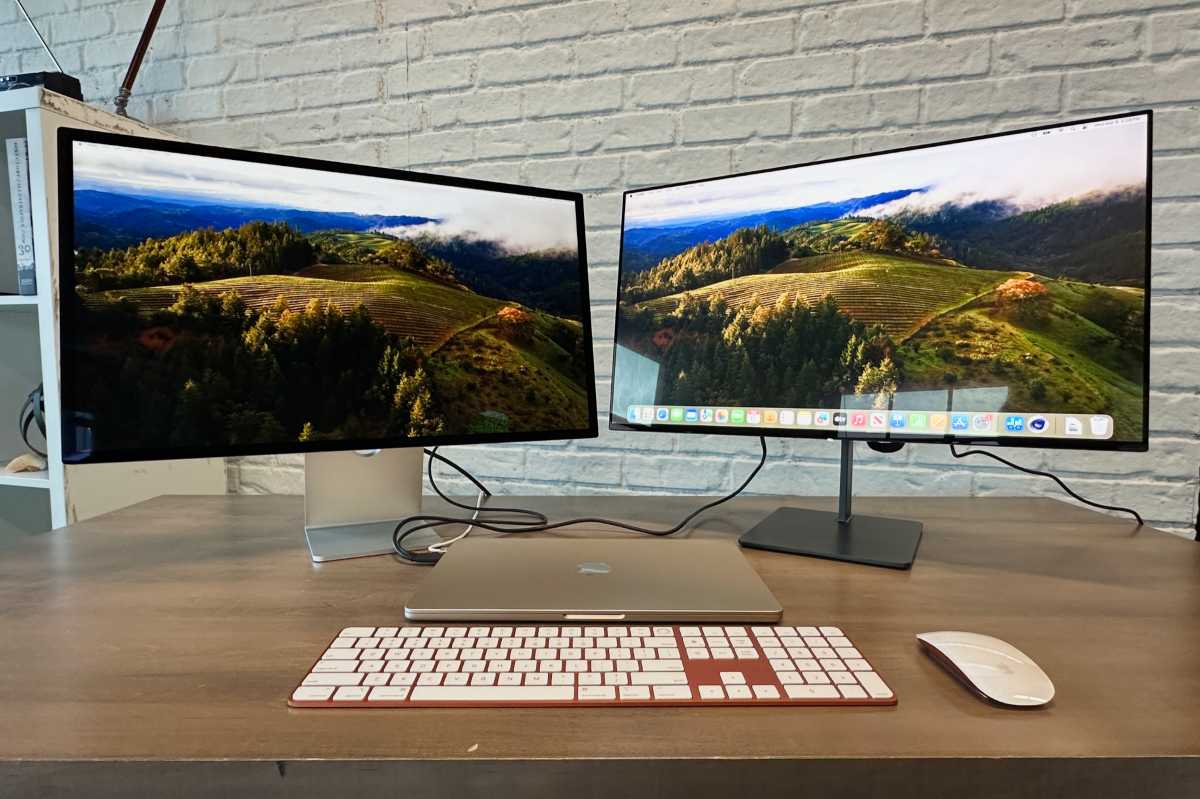
What do I need to use a MacBook with the lid closed: Clamshell Mode
Foundry
To operate your MacBook with the lid closed, you must have specific external hardware connected and meet the following requirements:
Power Source: Apple’s recommended setup for using a MacBook in closed-display (clamshell) mode is to connect an external display, a power adapter, and an external keyboard and mouse or trackpad. While some newer MacBook models — particularly Apple Silicon systems — may continue to operate with the lid closed while running on battery power, this behaviour can vary depending on the Mac model, macOS version, and connected peripherals. For the most reliable and fully supported clamshell-mode experience, Apple recommends keeping the MacBook connected to power.
External Display: The Mac must be connected to an external monitor.
External Peripherals: You must have an external keyboard and mouse (wired or Bluetooth) to wake and control the computer.
Up-to-date software: Using a MacBook with the lid closed is a lot simpler than it used to be if you are using a newer Mac and a newer version of the Mac operating system. In fact, if you are experiencing issues using your Mac with the lid closed then it is likely that you could address this by updating your Mac to a recent version of macOS, assuming your Mac supports it (see our macOS compatibility checker). Newer versions of macOS have made this process much smoother, resolving many of the bugs that plagued older Intel-based MacBooks.
How to use a MacBook with the lid closed
Follow these steps to use your laptop as a desktop computer by connecting it to external peripherals while the built-in display is shut.
- Connect a keyboard, monitor and mouse to your MacBook. If you are using a Bluetooth mouse and keyboard, make sure that Bluetooth is enabled and that the peripherals are paired with the Mac.
- Turn on the laptop.
- Wait for your macOS desktop to appear on the external monitor.
- After your Mac notebook’s Desktop appears on the external display, close the computer’s lid.
- Your external monitor may flash off for a moment, but it will then show your Desktop (if this doesn’t automatically happen you may need to wake your Mac by pressing a key on the external keyboard or moving the mouse).
- You may find that your MacBook needs to be plugged in via the power adapter for the screen to appear on the external monitor, but ours didn’t.
You can read more about using a second display with your Mac here.
But even with these settings, if you aren’t attached to an external monitor closing the lid will cause the Mac to sleep.
What if you don’t want to plug in an external display? Read on…
How to stop a MacBook from sleeping when the lid is closed
Suppose you don’t want your MacBook to sleep when you close the lid? Maybe it is busy downloading something and you don’t want it to stop, but you need to carry it somewhere. Or maybe you’ve left it downloading an update overnight or syncing your Time Machine backup, and you’d prefer not to see the backlit keyboard. In another scenario you might want to play music from the MacBook without having to have the lid open – something likely to appeal to a few DJs.
The problem is that your Mac will go to sleep when you close the lid if it’s not plugged in and connected to an external display.
To stop a MacBook from sleeping when the lid is closed – specifically when it is running on battery power and not connected to an external monitor – you generally need to use third-party software or advanced system commands. By default, macOS is designed to enter sleep mode in this state to preserve battery life and prevent overheating.
Option 1: Use a Third-Party App like Amphetamine
The most reliable way to achieve this is through free utilities designed to override macOS sleep settings.
Our recommendation is Amphetamine, which is free and can be downloaded from the Mac App Store:
As noted in our round up of the best free Mac apps, Amphetamine will keep your Mac awake. Featuring a menu bar-based interface, the app lets you temporarily override your Mac’s sleep schedule (even when your MacBook’s lid is closed) and even adds a few useful features like activating only when connected to specific Wi-Fi networks and keeping only certain drives awake.

To configure Amphetamine for this specific scenario, follow these steps:
- Download and open Amphetamine (it’s on the Mac App Store).
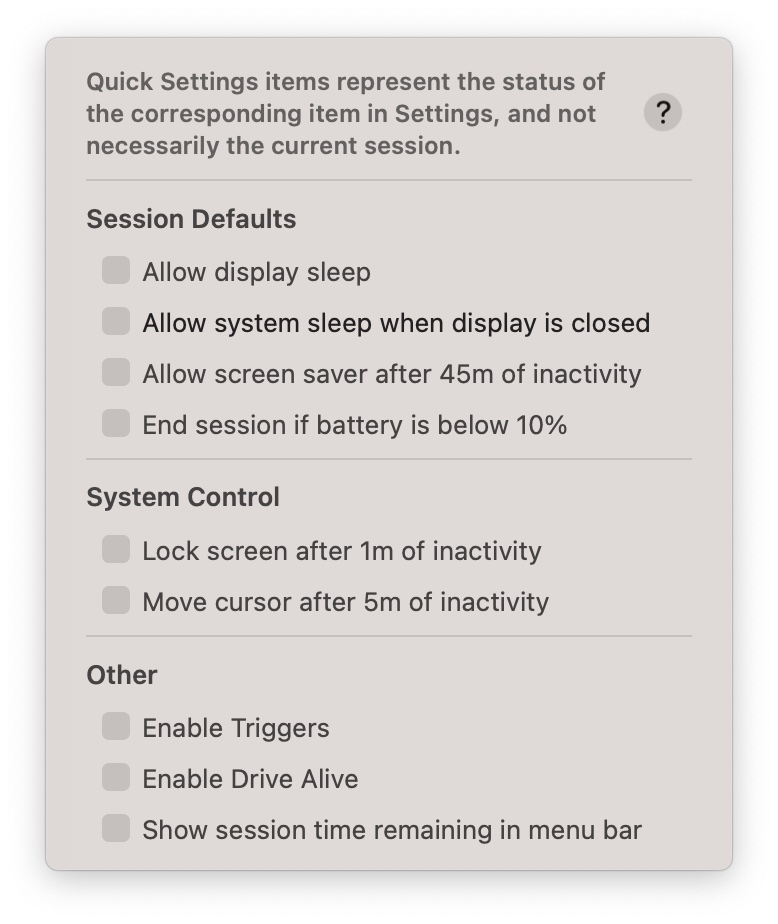
- Click the pill-shaped icon in your menu bar
- Select Quick Settings.
- In the Session Defaults section, uncheck the box for “Allow system sleep when display is closed”.
- Start a new session using ” “Indefinitely” or “While File is Downloading” or “While App is Running”) to keep the Mac awake after closing the lid.
Your Mac may need to be plugged in while the download continues.
Alternatively, Caffeinated is a paid app available on the Mac App Store here for $3.99/£4.49, this app also overrides the Energy Saver settings to keep your Mac awake, preventing your Mac from going to sleep.
Option 2: Use a dongle
You can use a dummy display plug that tricks your MacBook into thinking it’s connected to an external display, thus putting your MacBook in clamshell mode and keeping it running.
You can find a four-pack of UGreen HDMI dummy adapters on Amazon for nine bucks.
Option 3: Use Terminal Commands
If you prefer not to install third-party software, you can use the Terminal to disable sleep mode entirely.
- Open Terminal.
- Enter the following command: sudo pmset -a disablesleep 1
That should stop your Mac sleeping.
Please note that using this command will prevent the Mac from sleeping in all scenarios until you reverse it by entering:
sudo pmset -a disablesleep 0
Option 4: Older macOS versions only
In macOS Monterey and older it was possible to stop the Mac sleeping with the lid shut. Unfortunately, later versions of macOS are designed to enter sleep mode in this state to preserve battery life and prevent overheating.
- Open System Preferences.
- Go to Battery (or Energy Saver).
- Select “Prevent your Mac from automatically sleeping when the display is off.”
How to play music with your Mac’s lid closed
You can use the free Amphetamine app (mentioned above) to keep your Mac awake while the display is closed, here’s how:
Once installed on a Mac you will find a pill-shaped icon in the menu bar at the top of the screen. You can choose from options such as Start New Session While File is Downloading or While App is Running.
If you want to keep Music (or what app you are using) running with the lid closed, first, you need to have that app open. Then follow these steps:
- Click on the Amphetamine icon in the menu bar.
- Click on Quick Settings.
- In the Session Defaults section, deselect “Allow system sleep when display is closed.”
- Go back to the main menu and select While App is Running and pick Music or the app you are using. If your app is not open, it will not appear in the list. Only apps that are running appear.
- You will now be able to shut your Mac’s lid and continue listening to Music.
Foundry
How to continue a download with a MacBook lid closed
Foundry
By default, macOS puts your MacBook to sleep when you close the lid. In sleep mode, most apps stop running, which means regular downloads in Safari, Chrome, Steam, or other apps will usually pause.
To keep downloads running with the lid closed, you need to prevent your Mac from fully sleeping.
Your best option is to use a third-party app, like Amphetamine. Follow the steps in the section above and start a session by selecting While File is Downloading or While App is Running (selecting your browser or download manager).
Another option is to enable “Wake for network access” in your macOS settings. However, while this feature allows your Mac to wake from sleep for certain background network activities, such as iCloud syncing, Time Machine backups, software updates, and remote access, it won’t maintain downloads in browsers of third-party apps once the Mac is sleeping.
In macOS Ventura and later
- Open System Settings.
- Go to Battery.
- Click on Options.
- Choose “Wake for network access”. If you want to take your Mac with you then select “Always”, rather than “Only on Power Adapter”.
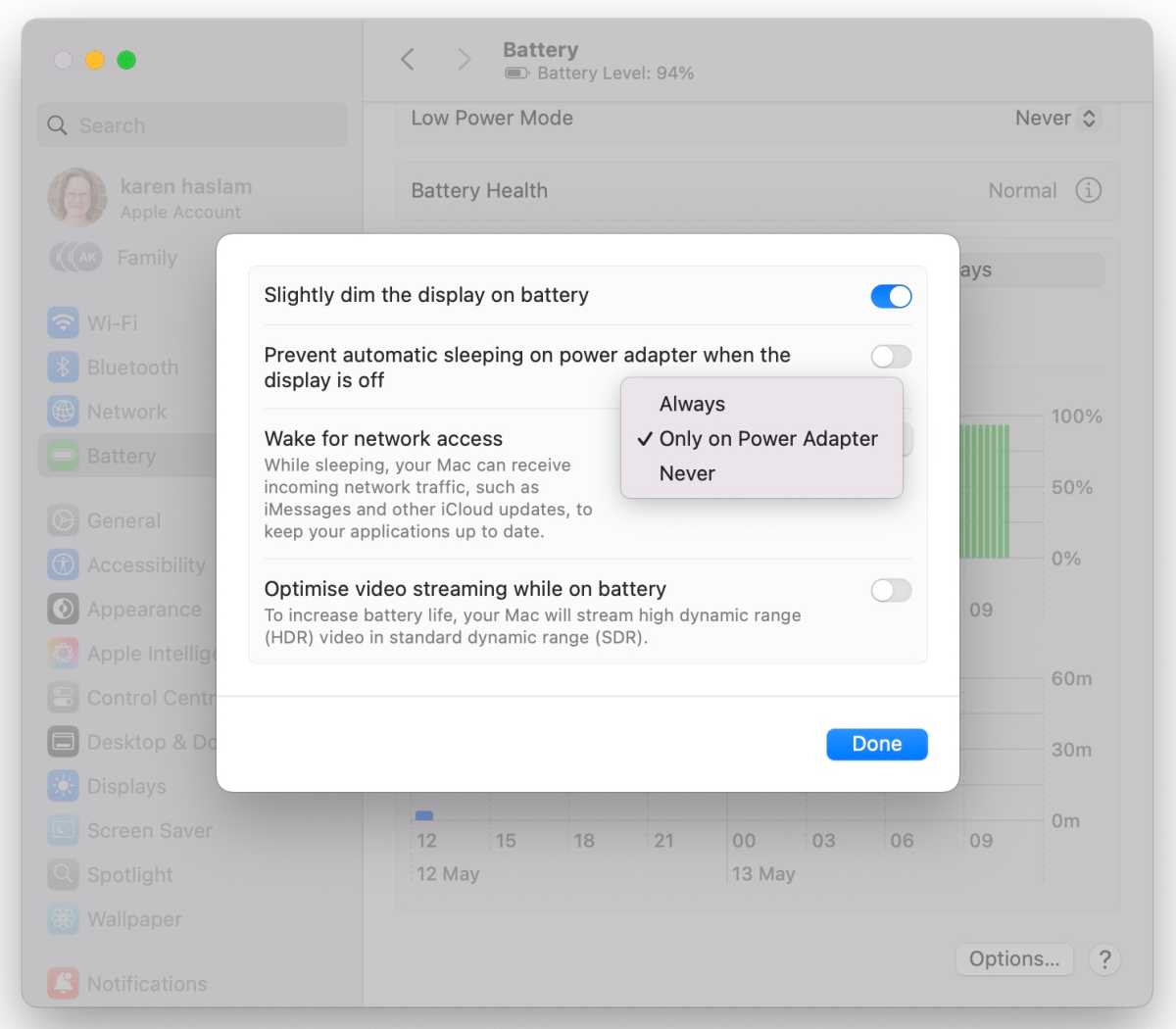
Ensure your Mac can Wake for Network Access.
Foundry
With “Wake for network access” enabled the following may continue (but that isn’t guaranteed):
- macOS updates
- iCloud files and photos sync
- Time Machine network backups
- some Apple background services
With a utility such as Amphetamine preventing sleep the following downloads can continue:
- browser downloads
- cloud storage syncs
- Steam/game downloads
- large file transfers and uploads
See: How Apple has revamped System Preferences in macOS Ventura.
How to turn a MacBook on with the lid closed
One related problem you might come across if you are using your Mac with the lid closed is that when it comes to turning your Mac on it would seem that you have to open the lid to press the power switch… Luckily there is a workaround for that scenario that you might find useful.
If your setup means your MacBook is attached to a display you will be able to use it without having the display open – but what about when you need to turn it on? At that point, you will need to open the lid to press the Power button right? Not necessarily.
It’s easy to wake your MacBook from sleep without opening the lid. Just click or move the mouse or tap on the keyboard. But what if you want to start the Mac up without opening the lid to reveal the power button?
Can it be done? It can! (Sort of)
macOS Ventura and later
In older versions of macOS it was possible to set your Mac to switch on and off at certain times of the day. Unfortunately, this is no longer as simple to set up.
To schedule your Mac to turn on or off in macOS Ventura or later you need to use Terminal. Follow these steps:
- Open Terminal.
- enter one of the following pmset commands:
pmset -g sched(See the current schedule).sudo pmset repeat wake M 8:00:00(Schedule your Mac to wake at 8:00 a.m. every Monday.)sudo pmset repeat cancel(Cancel the current schedule.) - Press Return.
For more advice about how to do this consult Apple’s support page.
We also cover How to schedule your Mac to turn on and off separately and How to set the power scheduler that disappeared in macOS Ventura.
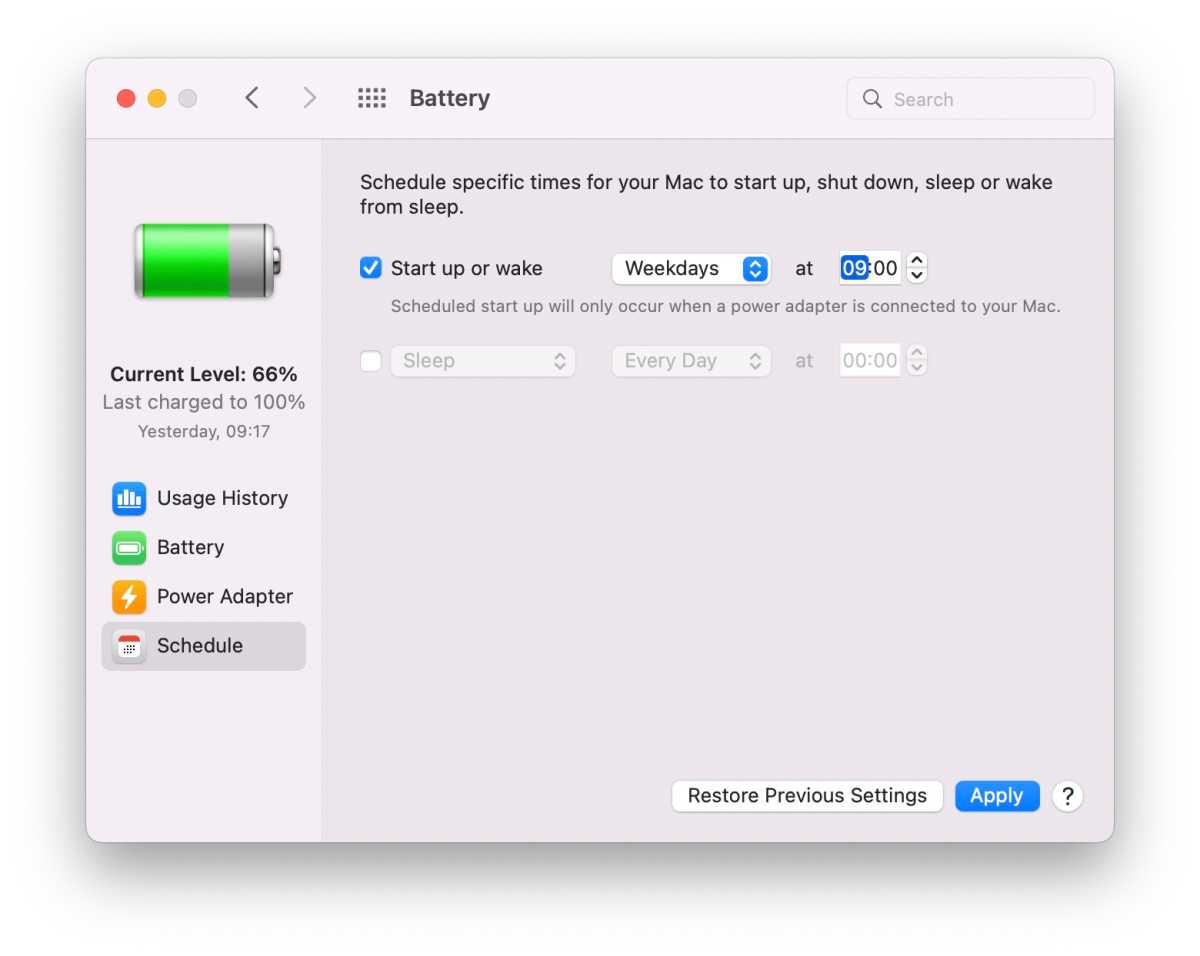
macOS Monterey and older:
There is a setting in Monterey and older that lets you set your Mac to switch on at a particular time.
- Open System Preferences.
- Click Battery (or Energy Saver in older versions).
- Click Schedule.
- Now click beside Start Up or Wake and choose the days and times you want your Mac to start up. Note that the Mac will only turn on when it is plugged into power–you could just leave the Mac unplugged, and then when you want it to start up, simply plug it in.
Foundry
FAQ
Can a MacBook run with the lid closed without an external monitor?
By default, a MacBook is designed to enter sleep mode as soon as the lid is closed to preserve battery life and prevent overheating. Apple does support a closed-display mode (aka clamshell mode), but with hardware requirements that typically include an external monitor. However, there is third-party software, such as Amphetamine, that will allow you to override the default sleep schedule, keeping the system active even when the lid is shut and no external display is present.
Is it safe to stop a MacBook sleeping with the lid closed?
Yes, you can prevent your MacBook from sleeping with the lid closed, but whether it’s safe depends on how you do it and what you’re doing. The primary risk is overheating, as closing the lid can trap heat. However, there are safe, Apple-supported ways to use your MacBook with the lid closed, as well as workarounds that carry some risks.
Why does my external monitor turn off when I close my MacBook?
Your MacBook’s external monitor turns off when you close the lid because macOS is designed to put the laptop to sleep by default as soon as the lid is shut. This is a power-saving feature.
Can I use clamshell mode on battery power instead of plugging in the charger?
In some cases, yes. Certain newer MacBook models – particularly Apple Silicon models – may continue to operate in clamshell mode while running on battery power. However, Apple’s recommended and officially supported setup for closed-display includes connecting the MacBook to a power adapter.
Behaviour on battery power can vary depending on the Mac model, macOS version, and connected peripherals, so using external power is the most reliable configuration for clamshell mode.
What’s the difference between sleep mode, clamshell mode, and preventing sleep on a MacBook?
The primary difference between these modes lies in how the MacBook manages its power, display, and background tasks when the lid is closed.
Sleep Mode: Sleep mode is the default state for a MacBook when the lid is closed. In this state, the system pauses most operations to conserve battery life.
Clamshell Mode: This mode allows you to use your MacBook as a desktop workstation while the lid is closed. This mode is officially supported by Apple but requires specific external hardware to function, including an external display, a power source, and external peripherals like a keyboard and mouse.
Preventing Sleep: In some cases you might want to keep a MacBook fully active even when the lid is closed, without necessarily meeting the strict hardware requirements of clamshell mode. Since macOS doesn’t support this you need a third-party app, or you could plug in a dongle that makes your Mac think you have a display plugged in.