It’s happened to the best of us. The glass of water or a cup of coffee sitting beside our laptop is knocked over and the contents goes everywhere. If you are really unlucky that may be the end of the road for your Mac. But if you are prepared and know what to do to minimise the damage, you might manage to avoid the death of your Mac.
If you spill water, coffee or another liquid into your MacBook or desktop Mac there are a few things you should do immediately to save your Apple tech from short-circuiting and stop corrosion inside.
Act fast and safely. The biggest danger to your Mac and you is liquid meeting electricity.
What to do if liquid spills into your Mac
- Immediately shut down the computer and unplug the power cord or charger—check that your hands and sleeves are dry as well as ther power socket. Press the power button for a full five seconds so that it completely switches off and shuts down. Water itself won’t do much damage on its own. It is the combination of liquid and a powered circuit that causes short circuits & corrosion.
- Disconnect any peripherals (hard drives, docking stations, printers, and so on)
- Move the computer away from the spill but keep the device still until you have mopped up any liquid on the Mac with a paper towel or dry microfibre cloth and remove any touching surface liquid that might still get into the computer. Tilting a MacBook while there is still water on the keyboard may cause liquid to run into the vents at the bottom of the screen.
- Blot visible liquid with a soft, dry, lint-free cloth, including a MacBook’s keyboard and trackpad to clear any water off the exterior. Dry your MacBook’s screen if it has been exposed to liquid, as water can enter behind the glass and leave watermarks that can obscure your display.
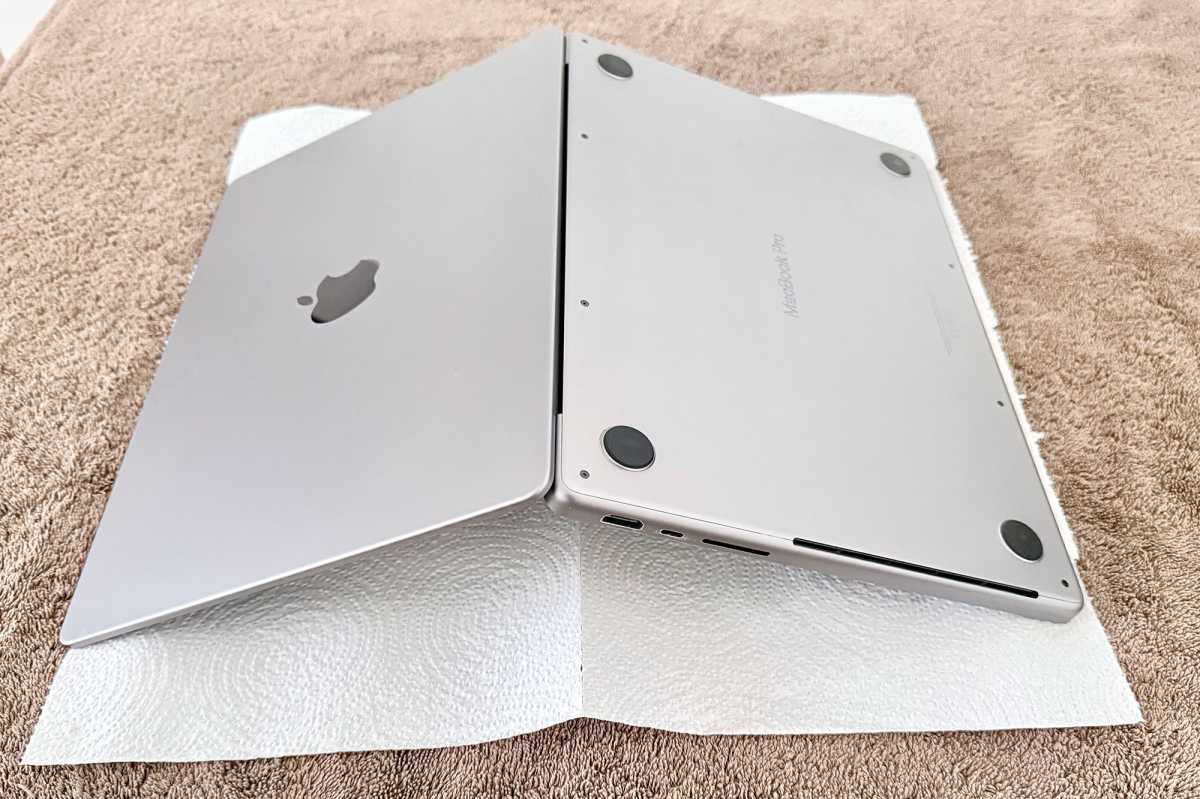
- Lay the computer upside down on paper towels in a dry ventilated area to get as much liquid as possible to drip out. This should be passive drying, don’t blow air into the MacBook as this may just move the liquid around inside. Water damage can show up days or even weeks after the incident. Delayed damage can be caused by rust build-up in the internal mechanism, which is why you must dry your laptop properly after a spill.
- Wait a minimum of one day before turning the Mac back on.
- Be prepared to take the computer into an Apple Store or Apple Authorized Service Provider (AASP) as soon as possible.
Simon Jary
What not to do if liquid spills on your Mac
- Don’t try to turn the computer back on too early
- Don’t shake the computer—this will spread liquid around
- Don’t use a hair dryer on it—the heat may damage sensitive components
- Don’t forcefully poke anything—for example, a cotton swab or a paper towel, into the vents or ports as this can cause damage to the logic board or the ports themselves.
- Don’t put your device into a bag of rice—it can get into the ports and do further damage
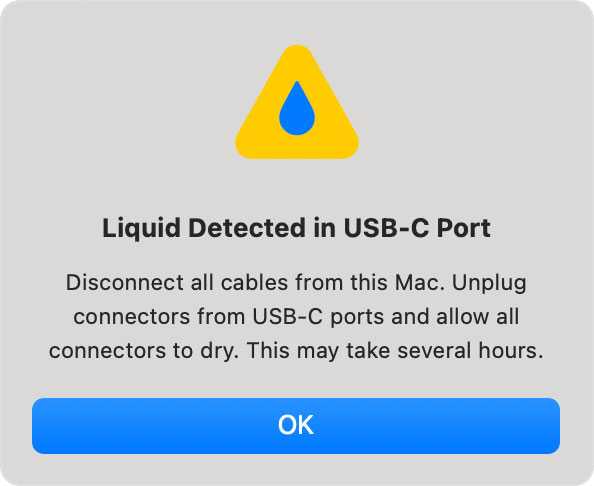
What does the “Liquid Detected” warning on a MacBook mean?
Apple
Apple incorporates moisture sensors into its products to reveal liquid ingress.
The latest MacBooks (M3 and later models) can detect and warn when there is water in the Thunderbolt/USB-C port. You could see the warning for just a drop or a much larger amount of liquid in the port and inside the Mac, as explained on Apple’s Support page.
If you see this warning you should:
- Tap out the liquid with the offending port facing down
- Air dry: Leave the device in a dry area with some passive airflow (definitely not a hairdryer) for at least 30 minutes.
- Wait longer if necessary: If the warning returns, leave the Mac in a dry space for up to 24 hours
How long should you leave a wet MacBook before turning it on again?
Apple’s current minimum guidance is to leave it at least 24 hours before switching the MacBook back on.
Turning it on too soon can send electrical current through components that are still wet, potentially causing permanent damage. After a significant spill, it may be sensible to wait up to 72 hours (three days) before trying to power it on.
There isn’t one safe waiting period for every spill. A small amount of moisture around a connector is very different from liquid that has soaked into the keyboard or entered the case, so the amount of liquid involved should guide how cautious you are.
Most importantly, don’t assume that because the MacBook looks dry on the outside, it is dry inside. Moisture can remain trapped inside long after the surface has dried, so giving it more time can make all the difference.
Should you put a wet Mac in rice?
No. Rice particles can get stuck inside the ports, vents, and keyboard. Worse, starch from the rice can mix with any remaining moisture to create a sticky paste that ruins components.
Passive airflow is preferable.
Should you open the Mac to dry it?
Unless you are qualified to repair modern Macs, you shouldn’t try to open up any part of the Mac as you could do more damage, as well as move any water remaining water. With DIY hardware fixes you might also make later required professional repair more difficult.
What if you spilled coffee, wine, soda or a sugary drink on a Mac?
Pure water will likely cause fewer corrosion problems over time compared to coffee, beer, juice, etc. If you let the machine dry and wait to power it up, and it works fine, then problems might not develop in the future as residue can remain after moisture evaporates.
Sticky or corrosive spills are a stronger reason to seek professional inspection and help.
Is there any special kit to help dry a wet MacBook?
UAG
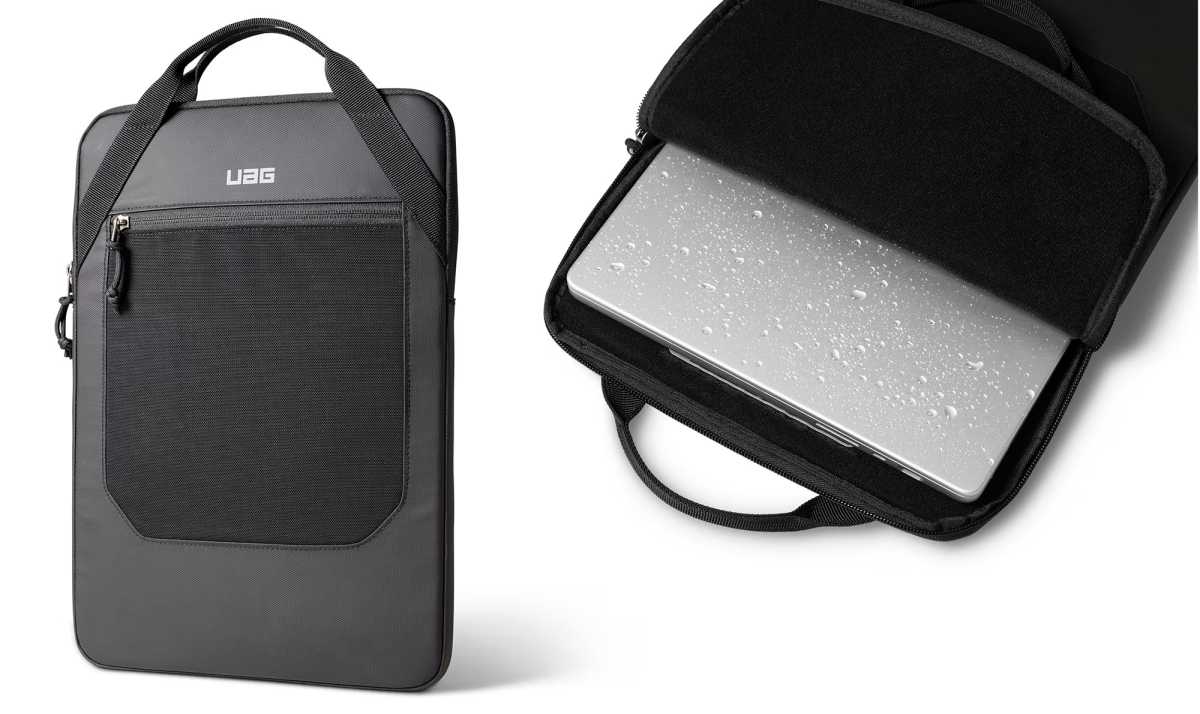
Tough protection accessory maker UAG claims its Dryout Ultimate Laptop Sleeve features moisture-removal technology that actively pulls moisture away and trap it into an absorbent core.
It’s a nice laptop sleeve in its own right and fits any laptop up to 16 inches even if you keep all your gadgets as dry as Apple intended.
You won’t have time to go out and buy one when you’ve just spilled your glass of water all over your MacBook, but it’s a purchase you might consider if your tech is frequently in watery environments.
When should you take the MacBook to Apple or a repair shop?

Apple
It might get expensive but there are situations that really demand a visit to the experts at an Apple Store or an Apple Authorized Service Provider (AASP). These include:
- Large spill
- Liquid has entered keyboard or vents
- Mac will not turn on
- Mac turns off unexpectedly
- Keyboard/trackpad stops working
- Charging problems
- Repeated liquid-detection warnings
- Sweet, acidic or alcoholic liquid was spilled
According to this discussion on Apple’s Community pages it’s still worth drying out the Mac before heading to Apple, so follow our do’s and don’ts at the top of this article. If you do need to visit an authorized expert, don’t wait too long. If it’s not working after a day or two or the above situations occur, seek help swiftly.
For an idea of how long repairs might take and what they cost read: Apple repairs: price guide and how long repairs take.
Does the Apple warranty or AppleCare cover liquid damage to a MacBook?
Accidental liquid damage is excluded from the Apple Limited Warranty, but it can be covered if you purchase an AppleCare+ plan.
Apple states in its AppleCare+ page that “liquid damage is covered as part of accidental damage protection”, with Mac-AppleCare+ pre-accident cost starting at $3.99/£3.49 per month.
What if your MacBook will not turn on after a spill?

EaseUS
First, do not repeatedly attempt to power it on. Electricity and water do not go well together, and you may be putting both your Mac and yourself in danger attempting it. If your Mac is refusing to turn on after drying out, it’s probably time to seek expert help.
Can your data still be recovered?
UAG
With luck your Mac’s backup is safe—read our How to Backup a Mac if you want to get started on this level of data security. And if the Mac does start and operates normally, now is definitely the time to backup!
If you haven’t got a salvageable backup, look to data recovery apps that can recover your damaged Mac files. Check out our reviews of the best Mac data recovery apps to bring back your lost and deleted files from a water-damaged Mac, and our advice on how to recover data from damaged Mac.
Note that data recovery is more difficult on recent Mac models because Apple solders the storage drives directly to the logic board and locks the data with built-in hardware encryption.
How to reduce the risk of liquid damage in future
Hindsight is a great thing and while this stuff looks obvious, they’re rules we all ignore most days. Accidents will happen but they don’t have to be disastrous.
- Keep drinks at least a foot away from the laptop, so you can quickly grab your laptop before the water hits it
- Use a cup or bottle with a sealed lid
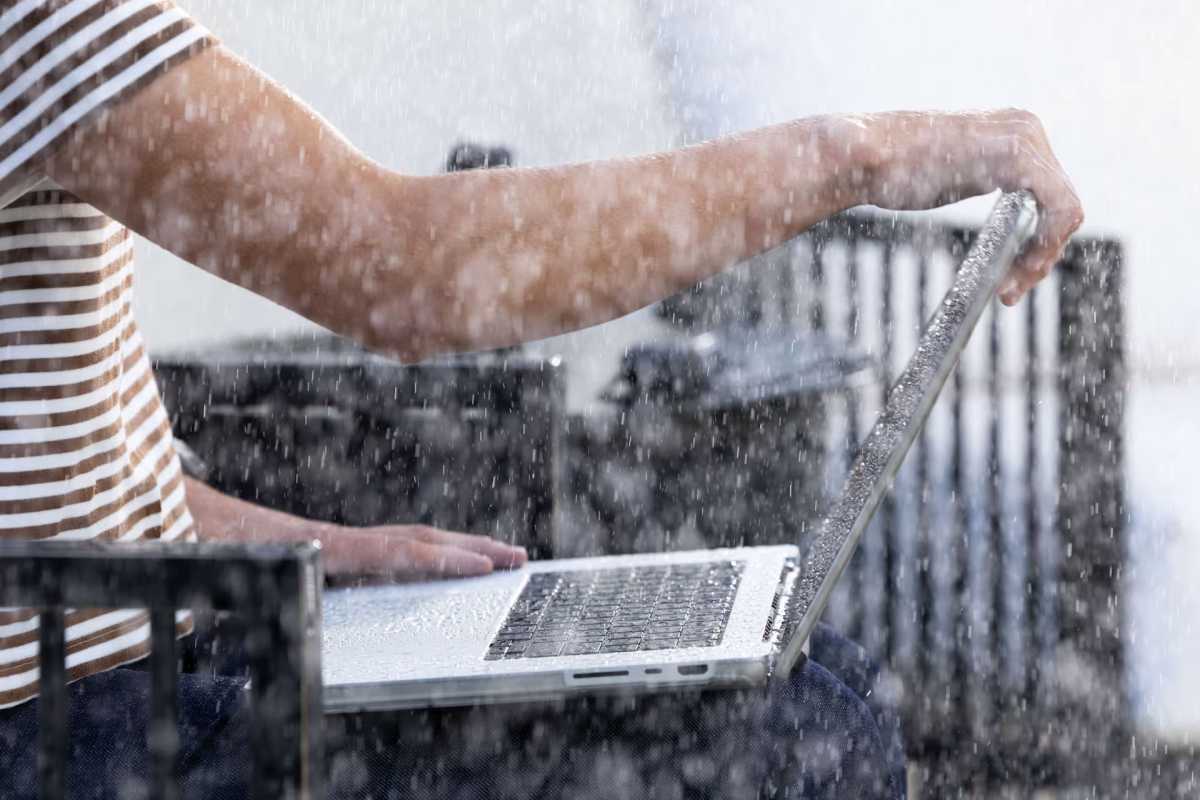
- Keep your MacBook in a protective sleeve in your backpack to put another layer between it and the rain. See our reviews of the best MacBook sleeves.
- Maintain current backups