Apple just released macOS 27 Golden Gate to the general public, but I’ve been using it since the first beta became available. Overall, I think it’s an excellent upgrade that users should install as soon as possible.
Golden Gate has a lot of cool features, but there are three in particular that I absolutely love and use a lot. I think you will, too.
Captions for personal videos
I’ve come to rely on video captions for a couple of reasons: My hearing isn’t as good as it once was, and I watch videos on mute at certain times. Captions are usually available on commercially released videos, but not on personal videos.
But with the OS 27 update, video captions can now be generated on-device, which is extremely helpful. The captions aren’t always accurate; I lost count of how many times it translates “Macworld” into “Mackerel,” and hopefully it improves over time. But it’s good enough to be useful and valuable now.
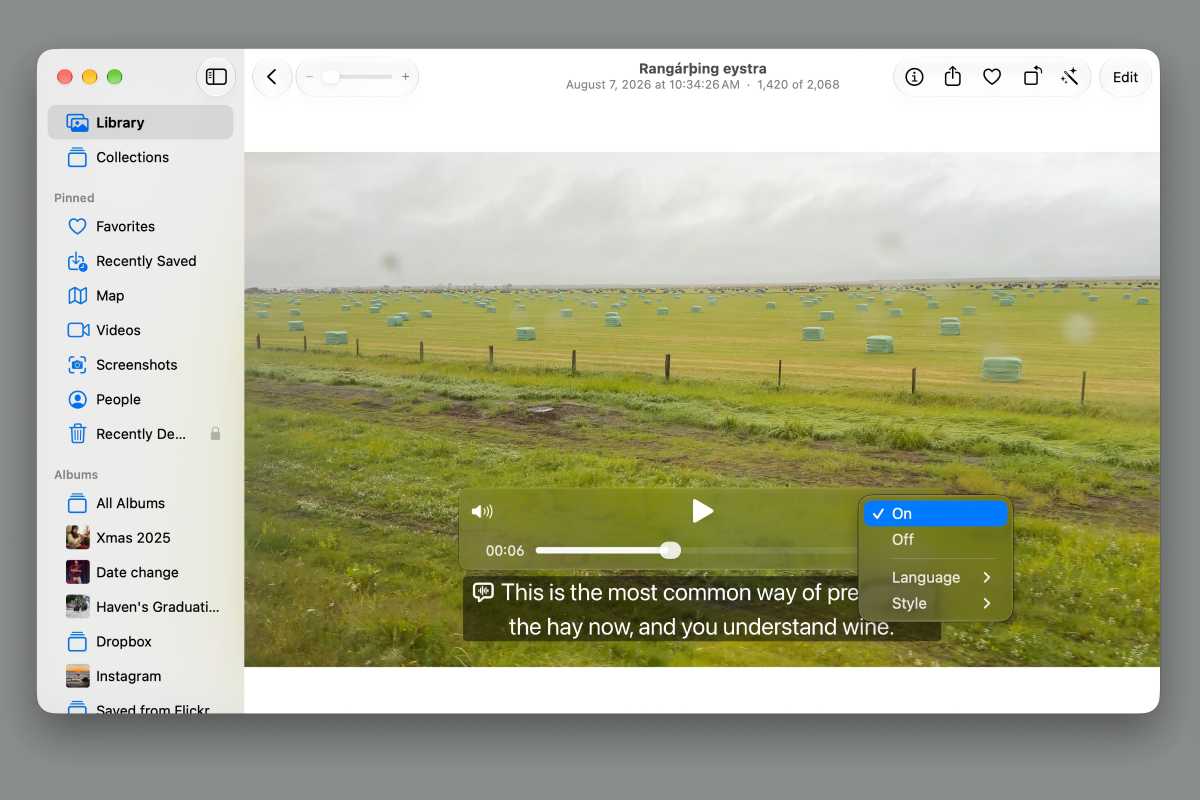
In macOS 27 Golden Gate, if a video doesn’t have captions, the Mac can make them.
Foundry
If captions are not provided, they are automatically generated. To make them appear in QuickTime Player or Photos, click the Caption icon in the playback bar and select On.
Photos Reframe
I’m by no means a photography expert, but whenever I hand my iPhone off to someone else to shoot a photo so I can be in the picture, I often find myself unsatisfied with the pic, mostly because I don’t like the framing. The new Reframe feature in the Photos app helps me improve those photos by allow you to adjust the angle from which the photo was taken.

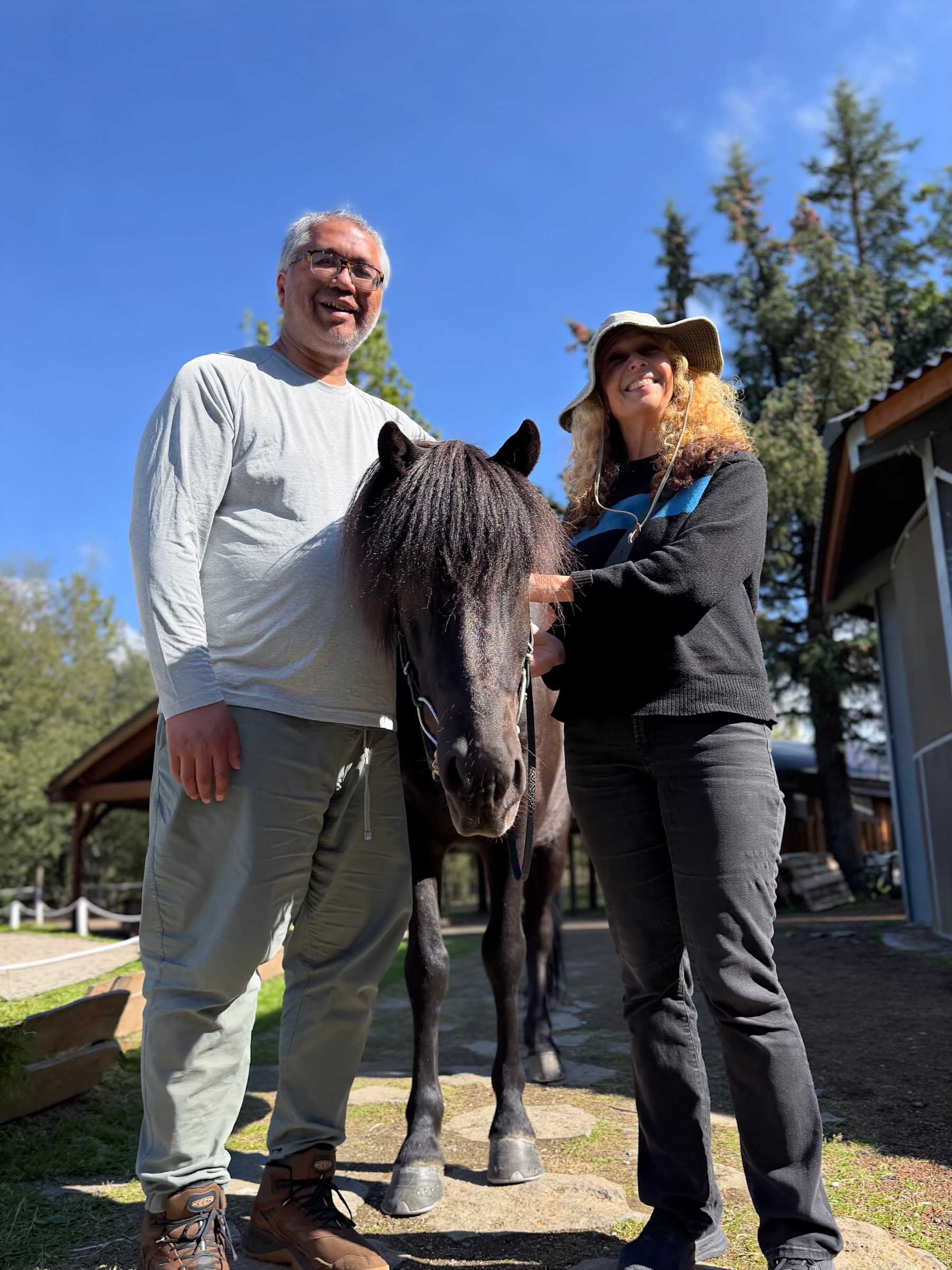
Left: Original photo. Right: Adjusted with Reframe
It’s fairly limited; after all, there’s only so much that can be done with the available data, but I’ve been able to adjust many pics so that they’re better framed or more interesting.
To use Reframe in Photos, select a photo, then click Edit, and then under the Tools section, click Reframe. The Mac needs a moment to process the photo, and then you can move the photo around and tweak the settings to your desired angle.
Natural language Shortcuts
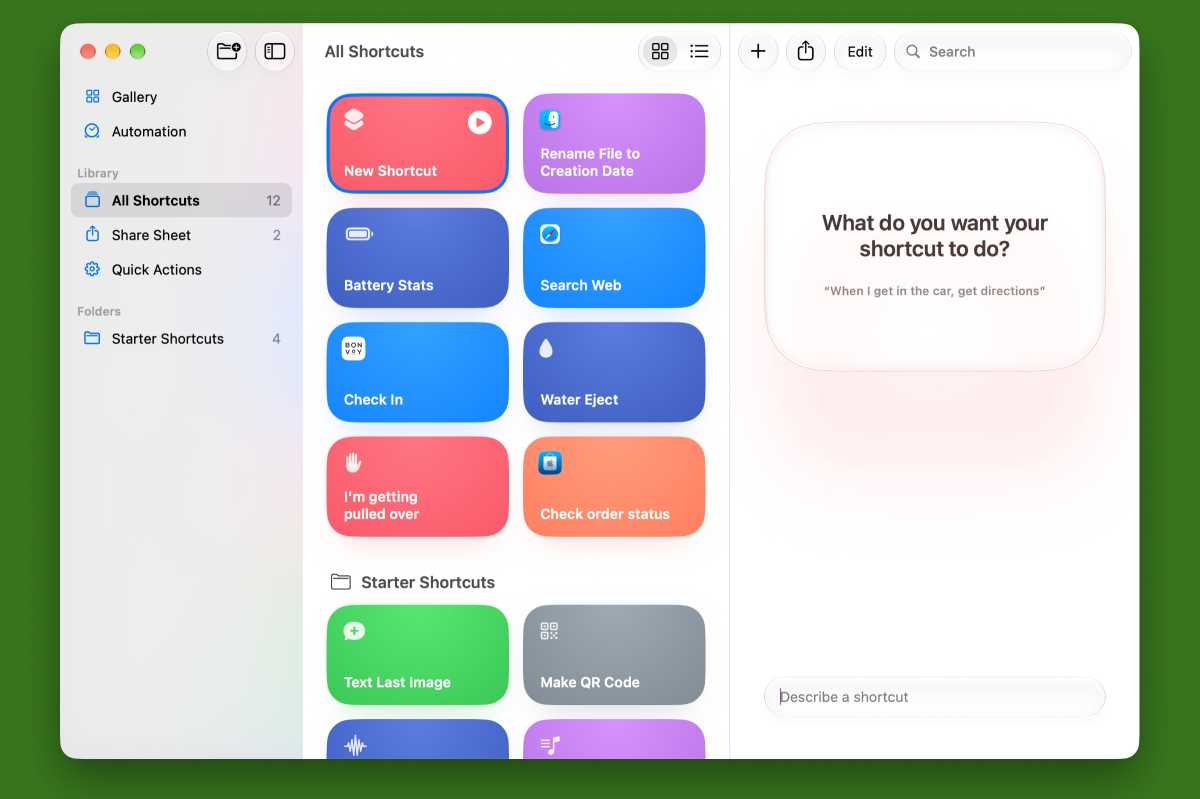
Shortcuts is a fantastic app, but I’ve often found myself spending too much time fine-tuning the aspects of the shortcuts I’ve created. But in macOS 27, Shortcuts supports natural language input, which has helped with that fine-tuning. For example, I made a shortcut by simply saying “Change the file names to the creation date,” and it worked. I was then able to fine-tune it by simply saying what I wanted.
I’ve only just started exploring what Shortcuts can do, but it’s already saving me time. So give it a shot.
Foundry