Apple releases a major update to macOS, the operating system that runs on Macs, every year, bringing new features and other improvements. The latest version, macOS 27 Golden Gate, was released on September 14, 2026.
In this article, we’ll explain how to download and install macOS 27 Golden Gate. We’ll also cover how to update an older version of macOS and what to do if you encounter problems installing an update. Also see: Fixes for Macs that won’t update macOS.
Updating your Mac is easy, free and generally straightforward, but there are a few things we recommend doing first. See our guide to how to get your Mac ready for a macOS update before you begin.
Not every Mac can run Golden Gate. macOS 27 no longer supports Intel-powered Macs, so if you have an older Mac you may need to install or continue using an earlier version of macOS instead. See: How to download old versions of macOS.
When did macOS Golden Gate come out?
Apple released macOS 27 Golden Gate on September 14, 2026. It is available now as a free software update for compatible Macs.
Should I update my Mac to Golden Gate?
Wondering if you should update to macOS Golden Gate at all? Before you start, we recommend you do the following:
Check our macOS Golden Gate vs macOS Tahoe guide to see how the new version compares with its predecessor.
Confirm whether your Mac can run Golden Gate. Golden Gate supports Macs with Apple silicon, but unlike macOS Tahoe, macOS 27 no longer supports Intel-powered Macs. If you have an Intel Mac, Golden Gate will not appear as an available upgrade.
Wait if you rely on your Mac for work or use important apps and peripherals. Despite Apple’s extensive beta testing, major macOS releases can still introduce compatibility problems, bugs and other issues that only emerge after launch. You may therefore prefer to wait for the first macOS 27 update before upgrading.
Waiting can also make the download process easier, as Apple’s servers are often busiest immediately after a major macOS release. We’ll be tracking any problems we hear about in our macOS 27 Golden Gate guide.
How to install macOS Golden Gate on your Mac
We’ll run through all the steps to download and install Golden Gate on your Mac below.
Step 1: Find the macOS Golden Gate Update
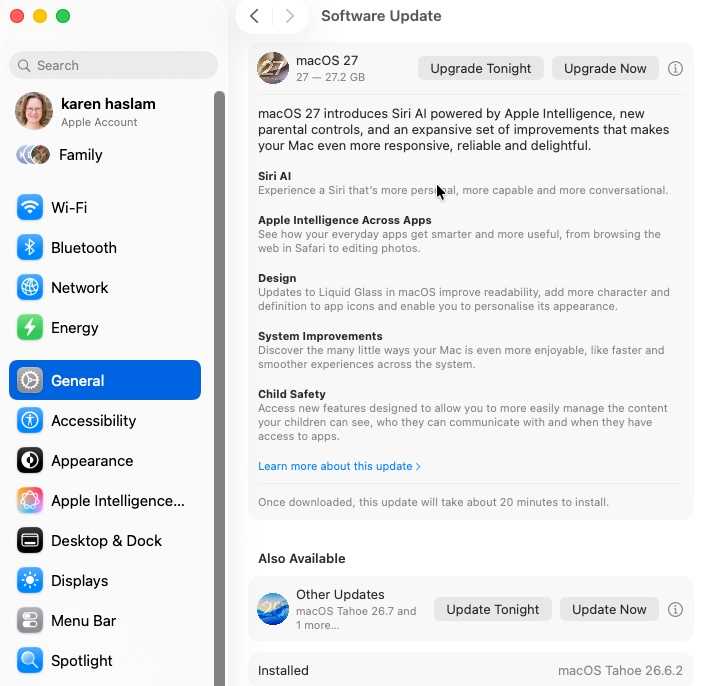
You may see a notification on your Mac that an update is available, in which case you can click on the update, upgrade or restart now button, depending on what’s displayed.
- Click on the Apple logo in the menu at the top of your screen and choose System Settings.
- Now pick General and then Software Update.
- Your Mac will search for the update.
You may also see a Software Update Available alert in the left column of System Settings.
Screenshot
Foundry
Step 2: Download the macOS update
Assuming you see the macOS update, the process to download it works as follows:
- Click Upgrade Now, Update Now or the equivalent button shown in Software Update to download the installer for the new version of macOS.
- While the update is downloading you can continue to use your Mac. It may take a while to download, depending on the size of the update and the speed of your connection.
- Once the download has finished, you should see a window pop up on your Mac asking you to start the install process. If you are ready to install move to step 3 below.
- If you don’t want to install the software yet, perhaps because you are making a bootable installer of macOS, you can find the installer file in the Applications folder via the Finder.
Step 3: Install the macOS update
If you are all set to install the update to macOS, and don’t mind your Mac being out of action for a while (particularly if it’s soon after release!) start the installation.
- Click to install the new version of macOS.
- Follow the onscreen instructions to finish installing the software update.
What to do if your Mac won’t update macOS
While you shouldn’t encounter problems if you have made sure your Mac is prepared for the macOS update and read how to get your Mac ready for macOS, it is possible you will encounter issues. Here are some of the most common problems and what you can do about them.
- Make sure you have plenty of free space on your SSD or hard drive. Your Mac needs enough space to download, unpack and install the update. If there isn’t enough space, the installation can fail. Read: How to make space on Mac.
- Make sure you have a reliable internet connection. If your Wi-Fi is unstable, move closer to the router or, if possible, use Ethernet. If you see a message such as “The network connection was lost,” your connection may be the problem. Read: How to fix Wi-Fi problems on a Mac.
- Apple’s servers can become overloaded when a major macOS update is released, which can cause downloads to slow down, time out or fail. If that happens, try again later.
- If the download or installation appears to freeze, see what to do if your Mac freezes during the installation process.
- Check Apple’s System Status page to see if there is a problem with Apple’s services.
For more advice about what to do if you encounter problems read Fixes for Macs that won’t update macOS.
How long will the macOS update take?
It can vary, based on your internet connection and how many people are also trying to get the update. Major macOS upgrades can be several gigabytes in size, so the download may take some time, particularly on a slower connection or immediately after a major macOS release.
You may want to leave your Mac downloading the operating system update overnight. And that’s before you even start the installation at which point you won’t even be able to use your Mac. Expect the actual installation to take up to an hour – it can go faster than that, but don’t expect it to be done in a few minutes.
How to revert to an older version of macOS
If you are unhappy with the new macOS, it is possible to downgrade, but doing so may involve wiping your Mac. If you have a backup from before the macOS update, you can use that to recover your data.
For help with this process, read How to downgrade macOS. We also cover How to install an older macOS over a new oneand How to download old versions of macOS.
If you want to try future macOS features before they are released to everyone, you can join Apple’s beta-testing program. We cover How to install the macOS beta separately.
You may also be interested in how to run a newer version of macOS on an unsupported Mac.